







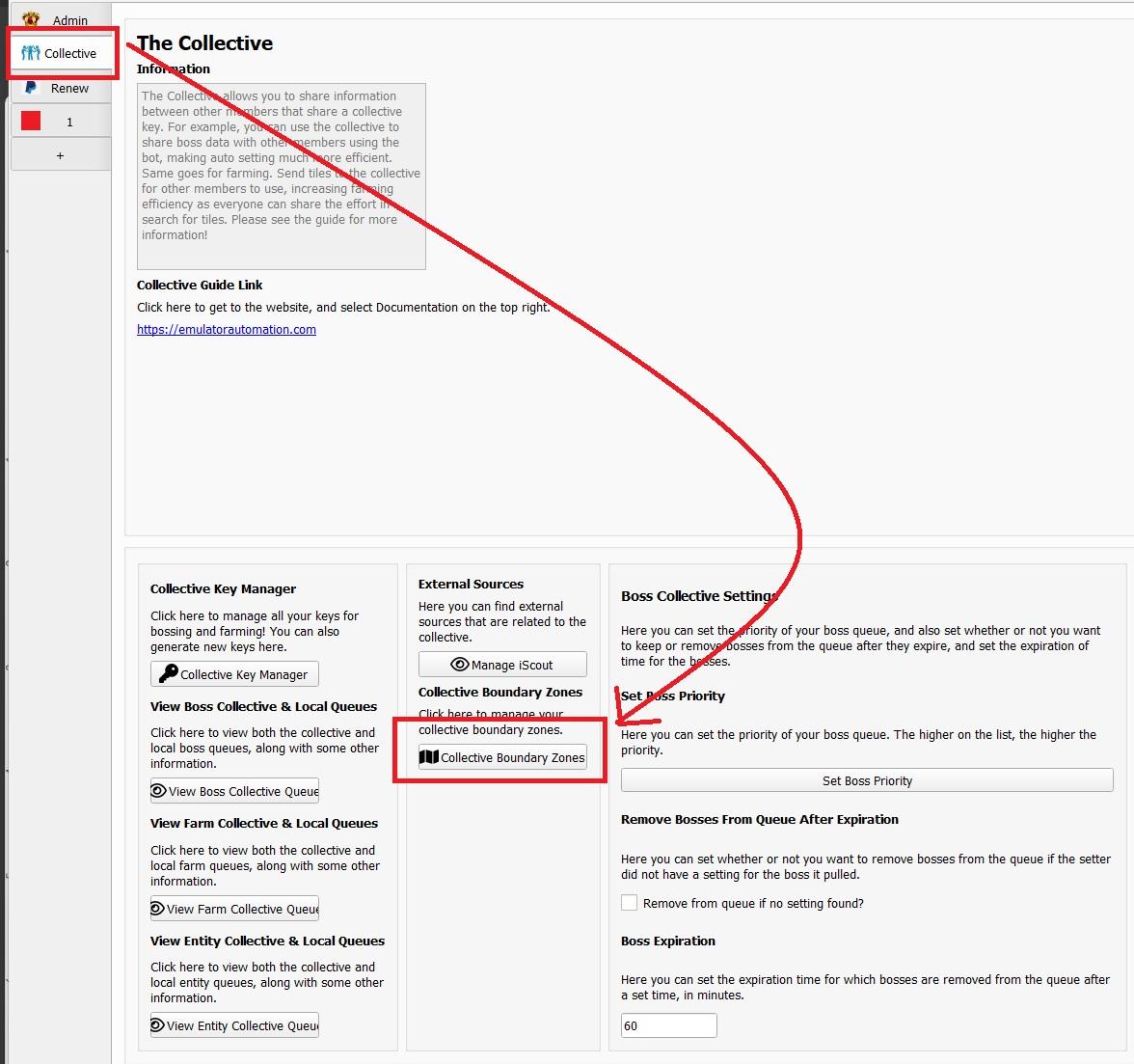
The Collective
Boundary Zones
Create boundary zones on the map grid so the bot will not farm, search for bosses or collect entities in the areas you mark.
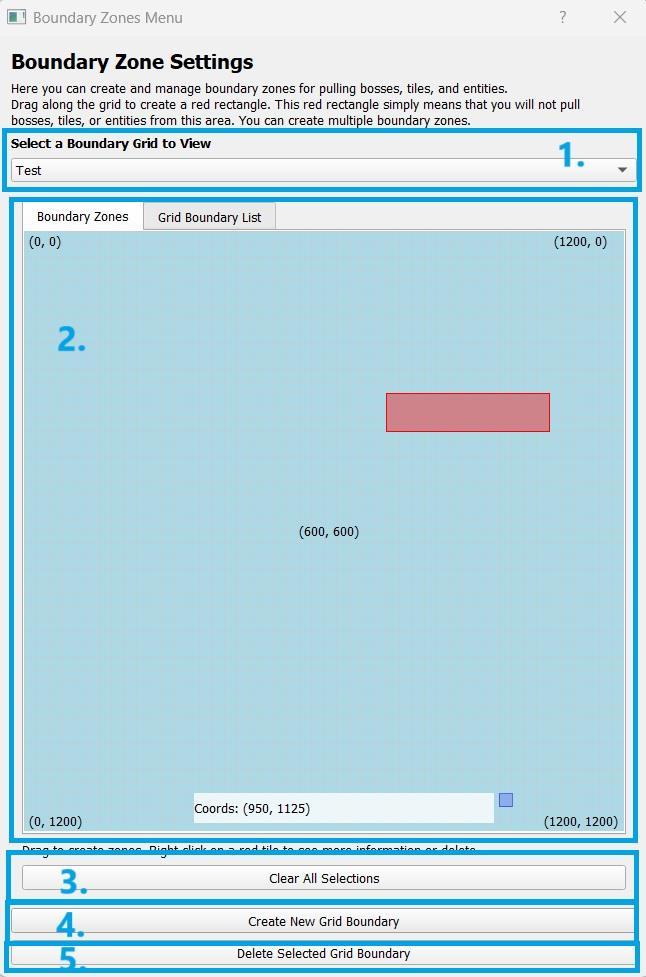
Select a Boundary Grid to View
- Choose a Boundary Grid name you’ve created to view its details
-
- Boundary Zones
- You can create red rectangles on a 1200x1200 grid, where each cell corresponds to 25x25 spatial coordinates.
- The red areas indicate where the bot will not farm, search for bosses, or collect entities.
- You can have as many squares as you need but be mindful of this map versus the inverted map in the game.
- Grid Boundary List
- You can access a grid text list view for more details on the areas you selected
Clear All Selections
- Unselects all currently chosen items.
Create New Grid Boundary
- By creating a new boundary grid, you can better organize the layouts made. Multiple boundaries will not only help you navigate and switch between settings more efficiently, but also make it easier to differentiate between the various layouts created.
Delete Selected Grid Boundary
- This option allows you to delete the currently selected grid boundary.
- Once removed, the boundary will no longer appear in the available boundary grid selections.
Now, you can navigate to the Farming Settings, Entity Finder, or Autosetter Settings tabs in the bot and select the Boundary Zone you want to apply to each of them.