







Profile Guides
Profile Tab Settings
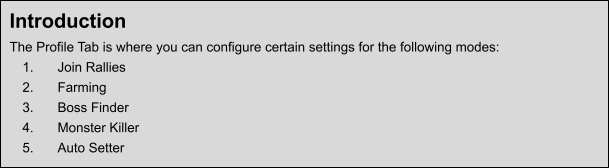
Every setting on the Profile tab explained: routine collections, breaks, bubble, speed-ups, daily activities, healing, game exit options and more.
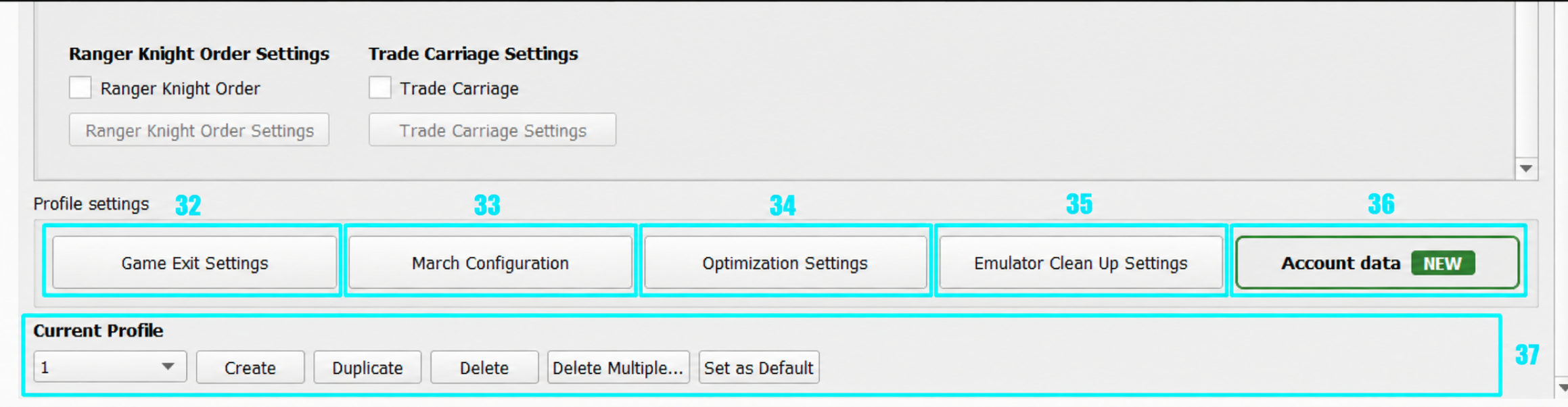
Check the following photo below with numbering and a description by each number below.
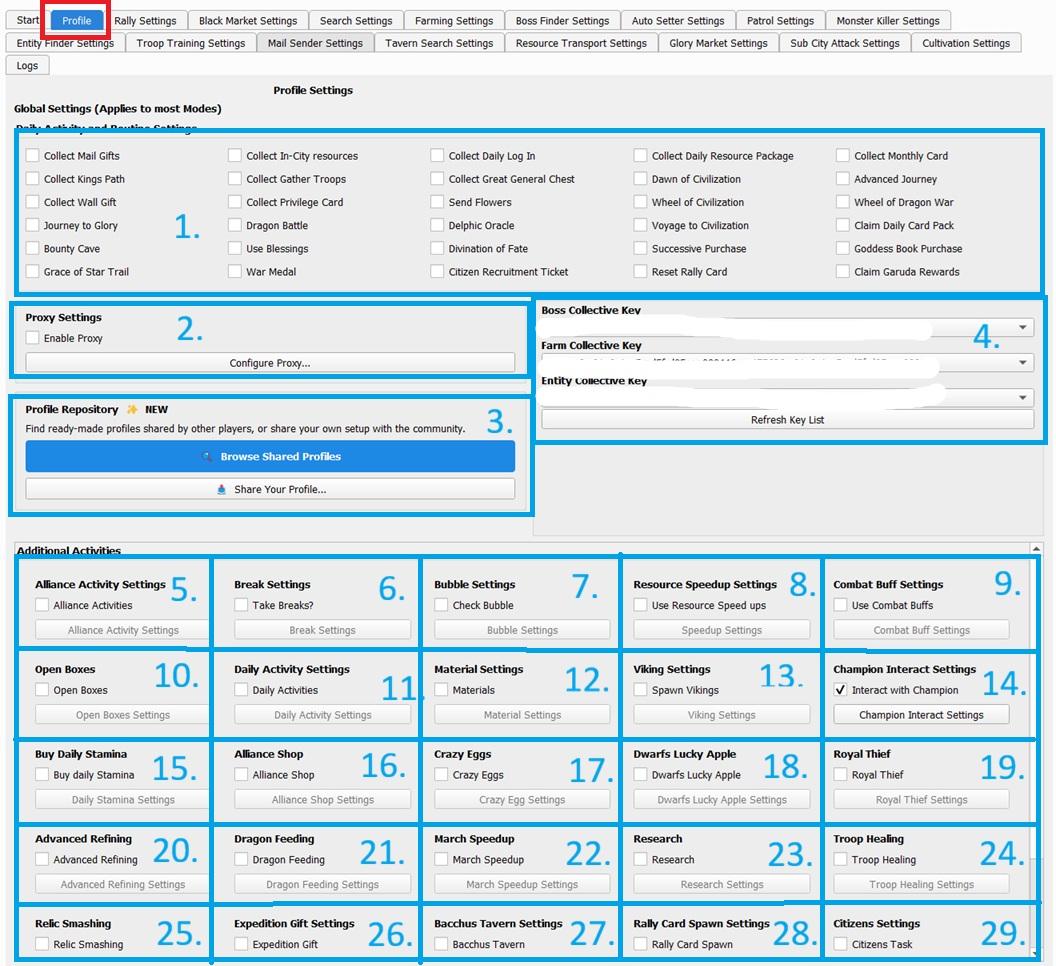
 1. March and Routine Settings
- Collect Daily Login:
- Collects daily log-in gifts!
- Collect Gather Troops
- Collects gather Troops Gifts!
- Collect Mail Gifts:
- Every 3 hours and 20 minutes, the bot will check the mail categories:
- Inbox
- Events
- Every 3 hours and 20 minutes, the bot will check the mail categories:
- Collect Daily Resource Package:
- Collects the daily package gift!
- Collect Great General Chest
- You can now collect the Great General Chest in the Tavern.
- Collect In-City resources:
- Every 3 hours and 20 minutes, the bot will collect resources from inside your keep.
- Collect Monthly Card
- Collects your daily monthly card rewards!
- Dawn of Civilization
- Collects Dawn of Civilization rewards!
- Crazy Eggs:
- The bot will check Crazy Eggs every 60 or 3 hours and 20 minutes depending on the situation.
- Once all eggs are cracked, the bot won’t perform this action until the server reset.
- Collect Kings Path:
- Collects King Paths Gifts!
- Advanced Journey:
- Collects Advanced Journey rewards.
- Alliance Card
- Collects the Alliance Monthly Card.
- Collect Privilege Card
- Collects the Super Value Privilege Card.
- Wall Gift:
- You can now select to collect wall gifts in the profile tab. It will collect roughly every 60 minutes.
- Send Flower:
- Flower rewards can be obtained by sending flowers to the top performing players at the Arch of Triumph in the center of the map.
- Wheel of Civilization
- You can now automatically spin the wheel of civilization.
- Journey to Glory
- You can now automatically spin the wheel for Journey to Glory.
- Dragon Battle
- You can now automatically play dragon battle and collect the rewards.
- Delphic Oracle
- You can now automatically spin the delphic oracle rewards.
- Voyage to Civilization
- You can now automatically collect the free reward.
- Daily Card Pack
- You can now open the daily card pack.
- Bounty Cave
- You can now claim the Bounty Cave package once per day.
- Use Blessings
- You can now use blessings.
- Divination of Faith
- It automatically claims your daily freebie, uses any available divination cards, and collects the related rewards.
- Successive Purchase
- Will automatically claim the daily free rewards for Successive Purchase benefits.
- Goddess Book Purchase
- You can now purchase the 5 daily book pages using this option.
- Grace of Star Trail
- Will automatically claim the free daily gift, perform the free spin, and collect all cumulative rewards.
- War Medal
- Will automatically claim available tasks and collect cumulative rewards. Make sure daily activities are enabled, as they complete most tasks required for War Medal.
- Citizen Recruitment Ticket
- Reset Rally Card
- This will reset the auto join rally card every hour.
- Claim Garuda Rewards
- Auto-claims Garuda Trial rewards and schedules the next run after daily reset.
2. Enable Proxy Please see The Proxy Guide. 3. Profile Repository
- Profile Repository allows users to browse and download profiles shared by other users, or publish their own profiles for the community.
- Browse Shared Profiles: View, search, sort, like, and download profiles shared by other users.
- Share Your Profile: Select one of your profiles and enter a display name, title, and optional description before publishing.
- My Shares: View the profiles you have published and check their status.
Note
Proxy information, Alliance Collective keys, and account/profile names are automatically removed before publishing. URLs, social handles, advertisements, and referral information are not allowed.
4. Collective Key
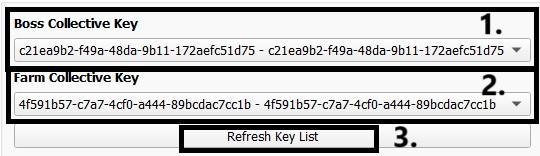
- Boss Collective Key
- Pick the key you want to use to autoset bosses
- Farm Collective Key
- Pick the collective key you want to use for farming.
- Refresh Key List
- This will refresh your key list if you have recently deleted or added a collective key.
5. Alliance Activity
- You can now repeat donate to alliance science per your settings.
- This option includes: Gifts, Help, and Science.
- Every 4 hours to keep up with alliance science cooldown.
6. Break Settings
- Breaks are another amazing way to act like a “normal human”. Humans take breaks. You can set several breaks, one good example being during your normal sleeping hours.
- Breaks will turn the game off and the bot will sleep during your specified time period.
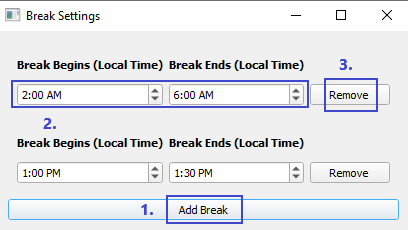
- Add a break
- Set the time range you would like the bot to break. This is in your local computer time.
- Remove a break.
7. Bubble Settings
- Bubble is a convenient way to manage bubble on a lot of accounts so you can have minimal intervention.
Warning
Do not 100% rely on this feature. Although it does a great job, many things can happen such as: Your internet, computer, or emulator crashing. This means the bot can’t bubble you if this happens.
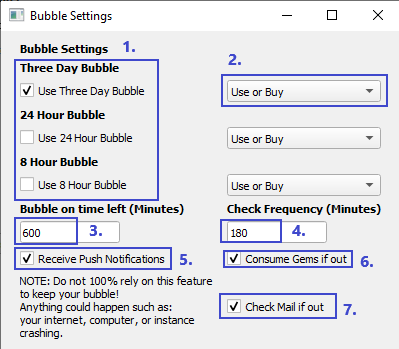
- Select the bubble types you would like to use. It prioritizes 3 days first, then 24 hours, and 8 hours at the end.
- You can choose to just use, or use or buy with gems.
- Select to use the bubble on X time remaining.
- How often you would like to check your bubble.
- Receive push notifications via your phone. You can set up push notifications on the Admin tab.
- If you run out of gems, go to your inventory and consume any gems you have available.
- If you are out of gems, check your mail for any potential gems!
8. Resource Speed-up Settings
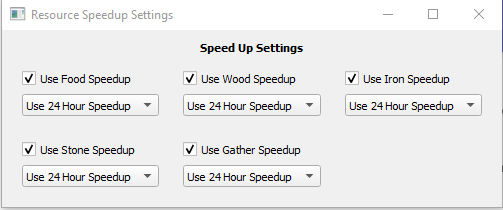
- Simply pick the kind of speed ups you would like to use.
- You also have the option to use 24H speedups, 8H speedups or BOTH.
 9. Combat Buff Settings
- The Combat Buff Settings allow the bot to automatically use and re-apply buffs from the City Buff menu. The Super 10 Min +50% buff is only used when specifically selected.
- Enable the buffs you want the bot to use.
- Select Highest Available, Lowest Available, or a specific buff level.
- Set Re-apply to Dynamically to re-apply when the buff expires, or choose a fixed schedule.
10. Open Boxes
- You can now auto open boxes you select under the profile tab.
- It will open them every X minutes you specify.
11. Daily Activity Settings
- The bot will now do some of your daily tasks! More to be added later.
- It will Daily Patrol
- Choose which items to patrol and refresh, and how many times. Set the limit of 10 and 10 if you want to use all daily patrol and refresh chances. Select all for a quicker option.
- It will Daily Levy
- It will Daily Tax
- It will Daily Labor
- It will Daily Labor
- It will Daily Black Market: it will do 3 daily purchases.
- It will Daily Compose Materials
- It will Daily Wheel
- It will Daily General Enhancing
- This is only for daily cultivation (Which is cultivating 5 times) - You can select this in the daily activity settings under the profile tab. There are no settings, it just picks the top general, cultivates with gold 5 times (cancels them so it doesn't apply).
- It will Daily Offering
- It will donate to the shrine on a daily basis.
- It will Daily Troop Training
- Will train 500 ground troops daily.
- It will Daily Trap Training
- It will Daily Patrol
12. Material Settings
- Will give you the option to collect your sub-city materials and produce materials in-city.
13. Viking Settings
- The General Viking Settings control which Vikings are spawned and how often the bot checks for them.
- Select the Viking Difficulty.
- Set the Check Frequency in minutes.
- Choose whether completed Vikings are shared to AC and/or Collective.
- The Solo Own Viking feature allows the bot to attack your Viking using a selected Auto Setter preset before sharing it with the alliance.
- Enable Solo Own Viking and select the Auto Setter preset to use.
- Set the Target Level you want to solo up to.
- Select the Mode:
- Continuous: Continues attacking Vikings until the target level is reached.
- Once Per Cycle: Attacks the Viking once, then waits until the next Viking check cycle before attacking again.
- Enable Use Stamina Items When Soloing if needed.
Note
Once the Viking reaches the target level, or if soloing is off, it is shared so your alliance can finish the remaining levels.
14. Champion Interact Settings
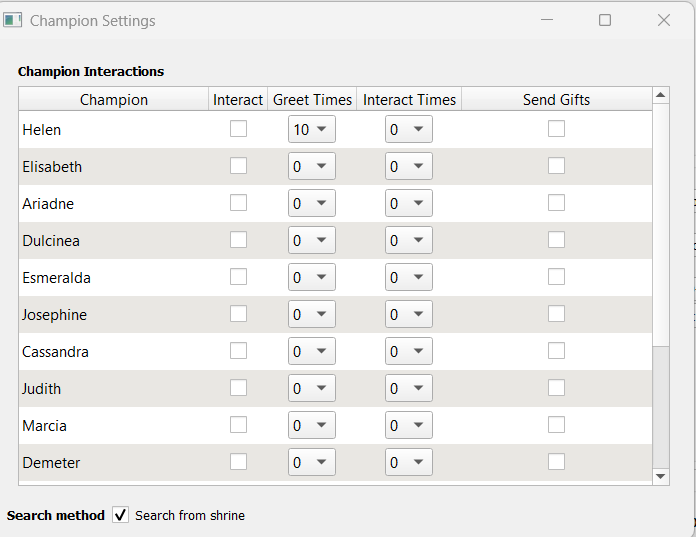
- Greet and touch is available. You need to update your settings to select how many greets/interacts per champion.
- If you under utilize any greets/taps, they will be automatically allocated to the first selected champion.
- If you over utilize any greets/taps, they will be removed accordingly to the next champion that over utilizes.
- If you have a maxed level champion, taps/greets will be automatically allocated to the next non-maxed champion selected.
- You have the option to send gift boxes.
- If Search from Shrine is enabled, the bot will use the Shrine to locate your Main Keep instead of searching for it directly on the map.
15. Buy Daily Stamina
- Will buy stamina from the store, the amount you want to buy, on a daily basis.
- Limited to 200 gems only.
16. Alliance Shop
- You can now buy daily from alliance shop in the profile tab. You can pick from many items.
17. Crazy Eggs
- Crazy eggs has been improved and you can now select which specific eggs you want to crack.
18. Dwarfs Lucky Apple
- You can now automatically use your witches coins.
- Select a strategy, there are three options: a. 5->3-1 b. 3->1 c. 1. This means that it will use up all the coins in the largest category then work its way down.
19. Royal Thief
- You can now invite and kill royal thieves!
20. Advanced Refining
- You can now advanced refine your gear automatically from the Wonder.
- It goes to Wonder and refines the gear up to the daily max.
21. Dragon Feeding
- You can now automatically feed your dragons. Pick what dragons, how many feeds, how many refreshes, and what materials you wish to feed them!
22. March Speedups Settings
- You can now set up to speed marches automatically.
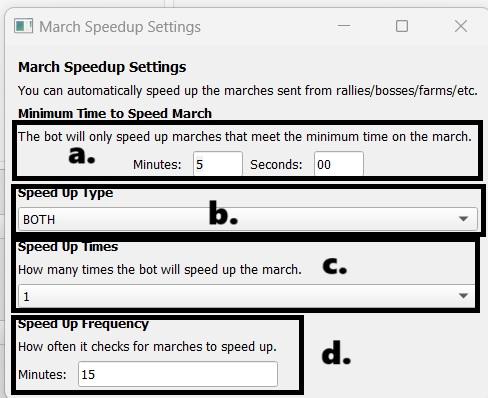
- Minimum Time to Speed March
- The minimum time of march that will use a speed up.
- Speed Up Type
- Pick the type of Speed up to use here.
- Speed Up Times
- Number of times you use a speed up per march.
- Speed Up Frequency
- How frequently it looks for marches to use speed-ups on.
Note
Speed ups will be used for both going and coming back.
23. Research
- The bot can now automatically research for you!
- Decide whether you want to use speed ups, and which category it will use.
- The research will go from top to bottom of the categories you pick.
24. Troop Healing
- The bot is now able to automatically heal troops.
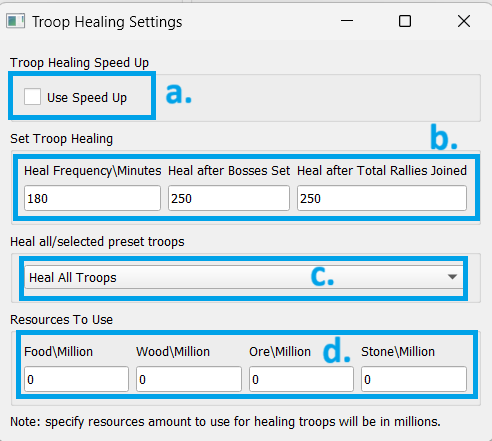
- Troop Healing Speed Up
- Select if you want to use a speed up.
- Set Troop Healing
- Troop healing will occur at intervals, where it checks your frequency and then confirms if the total number of rallies joined or set conditions have been met
- Heal all/ select preset troops
- Choose here whether you want to heal all troops or a specific preset.
- Resources to Use
- This is where you select which resource to use for healing troops.
- This is in millions. For example, 200 means 200 million resources. The bot will open this amount before healing if needed but will only do so if resources are insufficient. If you prefer no resource opening, set all values to 0.
25. Relic Smashing
- The bot will automatically smash as many relics as it can.
- Since there are too many rewards, we are not able to get all the rewards. There is a preferred rewards list you can select. If we don't find these, it just picks random ones.
26. Expedition Gift Settings
- You can set the bot to automatically claim expedition gifts every X minutes.
27. Bacchus Tavern
- You can now automatically collect the cups and claim rewards for Bacchus tavern.
- Rally Card Spawn Guide 29. Citizen Task
- You can now automatically collect and manage citizens.
- Collect Citizens - Collects all available citizens and envoys automatically.
- Recruit Free Citizen - Claims the daily free citizen when available.
- Quick Assign - Assigns citizens automatically to open positions.
- Frequency (Minutes) - Interval for how often the bot performs these actions.
30. Ranger Knight Order
- Allows you to automate various tasks to help gain buffs, including:
- Quick Dispatch
- Plunder: (can be turned off).
- Claim Rewards
- Help Ally Tasks
31. Trade Carriage
- Allows the bot to automatically send trade carriage daily using the selected profile.
- Number of transports – sets how many trade marches will be sent each cycle. Each transport uses a general.
- Preset to use – selects which troop preset will be used for the trade march.
- List General Settings – lets you choose which generals can be used for trade (recommended to exclude main/boss generals).
- Changes are saved automatically per profile.
32. Game Exit Options The Game Exit Settings menu provides several options to help keep the game and emulator running smoothly.
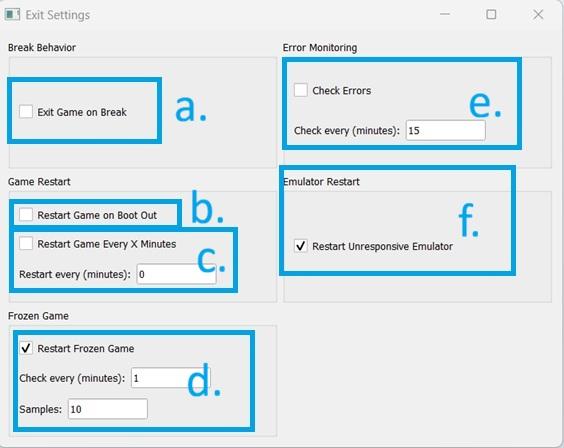
- Exit Game on Break: When enabled, the bot will close the game during scheduled breaks. This can help reduce resource usage while the bot is not actively running.
- Restart Game on Boot Out: When enabled, the bot will restart the game after the kick timer attempts to log back into the account. This can also help resolve issues where certain buttons, such as the March button, become unclickable and require a game restart.
- Restart Game Every X Minutes: Automatically closes and relaunches the game after the specified number of minutes. This can help improve long-term stability and reduce issues caused by the game running continuously for extended periods.
- Restart Frozen Game: When enabled, the bot will monitor the game for signs that it has become frozen or unresponsive. If a frozen game is detected, the bot will restart the game automatically.
- Check Every (minutes): How often the bot checks for a frozen game.
- Samples: Number of checks used before determining that the game is frozen.
- Check Errors: Monitors the game for errors and can automatically restart the game when an error is detected.
- Check Every (minutes): Determines how often the bot checks for errors.
- Restart Unresponsive Emulator: Monitors emulator activity based on jobs being executed by the bot. If no activity is detected for the specified amount of time, the emulator will be restarted automatically.
For example, if a job becomes stuck and no actions have been performed for 60 minutes, the emulator will be restarted.
This feature can also detect if the emulator has unexpectedly closed or crashed. If that happens, the bot will attempt to relaunch the emulator automatically.
33. March Configuration
- You can now choose to automatically or specifically set the total amount of marches you have.
34. Optimization Settings
- Use these settings to adjust text input speed and how ESB finds buildings in your city.
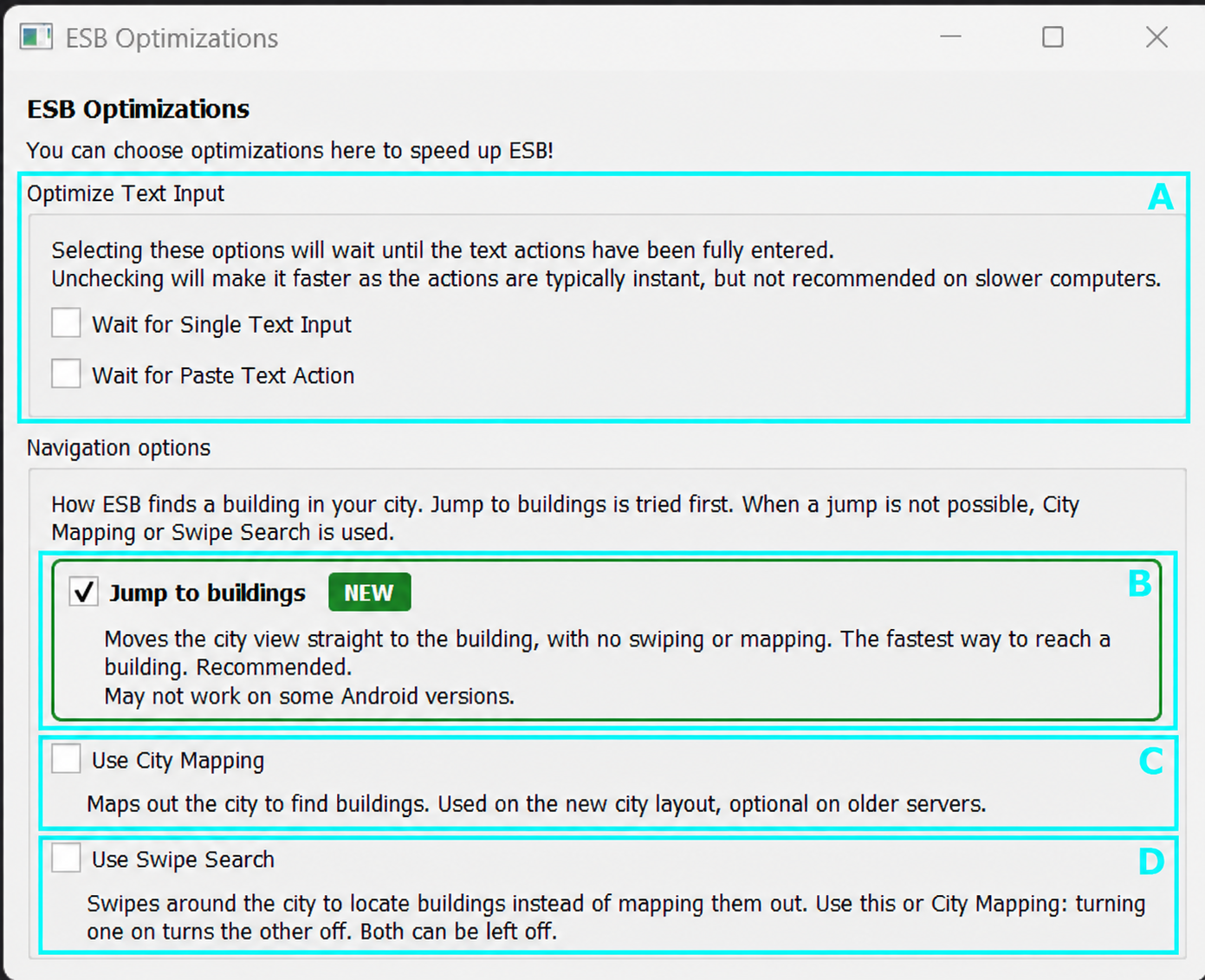 A. Optimize Text Input
These options control whether ESB waits for text entry to finish before continuing:
- Wait for Single Text Input: Waits for individual text input actions to complete.
- Wait for Paste Text Action: Waits for pasted text to finish entering.
Unchecking these options can speed up ESB, as text input is typically instant. Keep them checked on slower computers or if text is not being entered correctly.
B. Jump to Buildings
- Moves the city view directly to a building without swiping or mapping. This is the fastest navigation method and is recommended.
- When enabled, ESB tries Jump to buildings first. If it cannot jump to a building, it uses City Mapping or Swipe Search, depending on your settings.
Note: Available on Android 9 and newer. May not work on some Android versions.
C. Optimize City Mapping
- Choose this if you want to map city to find buildings.
- The bot can now map your city to help you find buildings. Mainly useful on new servers that lack the activity button.
- This is optional for servers with the activity button. This is mandatory for servers without the activity button.
- You can see your in-city mapping on start tab. On activity information, in-city map tab.
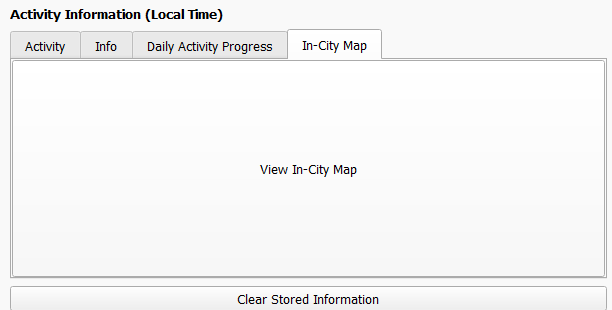
- This function will only work if you picked an activity on profile tab.
D. Use Swipe Search
- When enabled, the bot will swipe around the city to locate buildings instead of relying on City Mapping.
- This can be useful if the bot is having trouble finding certain buildings.
Note
- Swipe Search and City Mapping cannot be enabled at the same time.
- Enabling one will automatically disable the other.
- Both options can also be left disabled if preferred.
35. Emulator Clean Up Settings
Emulator Clean Up clears out temporary files and caches to boost performance and free up space. It can help the emulator run smoothly.
Note: Cleanup never runs on MuMu instances, even when these options are enabled.
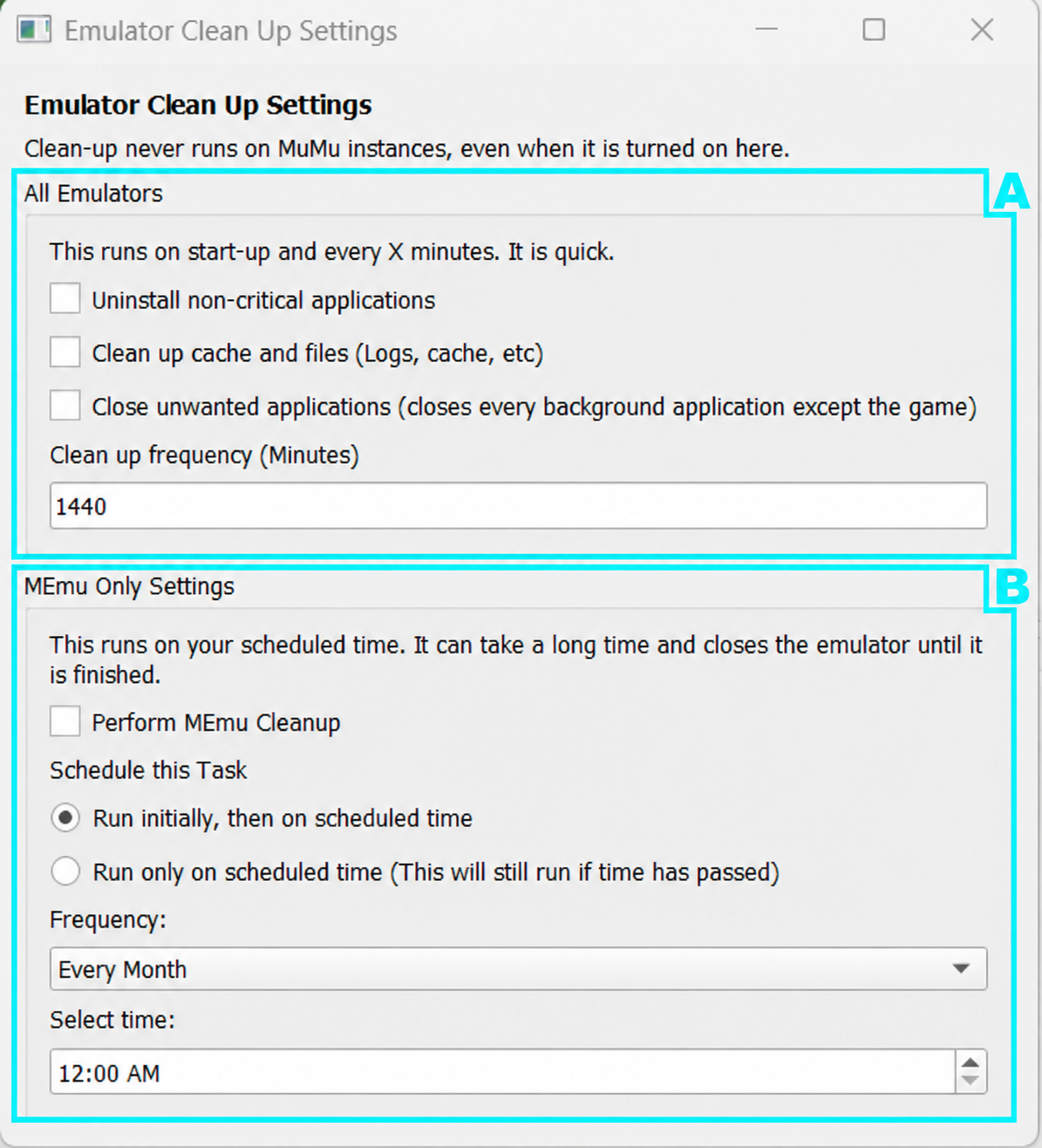
- All Emulators For supported emulators, the selected cleanup actions run on startup and every X minutes, based on your cleanup frequency. This process is quick.
- Uninstall non-critical applications: Removes non-critical applications from the emulator.
- Clean up cache and files: Clears files such as logs and cache.
- Close unwanted applications: Closes background applications except the game.
- Clean up frequency (Minutes): Sets the interval between cleanups. For example, 1440 minutes = 24 hours.
- Memu Only Settings These settings run the MEmu cleaner on a schedule. Note: This process can take a long time. The emulator remains closed until cleanup finishes. Perform MEmu Cleanup Enable this option to allow scheduled MEmu cleanup. Schedule This Task Choose when cleanup should run:
- Run initially, then on scheduled time: Runs cleanup initially, then follows your selected schedule.
- Run only on scheduled time: Runs cleanup according to your schedule. It will still run if the scheduled time has already passed.
Frequency Choose how often cleanup runs, such as Every Month. Select Time Set the time you want the scheduled cleanup to run.
36. Account Data Allows ESB to read your account information and display it on your website account page. More information here: Account Data Guide · Original Interface · EAT Docs
37. Create New Profile
- This section allows you to manage and switch between your saved profiles.
- Select a profile from the dropdown to switch profiles.
- Create: Create a new profile.
- Delete: Delete the currently selected profile.
- Delete Multiple: Delete multiple profiles at once.
- Set as Default: Sets the selected profile as the default profile.
Note
In making profile names, don’t use punctuation marks.
Note
Settings autosaves to the profile chosen; double-check your selected profile to prevent unintended overwrites.