







Automation Modes
Join Rallies Guide
Join Rallies mode joins boss rallies for you, with kick timer, scheduled modes, preset rotation, stamina and general settings.
On this page

How to Use
Follow the steps below to understand and take advantage of this mode.
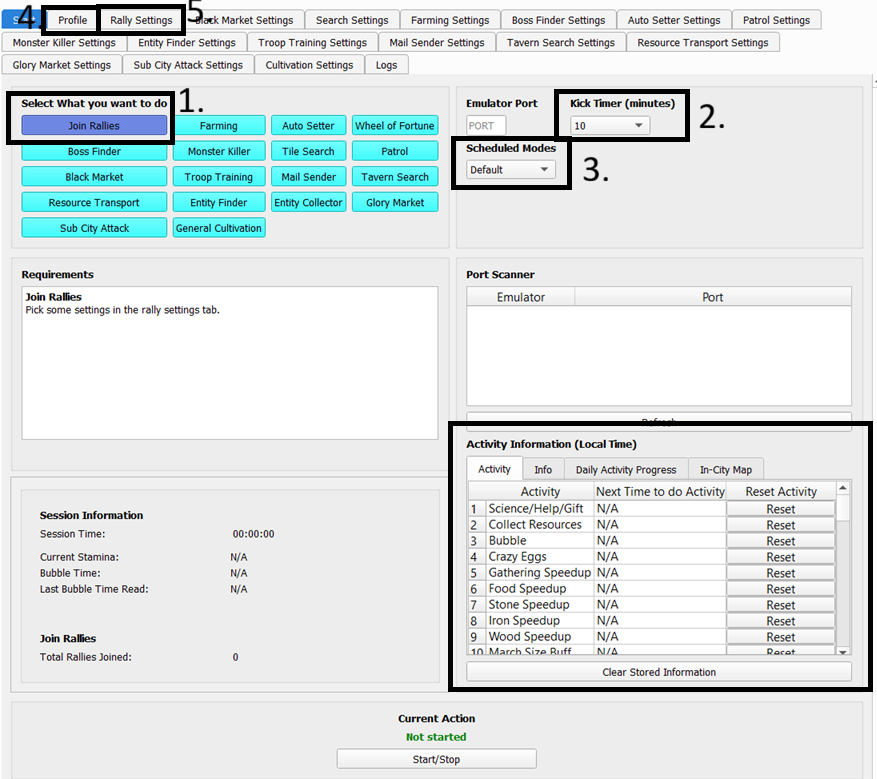
- Mode:
- Make sure to select the “Join Rallies” Mode as labeled in the photo above.
- Kick Timer:
- Sometimes you want to check in to see how your account is doing, or talk to your alliance mates. This timer will pause the bot for X minutes, and allow you to play during this time. It will then boot you off and the bot will resume. Very useful, mainly on main accounts to check in!
- Scheduled Modes
- Default - the original ESB way. Leave it if you don't want to mess with setting up times.
- Hybrid - Runs the main jobs from the Main page, but will run activities from the times in the Calendar.
- Calendar - Runs main jobs and activities from the Calendar.
- Activities - Runs only activities selected on profile tab.
- Hybrid Reverse - Runs only the main tasks in Calendar, but runs the activities as normal
- Additional Settings via Profile Tab:
- Go to the Profile Tab Guide here to learn additional settings for Join Rallies Mode:
- Rally Settings:
- Pick some additional settings for joining rallies.
- Clear Stored Information:
- This resets all information the bot had stored ( e.g. daily activities, tiles, event period, etc).
- You also have the option to reset a specific activity. By doing this, it will try to do this activity again.
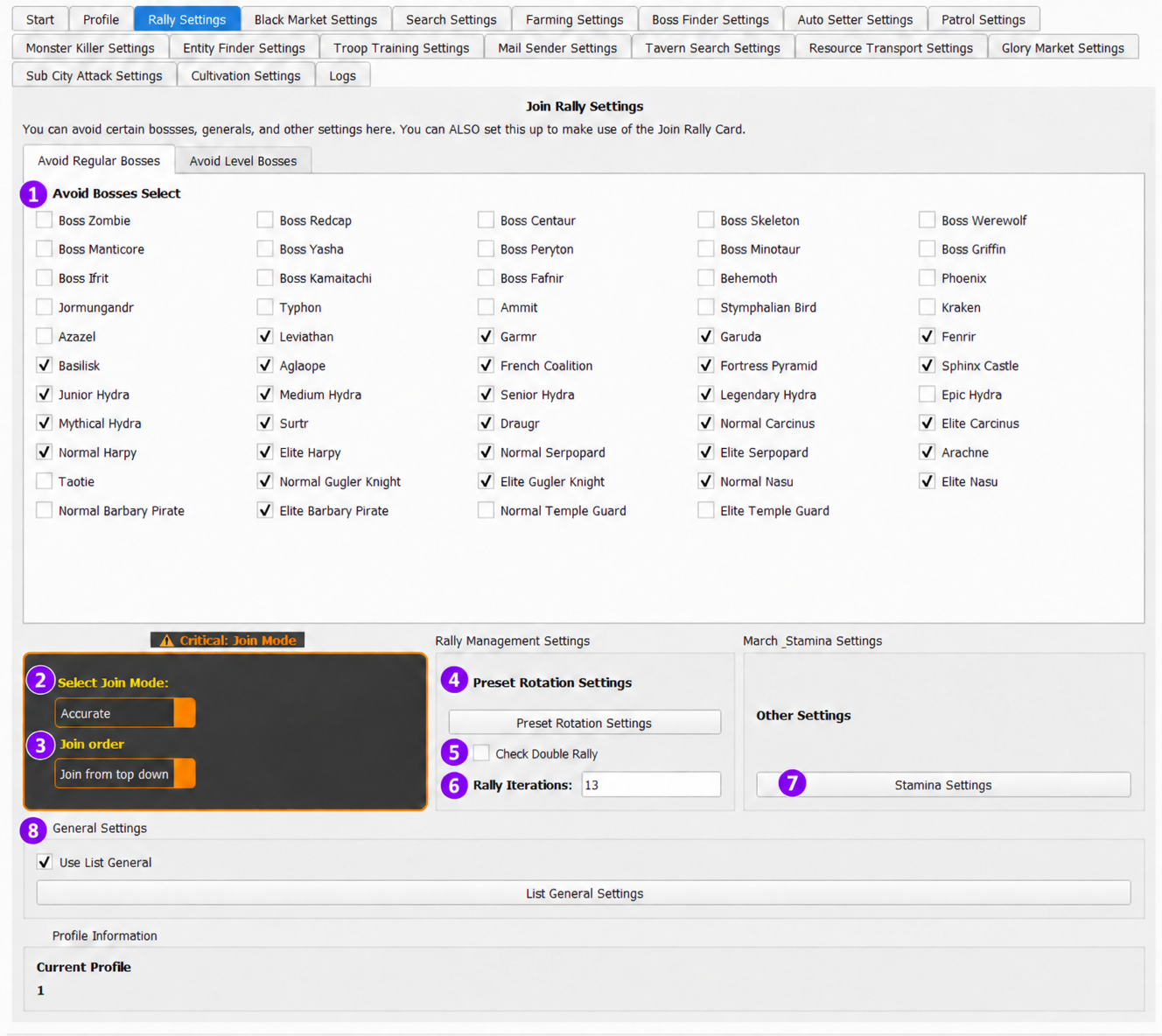
Avoid Bosses:
- Pick some bosses you would like to avoid. You can pick the level of Vikings and all sorts of event bosses too!
- Power Start and Power End is power in millions. That means the viking power you want to avoid. 0-999 means you don't want to join vikings between 0 million and 999 million power. If you want to join all vikings just uncheck this!
Join Mode:
- Accurate: The normal way of joining rallies which will read time and bosses. This is the same as before and the traditional way of how it's always been done.
- Fast: A dumbed down version. It won't care about the time but will still follow the avoided bosses. However, it will only join boss monster rallies still and won't join pvp rallies. All other rally settings apply.
- Join by ac: Same as before
Join Order Choose the direction in which the bot checks the rally list:
- Join from top down: Starts at the top and checks downward.
- Join from bottom up: Starts at the bottom and checks upward.
Both options follow your avoided bosses and other rally settings.
Preset Rotation Settings:
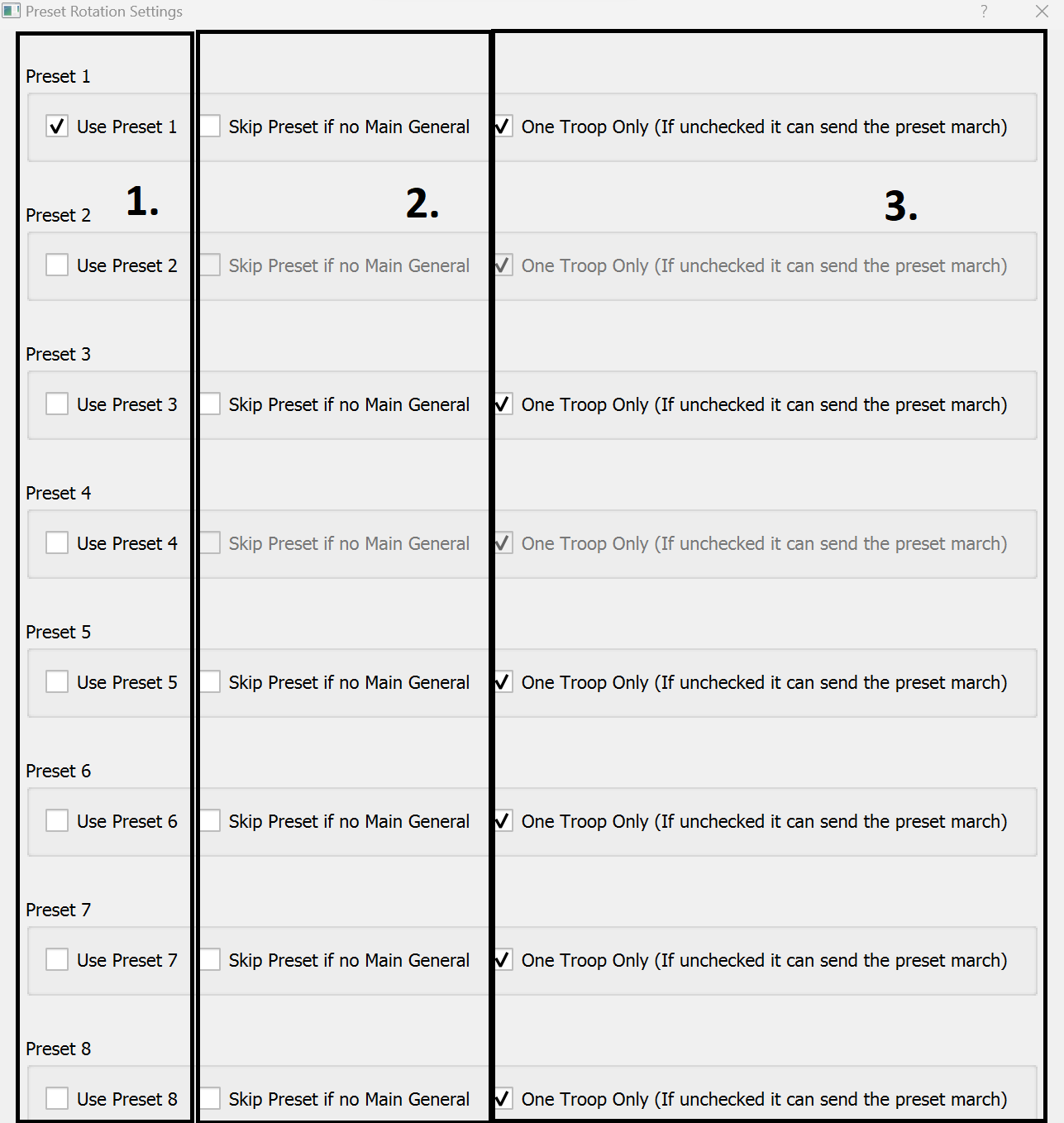
Use Preset:
- You can select here what presets you would like the bot to use or rotate through.
[!WARNING] If no preset is picked, it won’t join rallies.
Skip Preset if no Main General
- You can choose to skip the preset if the main general in the preset is not available.
One Troop Only:
- This will reset the preset and pick the top 1 troop.
[!WARNING] If unchecked, it will send full preset march.
Check Double Rally
- This is mainly for users whose join buttons didn't update due to recent lag issues.
- A workaround for users who are encountering 24H rallies.
Rally Iterations:
- This is the amount of iterations the bot spends in finding rallies to join in the rally menu.
Stamina Settings:
- Controls how the bot uses stamina items during auto battles or farming. You can set how much stamina to spend per cycle and which item sizes to prioritize.
Mode
- Don’t Consume Stamina - Disables stamina use.
- Consume Max Stamina - Refills stamina to max automatically.
- Consume One Stamina - Uses only one stamina item per cycle.
Allowed Items
- Choose which stamina items the bot can use: 100x, 50x, 25x, and 10x.
[!TIP] Combine different sizes based on your inventory.
Consumption Order
- Largest → Smallest - Uses bigger stamina items first.
- Smallest → Largest - Uses smaller stamina first.
Use List General:
- This will use either the top general in the list, or attempt to find the list of generals you selected when joining rallies; if your preset has a general out, it will do that.
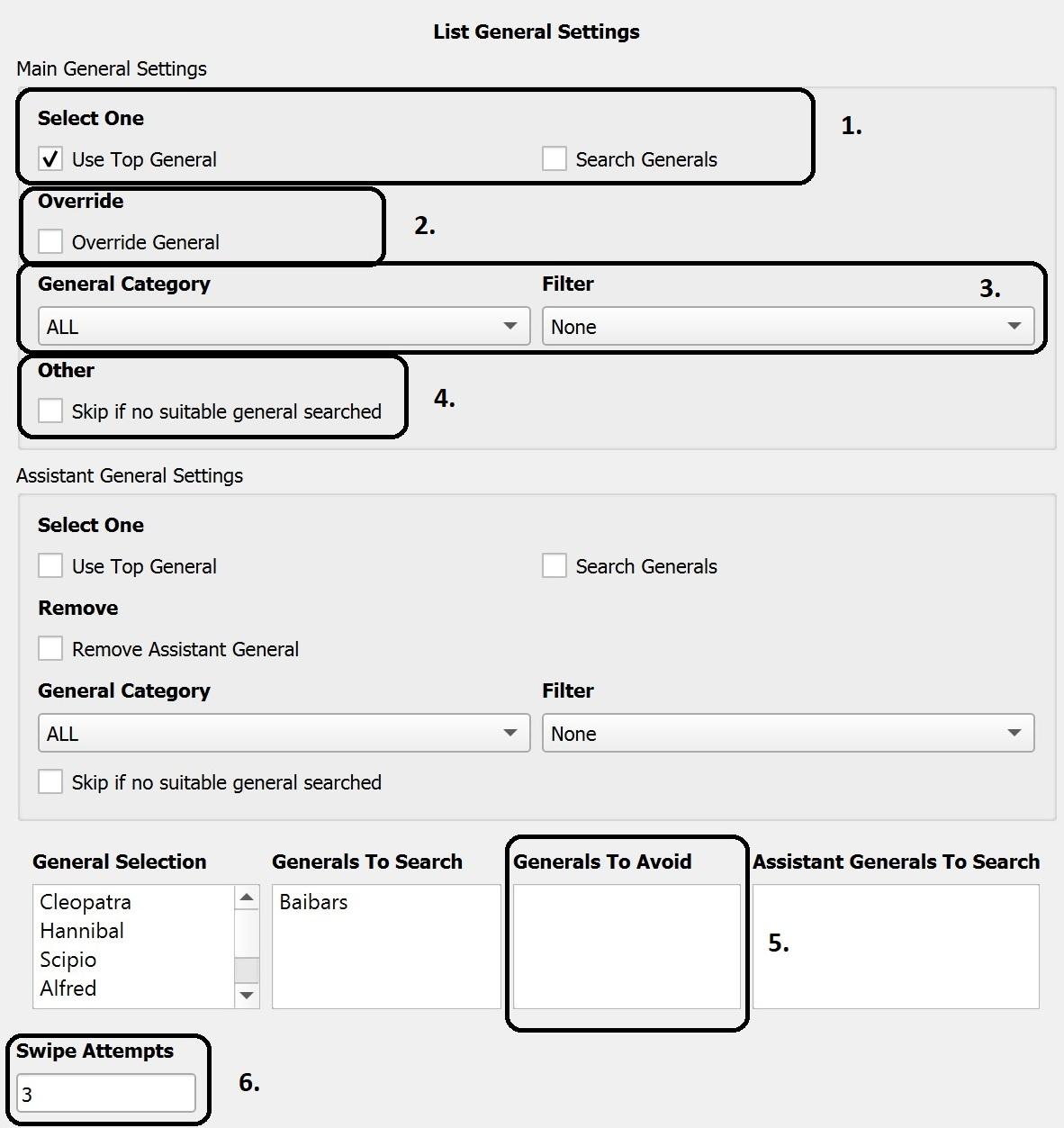
- List General Settings
- You can now select a list of generals you would like to search for when the general is not available in your preset.
- Override
- This has the ability to override the general in your preset or default march so that you can search for other generals.
- General Category
- You can now filter by category (ALL, Development, Military, etc)
- You can now also filter by favorite or idle.
- Skip if no suitable general searched
- This will skip the boss if there are no suitable generals available based on your settings.
- Generals to Avoid
- You can now choose to avoid certain generals. This is used when selecting "Use top general". This won't matter for search generals due to the nature of it only searching for a specific general, thus naturally avoiding everything else.
- Swipe Attempts
- This is how many times it will swipe down to try and find the general you have listed.
- Take note, if you got a ton of generals, you need to increase the swipe amount, then again that will take even longer to join a rally.