







Automation Modes
Search Settings Guide
Configure map searching: random or grid search, search time, grid parameters with automatic adjustment, fast search and the grid calculator.
On this page
How to Use
For a thorough explanation, we encourage you to watch the provided instructional video here: https://www.youtube.com/watch?v=J3IOhJ13pgo.
Follow the steps below to understand and take advantage of this mode.
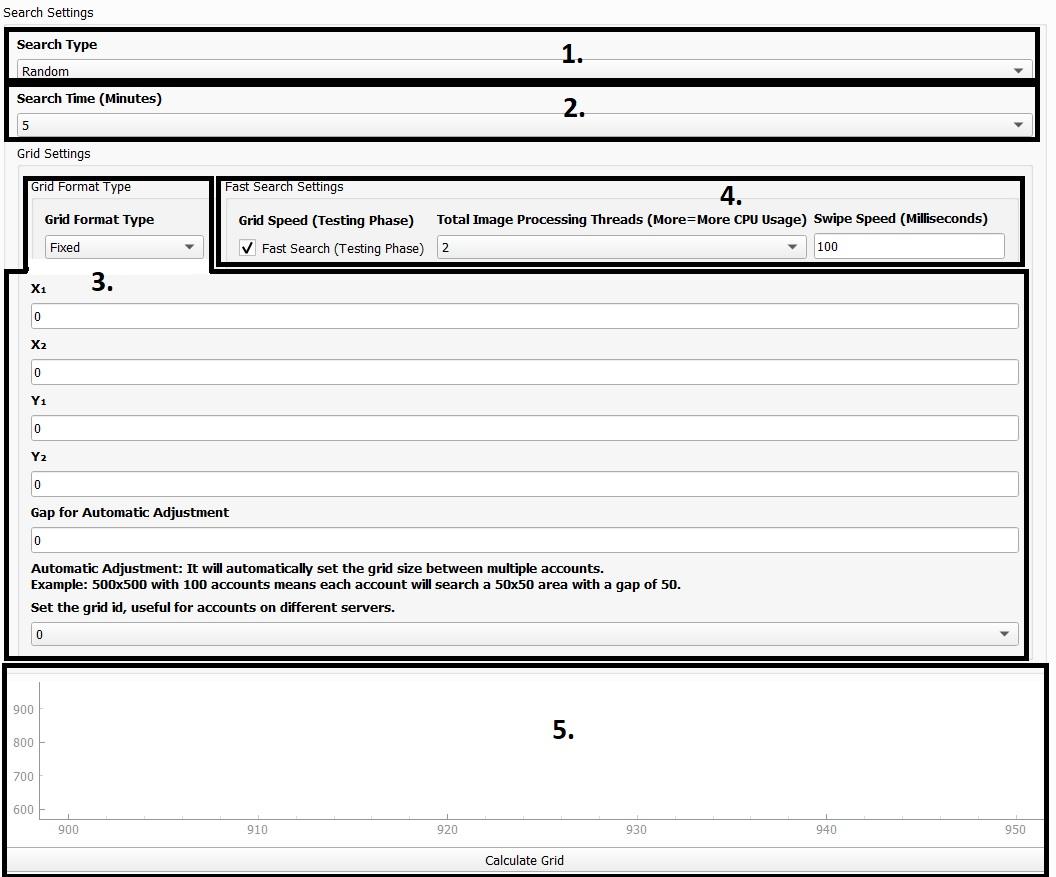
1. Search Type
Random: Searches in the original format, which is just randomly swiping left up right and down.
Useful for searching the map in random spots especially when you don’t have a lot of alts.
Grid: Searches in a specified set of coordinates, useful to search the whole map with several alts.
2. Search Time
How long the search function should last until proceeding to other routines, in minutes.
Warning
Consider your search time!
Make sure you have a good amount of search time to search the amount of coordinates of space you specified before it leaves to do other things. Think about it, how much time would it take to search 300x300 coordinates of space? Much more than 50x50 coordinates of space!
3. Grid Settings
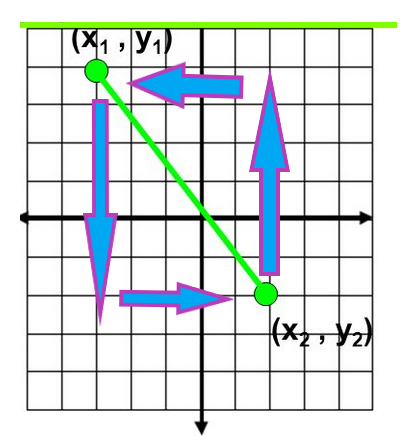
The Map in Evony can be represented as a grid of coordinates starting from (0, 0) to (1200, 1200) with (600, 600) being the center.
Take a look at the graph below for a visual representation.
Parameters:
- X_1: Starting X Position
- X_2: Ending X Position
- Y_1: Starting Y Position
- Y_2: Ending Y Position
Imagine these positions in the graph above, you are making a square or rectangular shape that the process will scan within those boundaries.
A. Grid Format Type
- Fixed: The process will scan between the x1, x2, y1, y2 positions entirely
- Automatic Adjustment: We made it easy for users to split up the grid between multiple accounts without having to make multiple profiles
Example 1:
- X_1: 0
- X_2: 1200
- Y_1: 0
- Y_2: 1200
- GAP: 300
With a gap of 300, each account will take 300x300 coordinates of space, so if we ran three accounts:
- Account 1: (0, 0) -> (300, 300)
- Account 2: (300, 300) -> (600, 600)
- Account 3: (600, 600) -> (900, 900)
Warning
This leaves (900, 900) -> (1200, 1200) empty along with 11 other spots!! - which should be taken up by another account, or by adjusting the gap larger to fill this space.
16 Total accounts required to fill this space with these settings
Example 2:
- X_1: 0
- X_2: 500
- Y_1: 0
- Y_2: 500
- GAP: 50
With a gap of 50, each account will take 50x50 coordinates of space.
- Account 1: (0, 0) -> (50, 50)
- Account 2: (50, 50) -> (100, 100)
- Account 3: (100, 100) -> (150, 150)
- …
- Account 10: (450, 450) -> (500, 500)
100 Total accounts required to fill this space with these settings
Example 3:
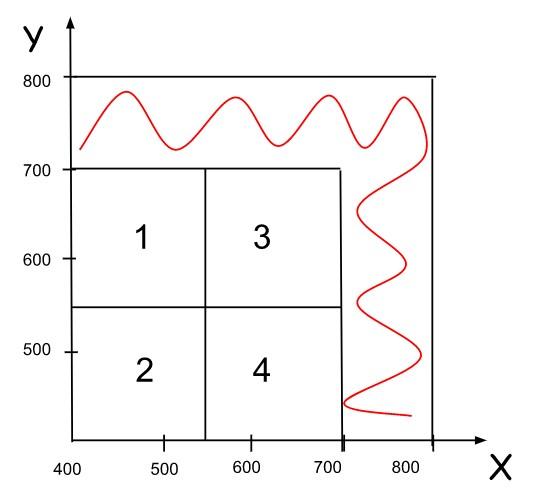
X_1: 400
Y_1: 400
X_2: 800
Y_2: 800
GAP: 150
Account 1: (400, 550), (550, 700)
Account 2: (400, 400), (550, 550)
Account 3: (550, 550), (700, 700)
Account 4: (550, 400), (700, 550)
Warning
4 accounts in total is needed. However, this leaves (700, 700) -> (800, 800) empty.
As this is not a full square space, this can not be taken by another account, best to do is to adjust your gap size.
Gap: A full Square space taken by an account
B. Gap for Automatic Adjustment
- Gaps are adjusted as accounts transition away from searching or are turned off
- If an account was set to find (300, 300) -> (600, 600) and is shut off or doing some other routine, it will not “hold” that space. If another account is started, it will take up the (300, 300) -> (600, 600) space.
C. Grid Id
- If you run different servers you would not want space being taken by another account on a different server, so use a different profile with different grid ID so this doesn’t happen.
Example Settings to Search the Whole Map with Automatic Adjustment!
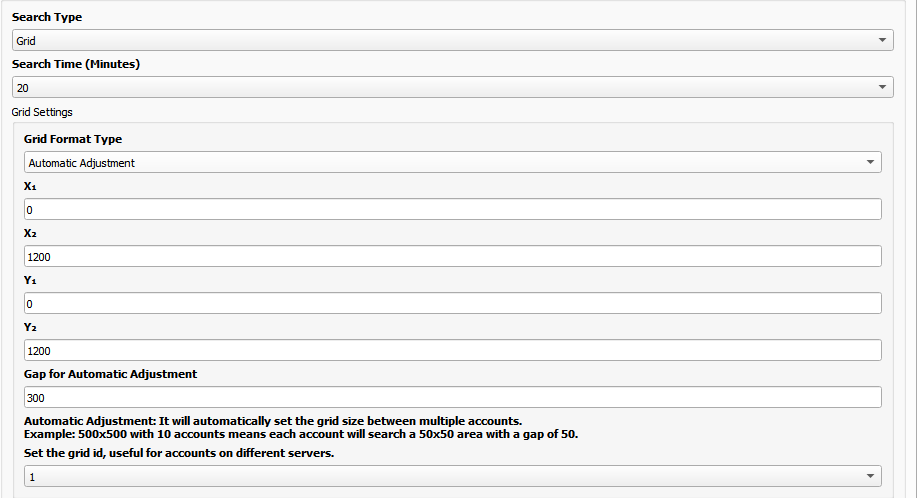
Let's Examine the Parameters:
- X_1: 0
- X_2: 1200
- Y_1: 0
- Y_2: 1200
- GAP: 300
This says that we will require 16 accounts searching in 300x300 coordinates of space to search the whole map.
- Account 1: (0, 0) -> (300, 300)
- Account 2: (300, 300) -> (600, 600)
- Account 3: (600, 600) -> (900, 900)
- Account 4: (900, 900) -> (1200, 1200)
- Account 5: …
4. Fast Search Setting
- Fast Searching is now available! Scan a 100x100 in as little as 3 minutes, or a 250x250 in as little as 15 minutes.
- Total Image Processing Threads: Select the number of image threads you wish to use for faster image processing, keep in mind more = more cpu usage. We suggest just having it on 2 or 3.
- Swiping Speed: Increase this value if you notice a lot of tapping on individual squares. The higher the number the longer it takes to swipe.
Note
It will scan the map first then send boss coordinates found to the collective.
- Now works for bosses, tiles, entities and pyramids.
- Only works for grid search, not random.
- Sends directly to the collective or auto setter only (not ac or whisper).
- FPS should be 60 as fast swiping is terrible at low fps.
Example 1
Fixed with one instance searching:
This will search 250x250 around the throne x600, y600.
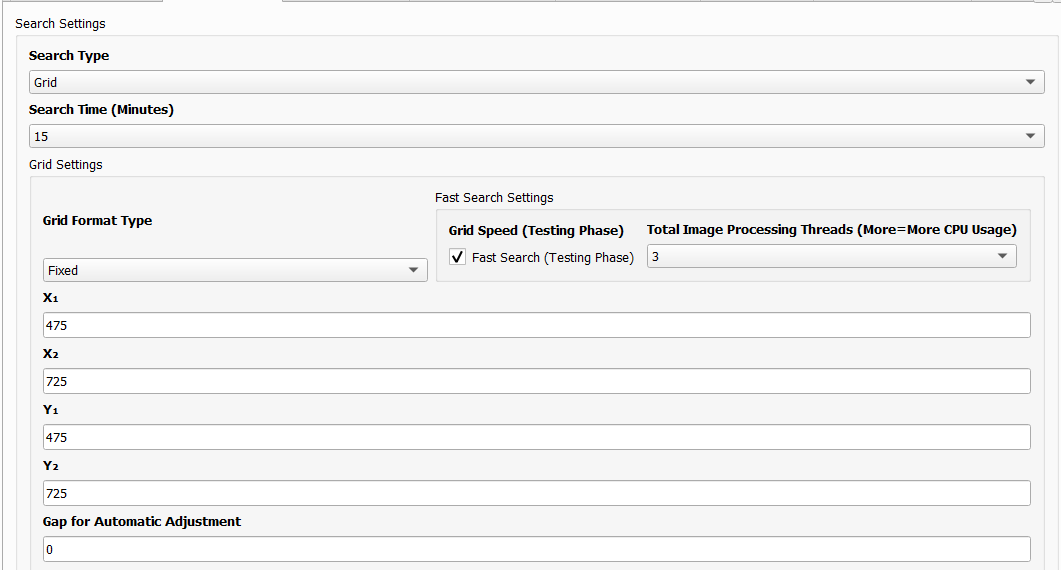
Example 2
Automatic Adjustment with 4 instances searching.
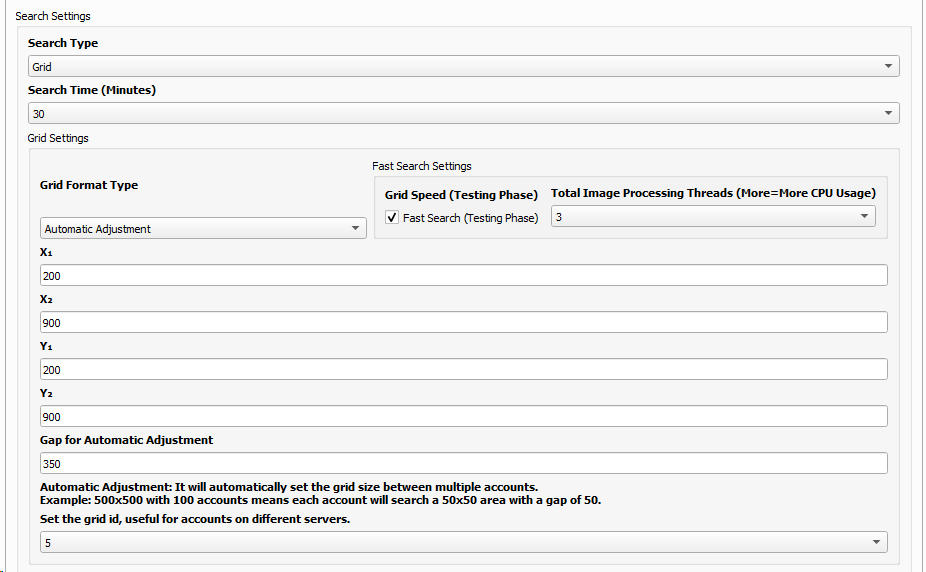
Keep in mind that if you want to use Auto Adjustment, the instances to be used should be on the same profile.
5. Grid Calculator
This will calculate how many accounts are needed to cover the gap size set.
Example 1

- X_1: 500
- X_2: 800
- Y_1: 500
- Y_2: 800
- GAP: 100
As shown in the graph, 9 accounts are needed to cover this space.
Example 2

- X_1: 400
- X_2: 750
- Y_1: 400
- Y_2: 750
- GAP: 150
4 accounts in total are needed. The red gaps indicate the area not covered by your gap size.
You can adjust your gap size.
You can click the  icon at the left to auto adjust the graph screen.
Note
The grid is useful not only for locating bosses but also for tile searching, hunting monsters and Pyramids. Nevertheless, it’s important to note that the fast search feature is specifically designed for boss finding only.