






Automation Modes
Entity Collector and Finder Guide
Generate an entity key in the Collective, then run Entity Finder and Entity Collector on separate instances to find and collect entities and Santas.
On this page

How to Use
Follow the steps below to understand and take advantage of this mode.
Entity Finder Guide
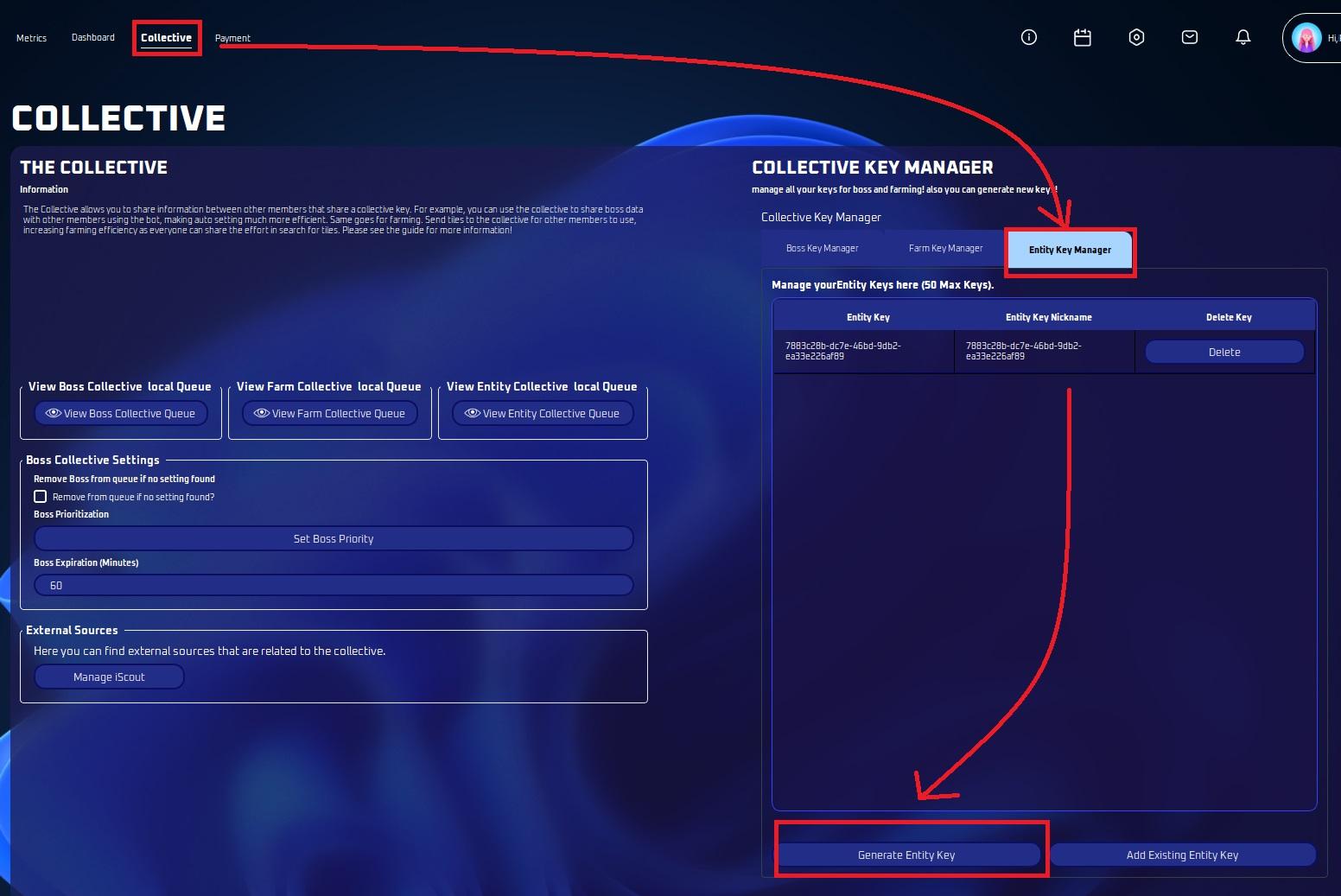
Step 1: Set up Collective Key
- Go to Collective Tab
- Click on Key Manager
- Click on Entity Key Manager Tab
- Click “Generate Entity Key”
Step 2: Set up Finders for finding Entities & Santas
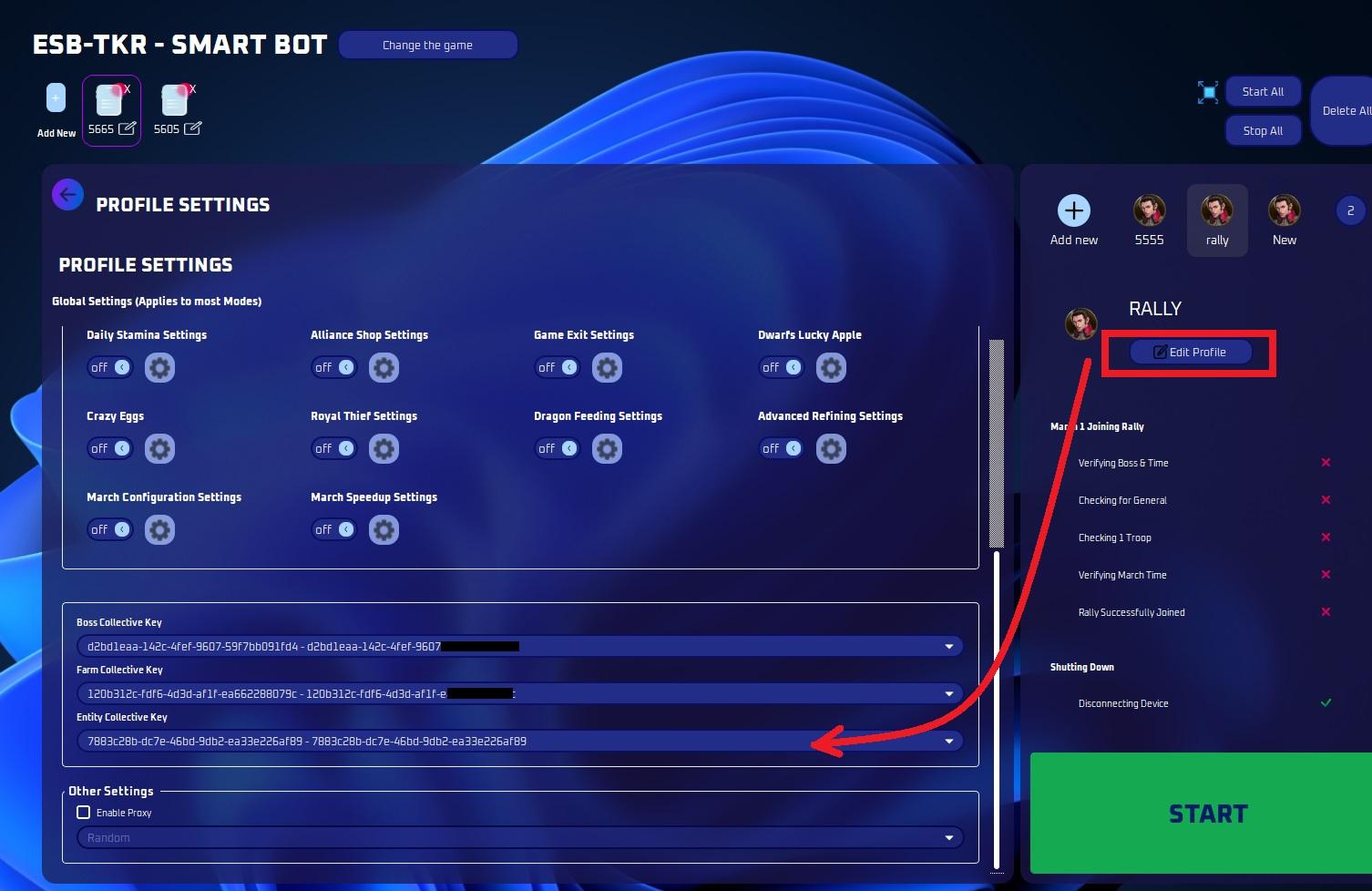
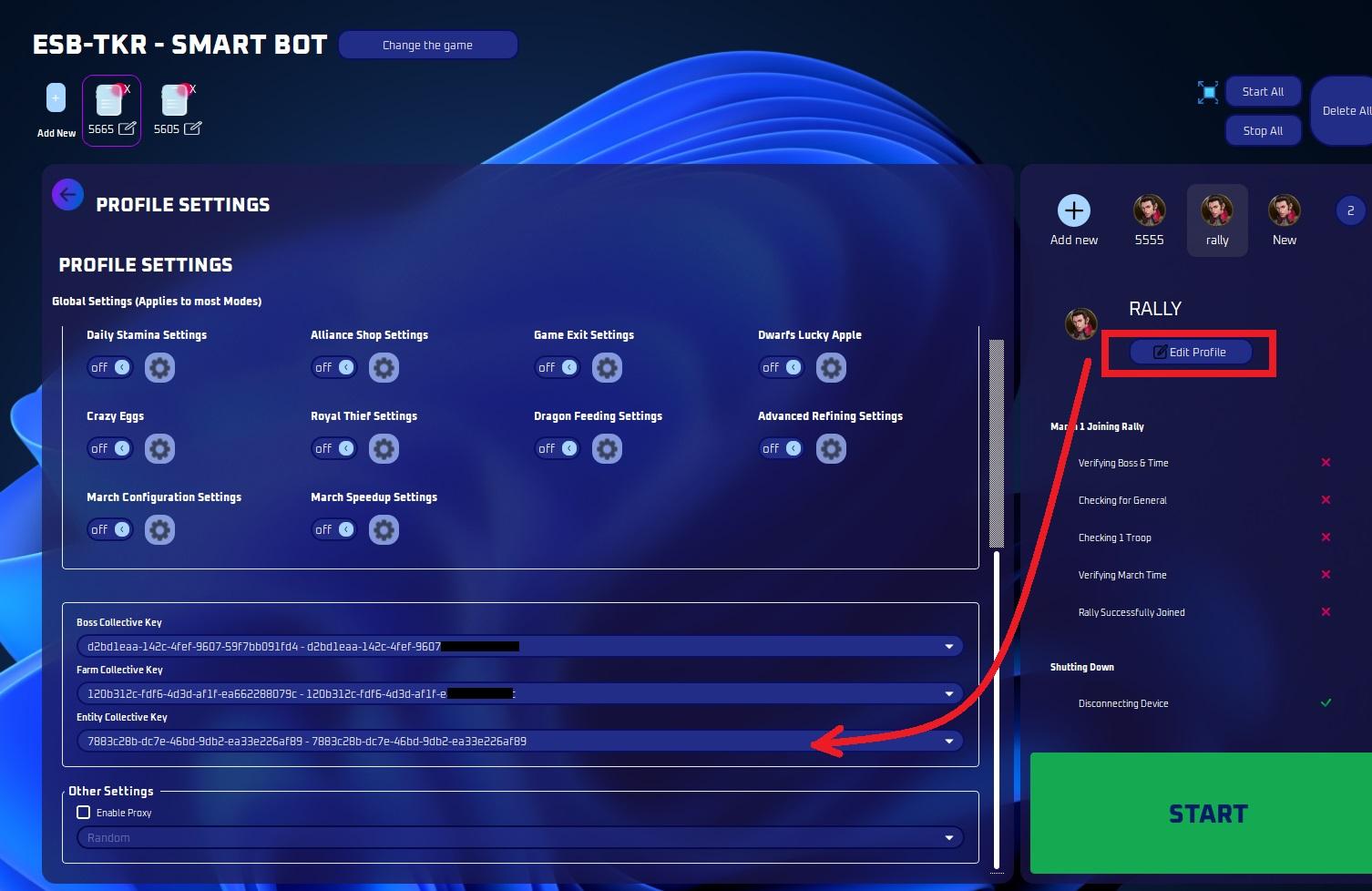
Go to Profile Tab
- Make sure to select the entity key you generated.
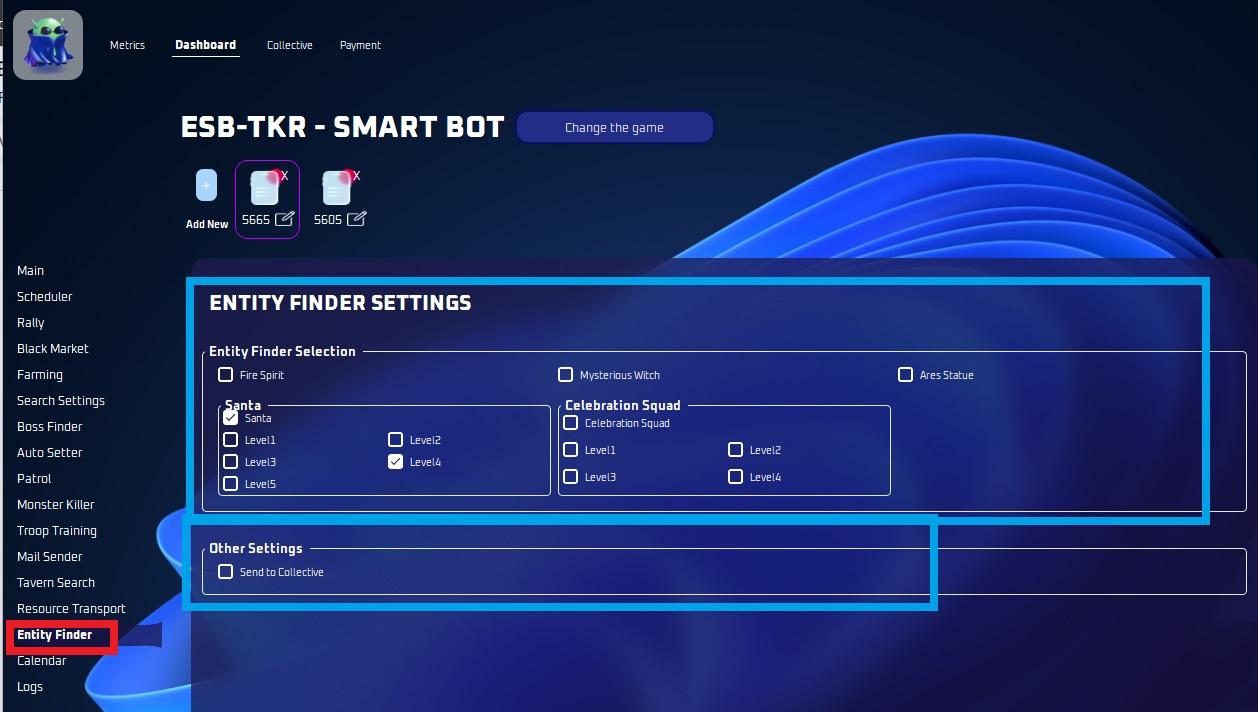
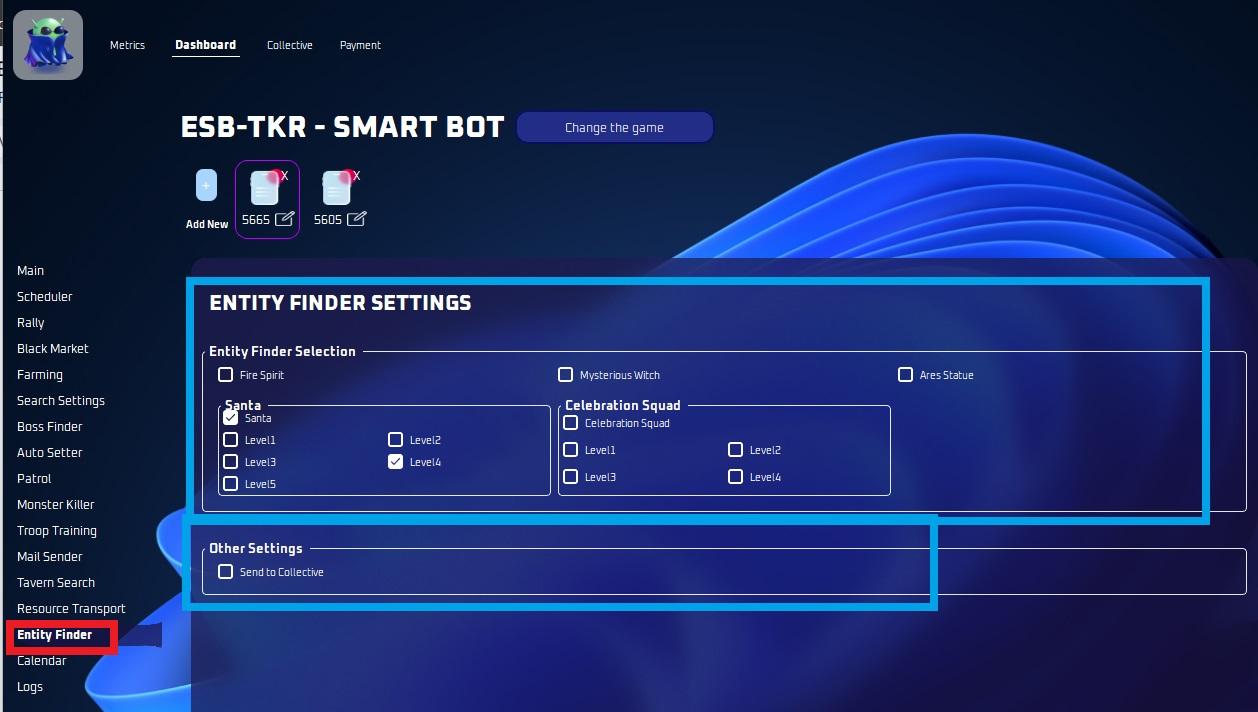
Go to Entity Search Settings
- Select Santas or other Entities you want to search with their respective levels
- Select “Send to Collective”.
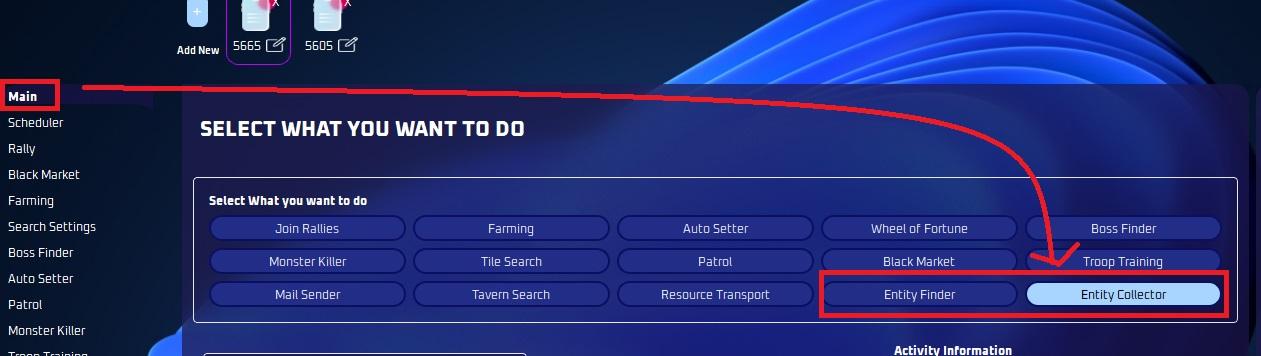
Make sure to select “Entity Finder” in the start tab.
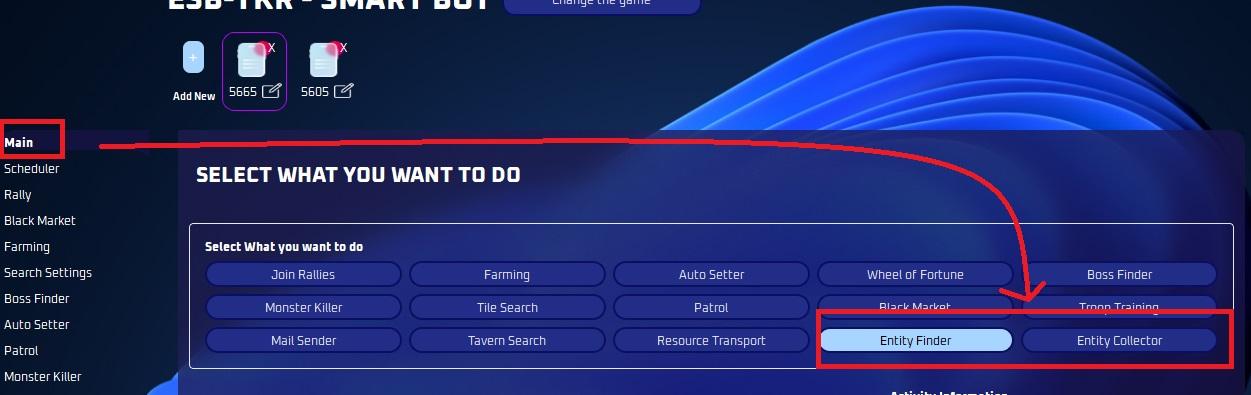
Make sure to have separate instances finding only, or farming + finding, do not use the same instance to find and collect.
Go to “Search Settings”
To make use of fast searching, follow these settings:
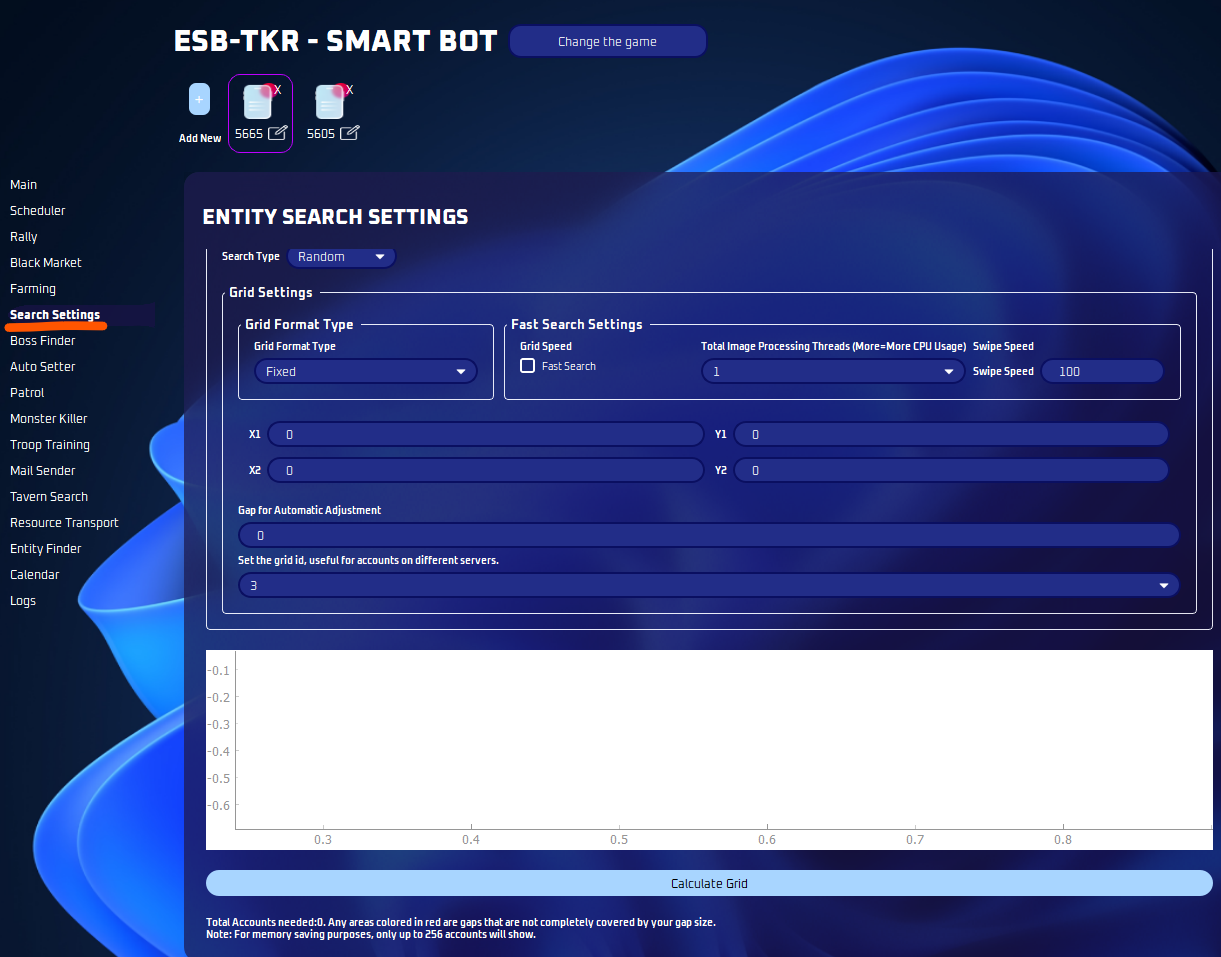
If you want more information on this page, see this guide: Search Settings Guide
Entity Collector Guide
Go to Profile Tab
- Make sure to select the entity key you generated.
- Pick the same key you used for your Entity Finder.
Go to Entity Search Settings
- Select Santas or other Entities you want to search with their respective levels
- Select “Send to Collective”. This has to be checked as this acts as “retrieve from collective”.
Make sure “Entity Collector” is selected in start tab