







Emulator Guides
Bluestacks 5 Guide
Set up Bluestacks 5 for ESB: create an Android 7.1 64-bit instance, set the display resolution, enable ADB and tune performance.
On this page
Step 1: Setting up Bluestacks 5 Emulator
Bluestacks 5 is a brand new emulator coming from Bluestacks 4. They have focused on improving the overall performance in this new version.
- Go to: https://www.bluestacks.com and download Bluestacks 5.
- Make sure the emulator your create is in Android 7.1 (recommended but not required) and 64-bit, as Evony is now 64-bit only.
- Install Evony. Link either your main or alt account and make sure you can load in!
- Your game MUST be in English. You can change this in the Evony Game Settings.
- We also recommend disabling game auto-update to prevent any issues with Evony updates.
Step 2: Set Display Resolution of Bluestacks
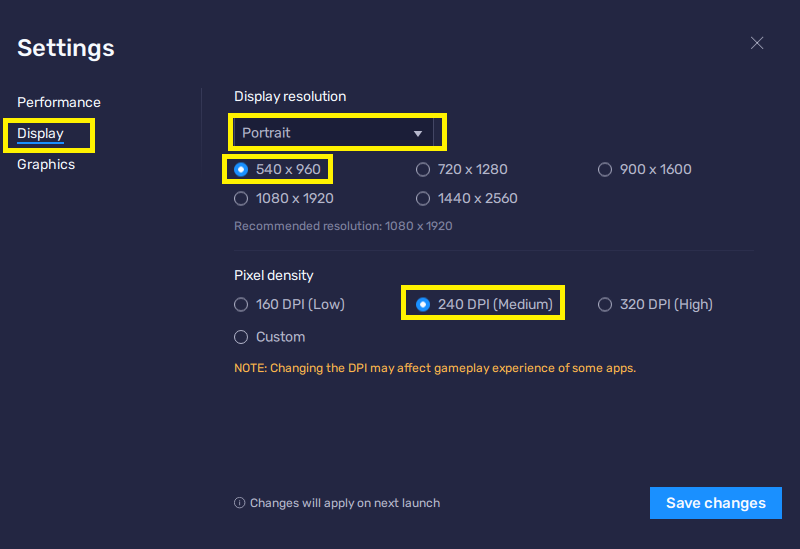
You must set this resolution. Please do as follows:
- Open bluestacks. Go to settings. Under display, set the display to Portrait, and the resolution to 540x960 (240 DPI)
- Click Save changes.
- Restart Bluestacks if asked.
- Go to Graphics and select DirectX. Save and restart.
Step 3: Enable Android Debug Bridge (ADB)
Wow, ADB! This will allow my program to control the bluestacks instance.
Under bluestacks settings, go to the Advanced tab.
Look for Android Debug Bridge, you want to enable this.
- Under ADB you will see a number: 127.0.0.1:5555. You want the number after the :
- The number is usually 5555 for the first instance. Each instance has its own number.
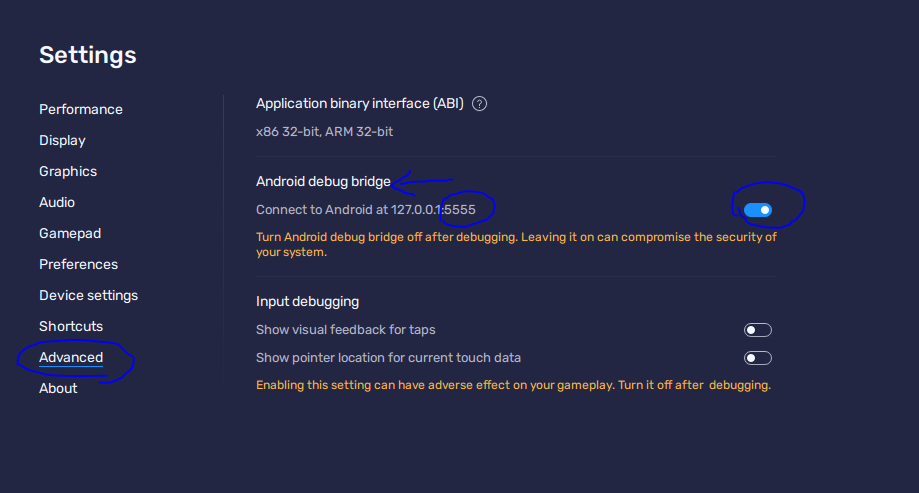
Click Save changes. Restart if asked.
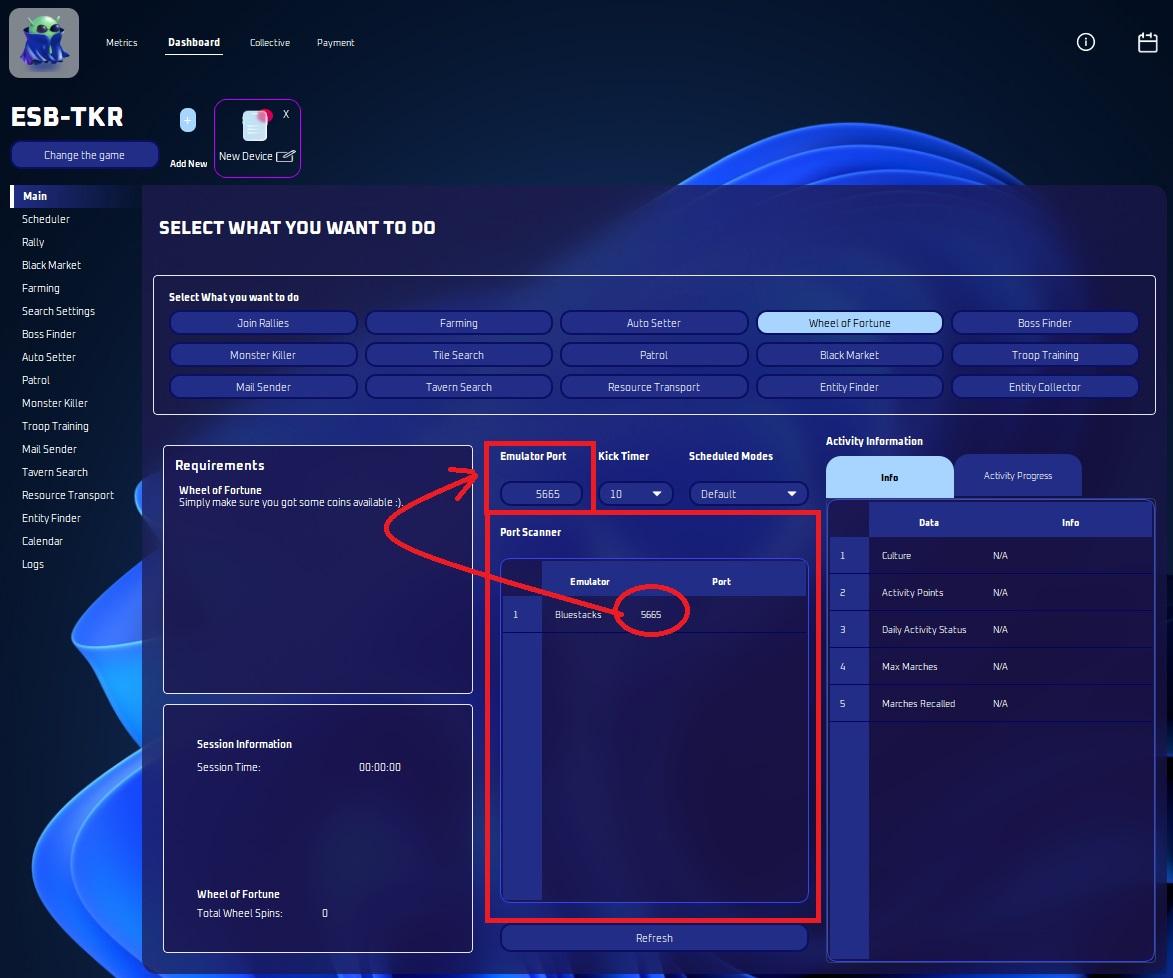
A. Using Port Scanner on ESB
The bot application can help you find open ports, simply open the bot application and review the ports listed. Click on a cell in the table to refresh the list anytime for new ports.
Step 4: Setting up performance on your Emulator
Emulators take up power on your machine. Imagine if your phone was on your computer. It will require some of your own computer’s resources. This is why you need a computer with modern hardware with decent specifications.
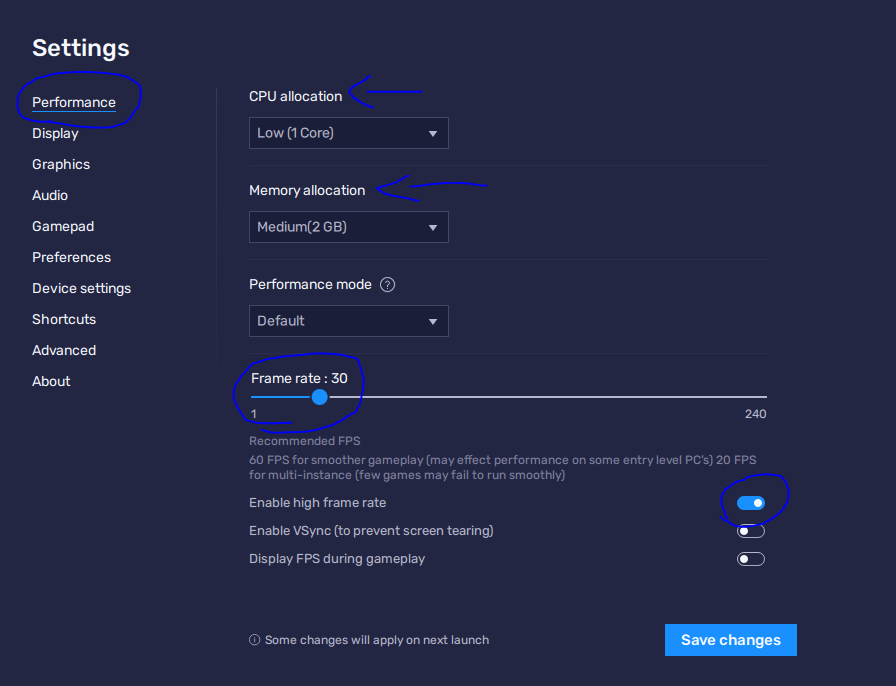
- Under Bluestacks Settings, go to the Performance Tab.
- Under CPU Allocation, set it to 1 core.
- Evony doesn’t need more than 1 to run.
- Under Memory Allocation, set it to 2GB.
- You don’t need more than 2GB, believe me.
- Enable high frame rates
- Set the total amount of frames to 30 up as the bot can’t autozoom if it’s anything less than 25 fps.
- Click Save changes. Restart if asked.
Step 5: Opening and Logging into the Bot (ESB-TKR)
The moment you’ve been waiting for.
- Continue the guide: Part 1: How to Prepare to Install ESB-TKR