


Getting Started
Entity Finder & Entity Collector Guide
Entity Collector & Entity Finder Use an entity key to share targets through the Collective. A finder discovers and shares entities such as Santas. A…
このガイドはまだ日本語に翻訳されていないため、英語で表示しています。
このページの内容
Entity Collector & Entity Finder
Use an entity key to share targets through the Collective. A finder discovers and shares entities such as Santas. A collector uses the shared targets and visits the entities you select.
1. Set up a shared entity key
- Open Collective and create an entity key, or select an existing key you want to use.
- Use the same entity key on the finder and collector so they share the same targets.
2. Set up the finder
Use one Cloud account for idle map scanning and a separate account for collecting. Idle map scanning discovers entities and shares them through the Collective. Use the same entity key on both accounts. Or use iScout.
3. Set up Entity Collector
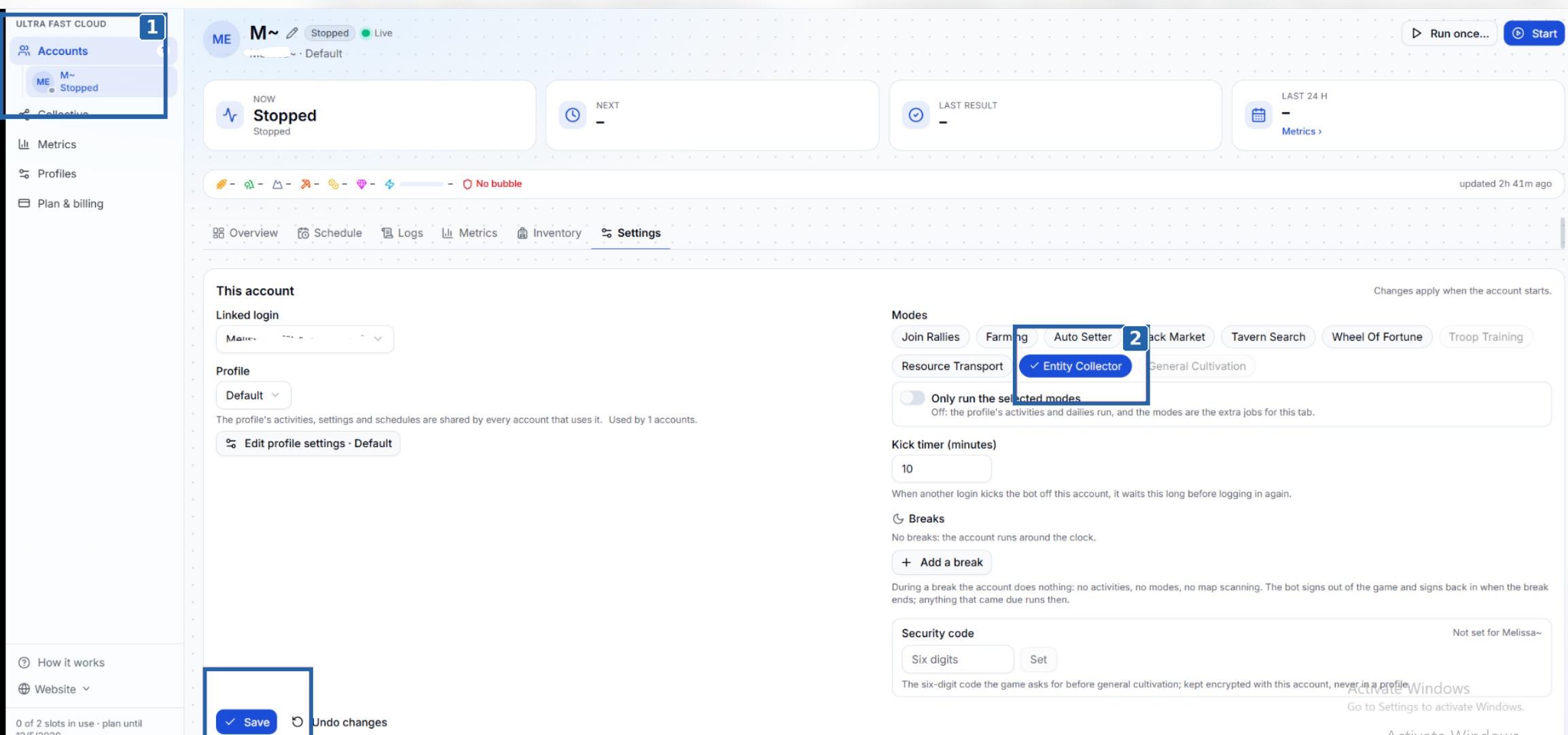
Click Accounts. Pick the Cloud account you want to use for collecting.
Enable Entity Collector. Under Modes, select Entity Collector and click Save. Then scroll down.
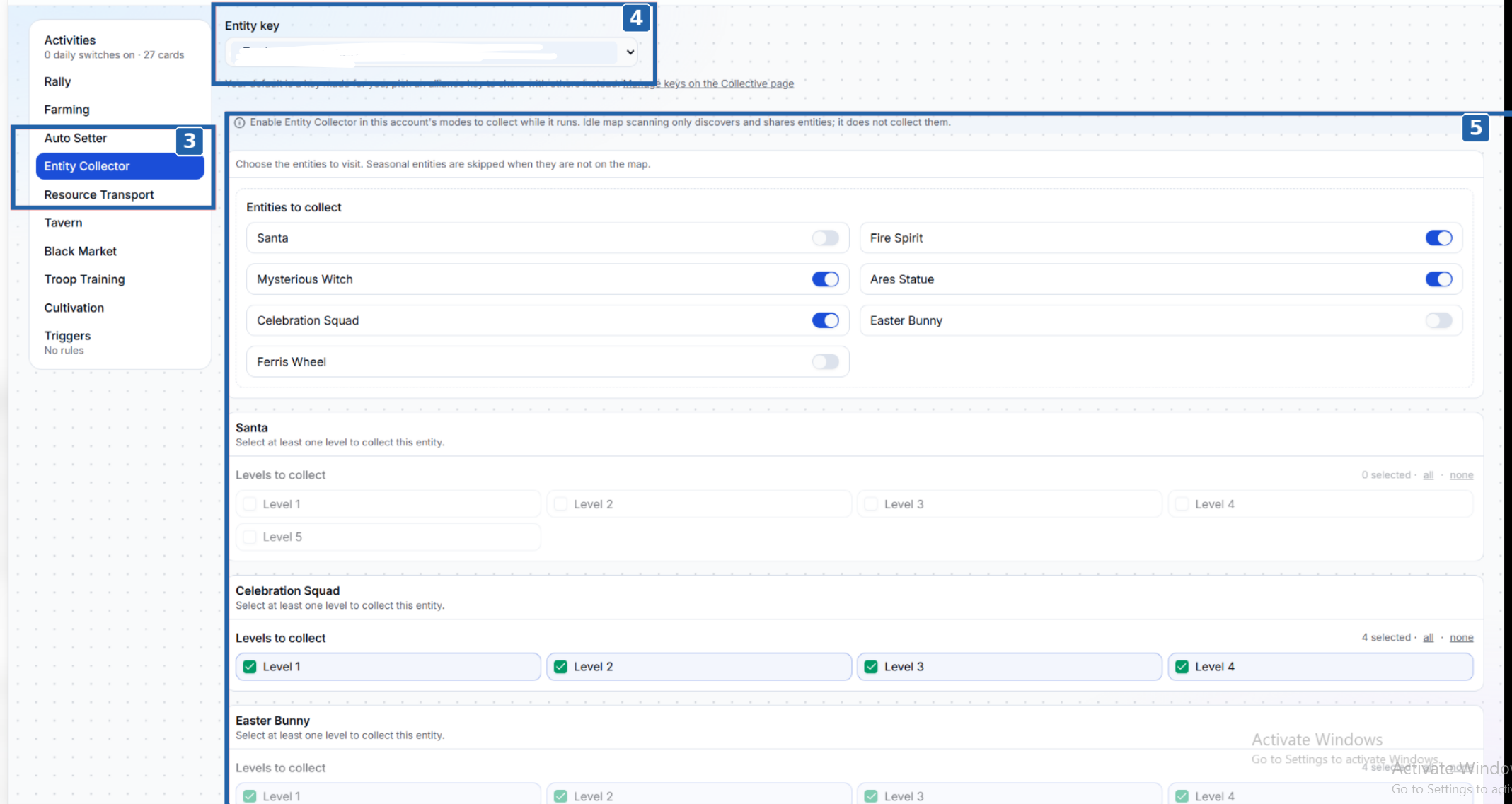
Click Entity Collector. This opens the collector settings for that account.
Pick an entity key. Use the same key as your finder so the collector can pull the targets it shares. You can manage keys on the Collective page.
Pick the entities you want to collect. Turn on each entity you want the account to visit. If the entity has level options, select at least one level. The collector skips seasonal entities when they’re off the map.
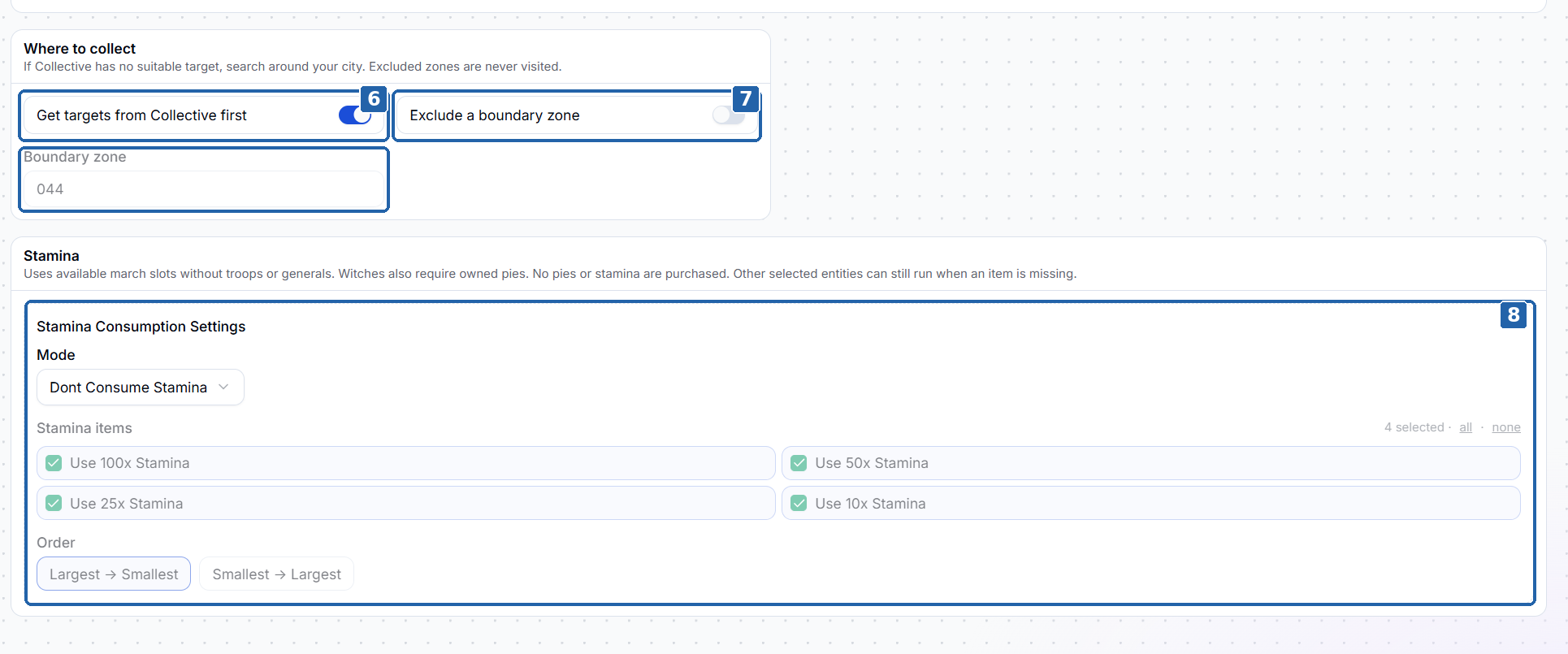
Turn on Get targets from Collective first. The collector checks the shared list first, then searches around your city if there’s no suitable target.
Exclude a boundary zone if needed. Turn on Exclude a boundary zone and enter the zone you want the collector to skip.
Choose how to use stamina. Under Stamina Consumption Settings, open the Mode dropdown and select one of these options:
- Dont Consume Stamina. Uses your current stamina and keeps stamina items unopened.
- Consume Max Stamina. Uses the stamina items you’ve enabled to refill up to the maximum when a refill is needed.
- Consume One Stamina. Uses one enabled stamina item when a refill is needed. The item’s size determines how much stamina it adds.
If the selected Consume Stamina is enabled, choose which item sizes to use and set the order to Largest → Smallest or Smallest → Largest.
Note
Once you’ve finished configuring the profile, start the account.
The collector uses available march slots.
Witches require pies you already own. Purchases are disabled for pies and stamina. If an item is missing, the collector can continue with other selected entities.