


Getting Started
Boss Scanner Guide
Boss Scanner Guide Scan map while idle is Cloud’s built-in option for finding bosses when you aren’t using iScout. A running account scans the map between…
Diese Anleitung ist noch nicht auf Deutsch übersetzt und wird deshalb auf Englisch angezeigt.
Auf dieser Seite
Boss Scanner Guide
Scan map while idle is Cloud’s built-in option for finding bosses when you aren’t using iScout. A running account scans the map between jobs and shares the bosses, resource tiles, and entities you’ve selected through its Collective keys. You can configure what to look for and see what’s been found from the Collective page.
Enable Scan map while idle
- Open Accounts and select the account you want to scan with.
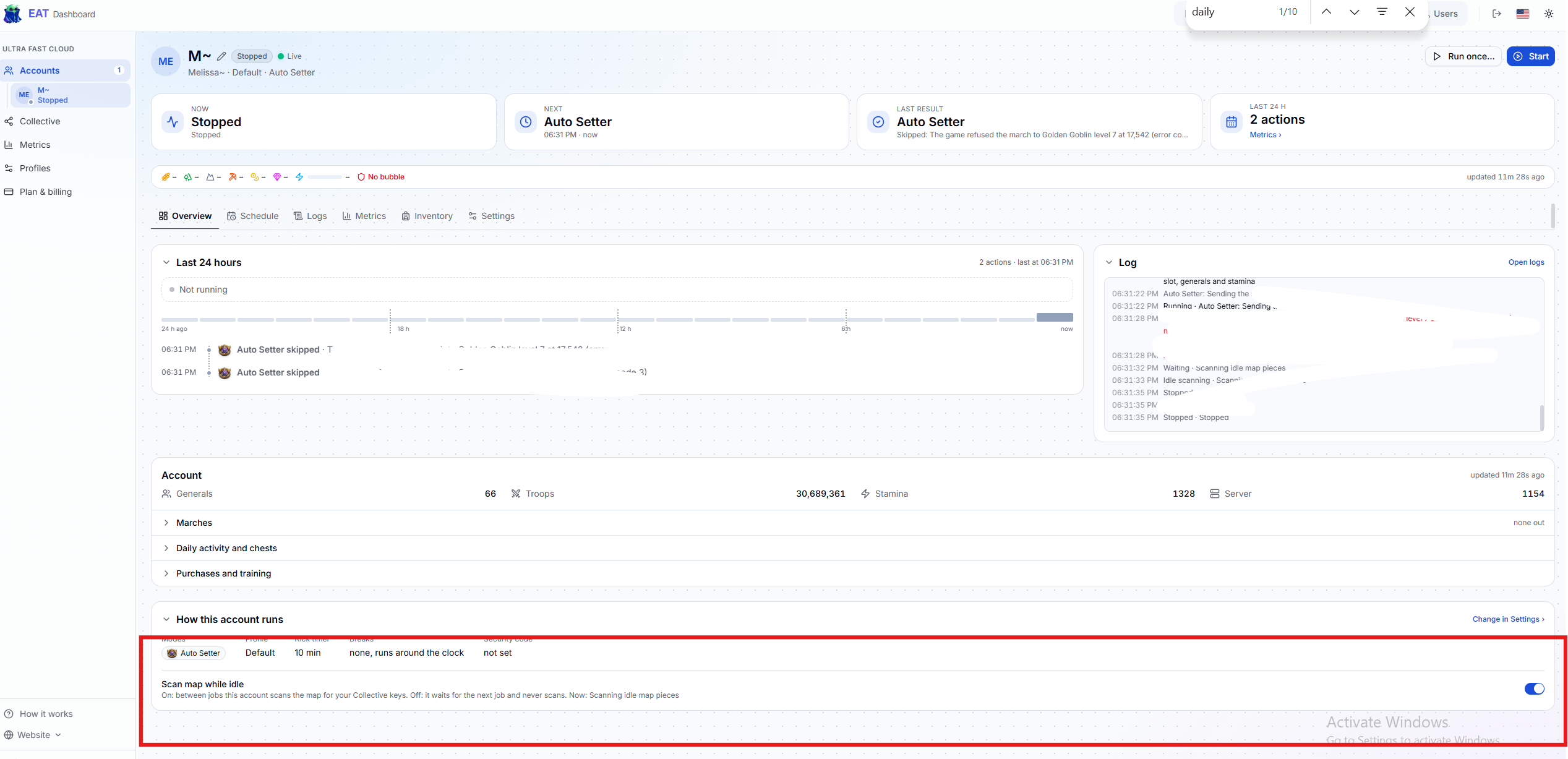
- Open Overview and scroll to How this account runs.
- Turn on Scan map while idle. If the account is stopped, click Start so it can scan between jobs.
- Check the account’s log for Scanning idle map pieces to confirm it has started scanning.
Set up scanning and view results in Collective
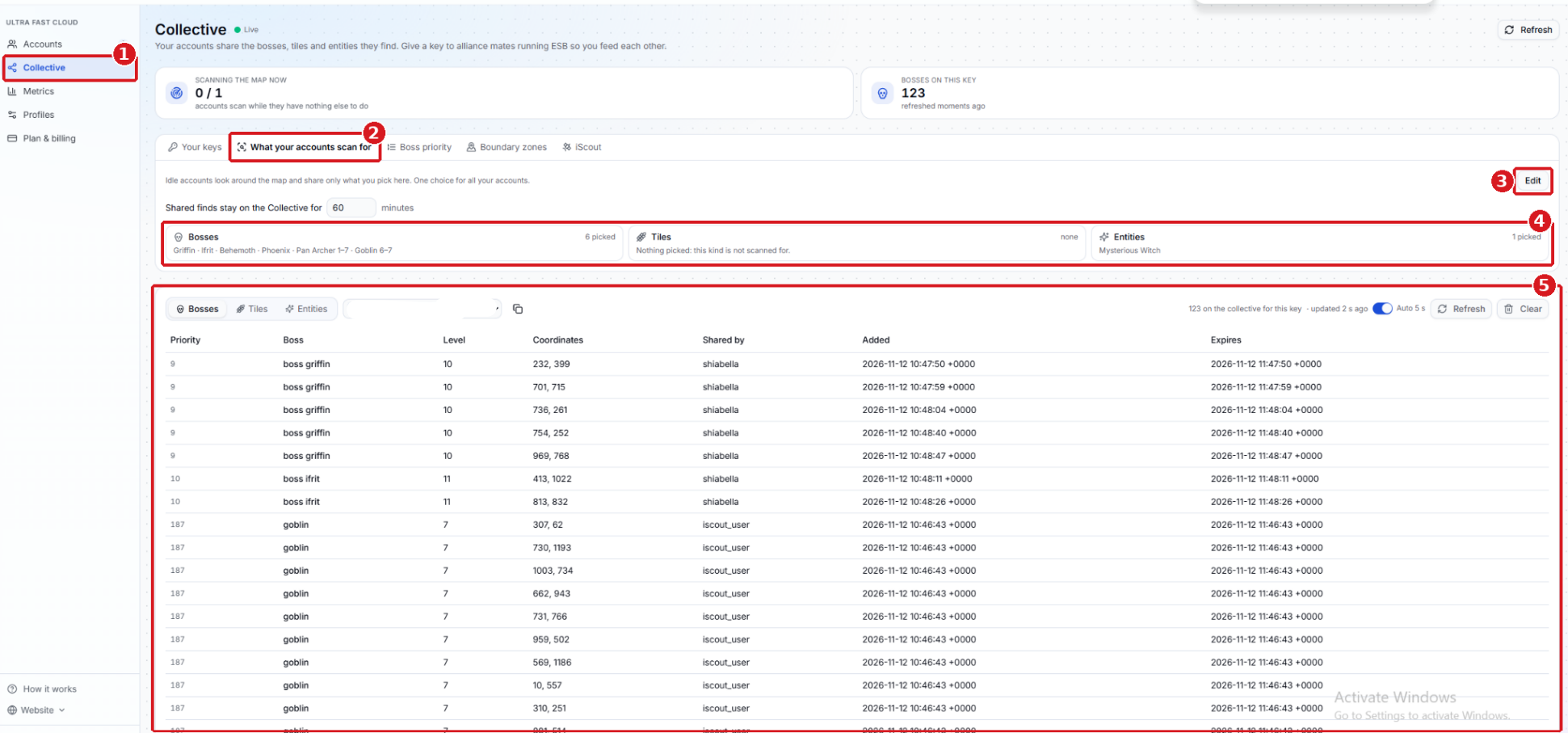
- Collective - Open Collective from the sidebar.
- What your accounts scan for - Select this tab to view the scan settings shared by all your Cloud accounts. Shared finds stay on the Collective for sets how long results are kept. The screenshot shows 60 minutes.
- Edit - Click Edit to choose which bosses, resource tiles, and entities your idle accounts should look for. Save your selections when you’re done.
- Selected scan targets - Check the Bosses, Tiles, and Entities cards to see what’s selected. For example, Goblin 6–7 means the scanner looks for level 6 and 7 Goblins. If a category shows Nothing picked, idle scanning skips it.
- Collective results - Select Bosses, Tiles, or Entities, then choose the Collective key you want to view. Click Refresh for an update or turn on Auto 5 s to refresh every five seconds. The boss table shows priority, boss name, level, coordinates, who shared it, when it was added, and when it expires. Use Shared by to see which entries came from a Cloud account and which came from iScout.
Match the Boss finder key
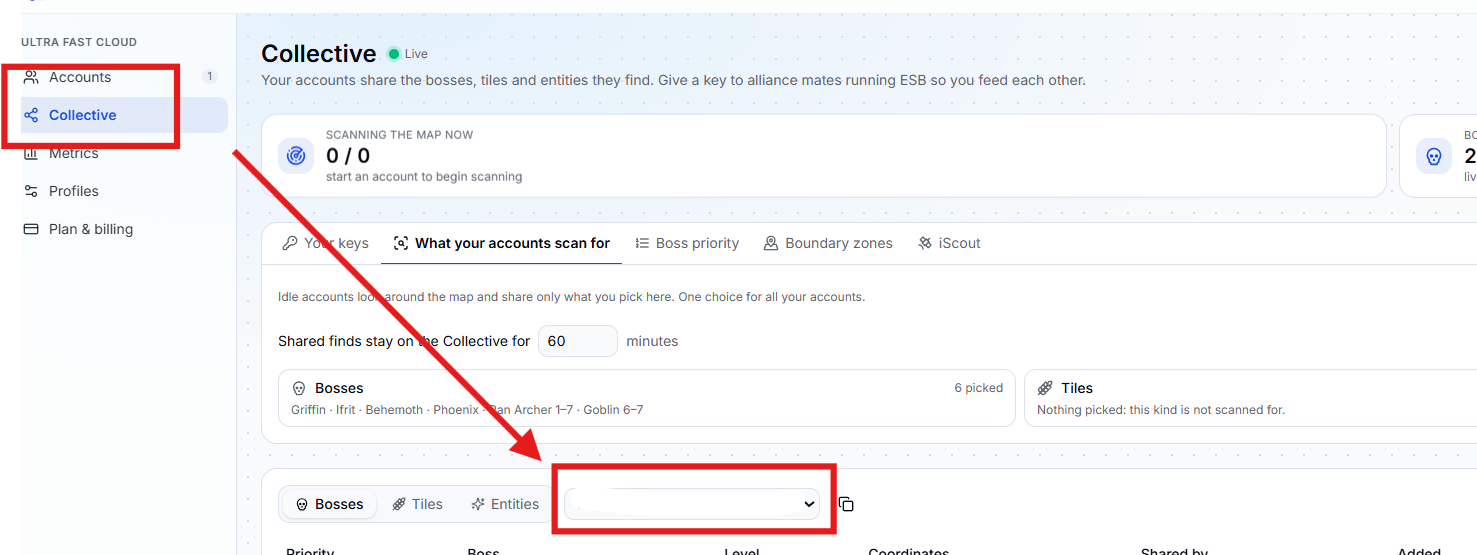
Use the same Boss finder key in the scanning account’s profile and in the Collective > Bosses dropdown. The profile key is where the scanner shares bosses. The dropdown selects which key’s results you see.
- Choose the key in Collective. Open Collective → Bosses and choose the key you want to use in the dropdown beside Bosses, Tiles, and Entities.
- Select that same key in the profile. Go to Accounts, select the scanning account, and open Settings. In the assigned profile, expand Collective keys. Under Boss finder key, select the exact same key you chose in Collective, then click Save.
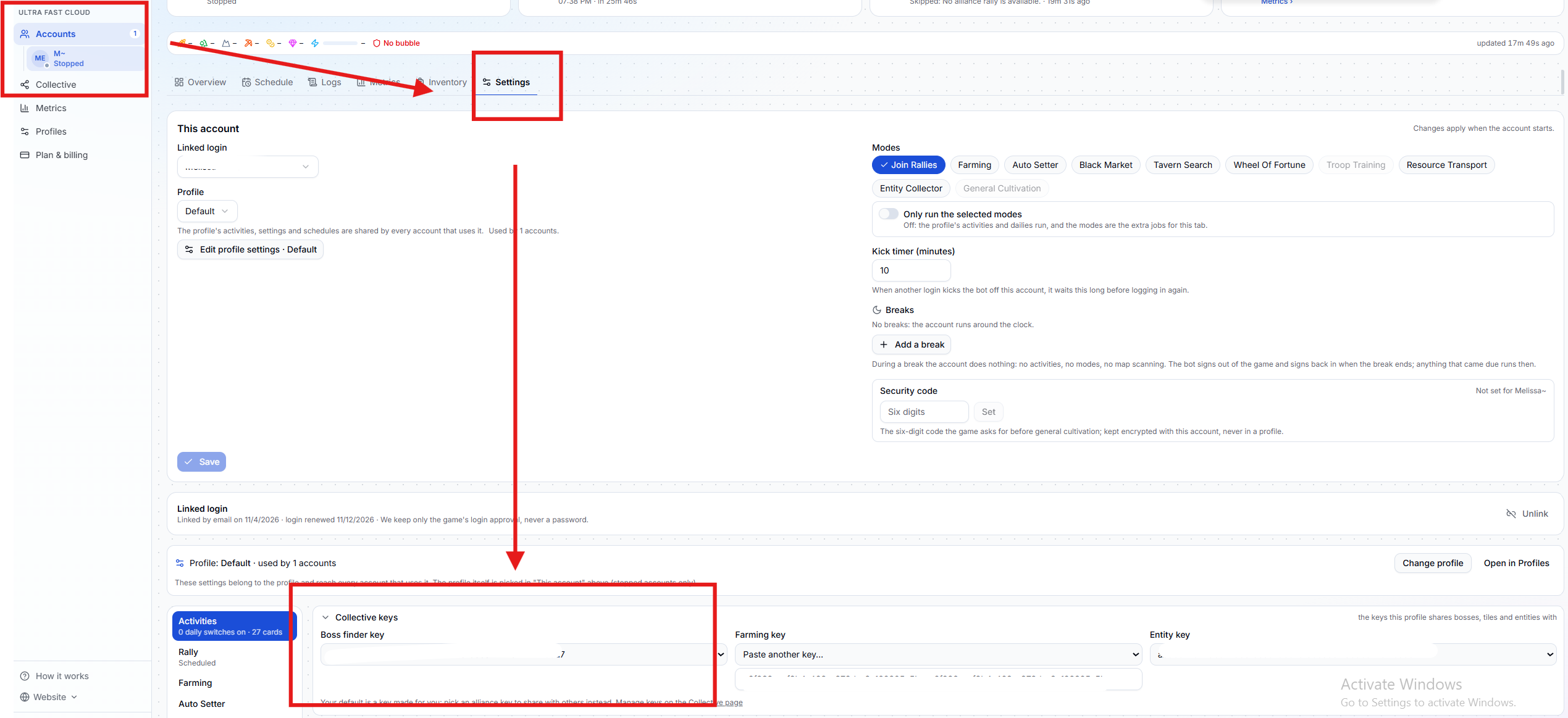 If another account runs Auto Setter, select the same Boss finder key in that account’s profile too.
Use scanned bosses with Auto Setter
- In the rally setter’s profile, open Collective keys > Boss collective key and select the same key the scanning account uses.
- In the rally setter’s Auto Setter settings, turn on Retrieve from Collective.
- Make sure an active preset includes the boss types and levels you want to rally, then click Save.
If the list is empty, check that the scanning account is running, Scan map while idle is on, and the category has targets selected. Then confirm you’re viewing the same Collective key the scanner uses.