







Profile Guides
Admin Tab Settings
Every setting on the Admin tab explained: tabs, profiles, click delay, theme, language, connection IP, notifications and emulator restart.
Это руководство ещё не переведено на Русский, поэтому оно показано на английском.
На этой странице
Check the following photo below with numbering and a description by each number below.
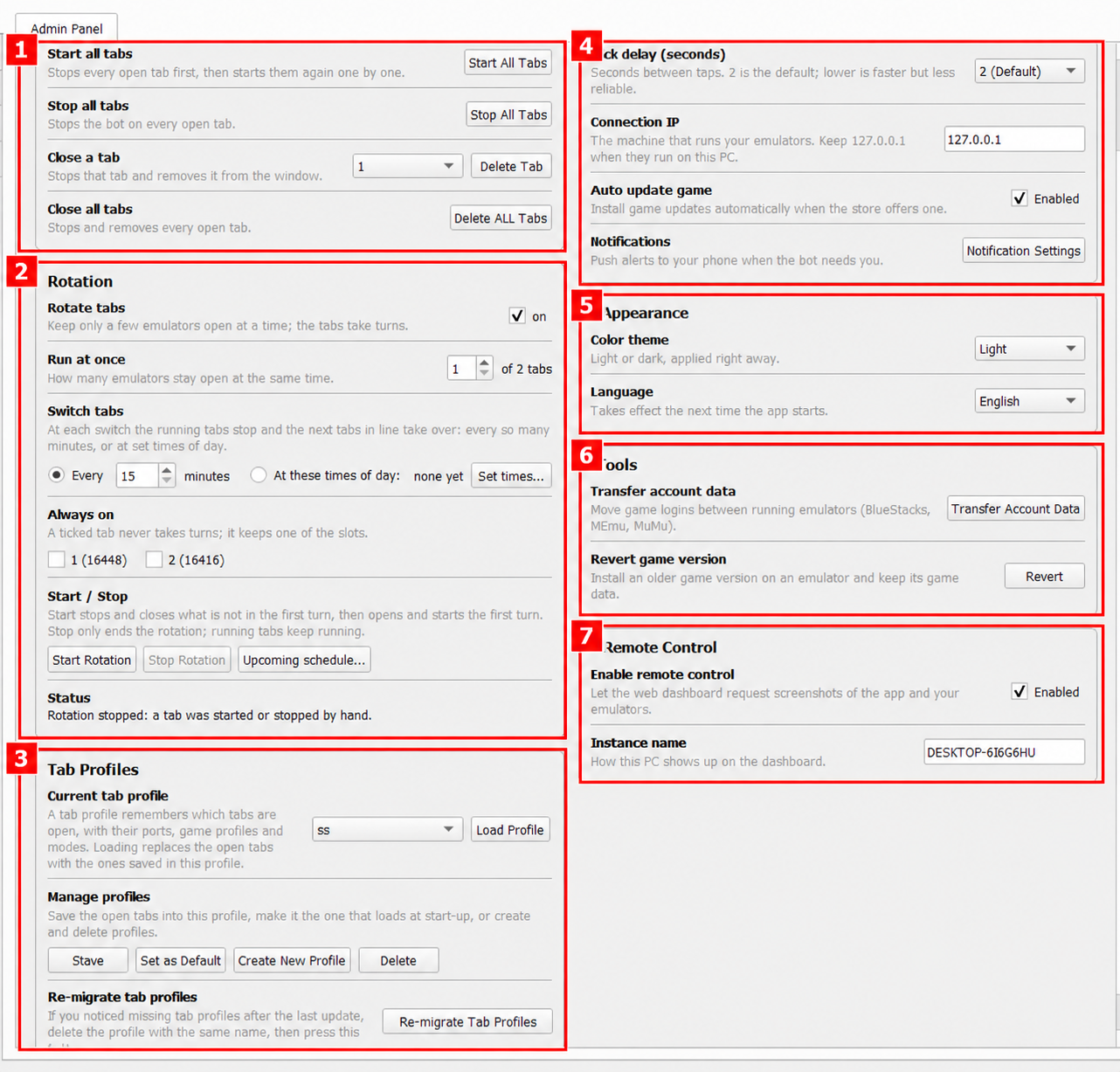
Admin Tab Panel
Go to the Admin Tab to access the Admin Panel. The numbers in the photo correspond to the sections below.
1. Tab Controls
Use this section to start, stop, or remove tabs.
- Start All Tabs: Stops all open tabs first, then starts them again one by one. This is useful after loading a saved tab profile.
- Stop All Tabs: Stops the bot on every open tab without removing the tabs.
- Delete Tab: Select a tab from the dropdown, then click Delete Tab to stop and remove it. This can be useful when a specific tab gets stuck.
- Delete ALL Tabs: Stops and removes every open tab from the window.
2. Rotation
This feature lets your accounts take turns running, so you don’t need all your emulators open at once. This helps reduce RAM usage. More information here: Account Rotation Guide · Original Interface · EAT Docs
3. Tab Profiles
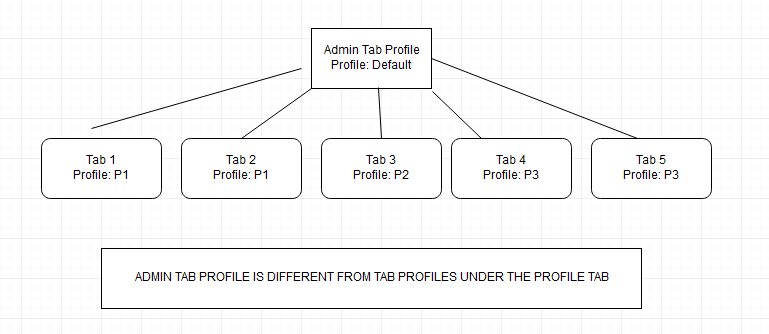
A tab profile remembers your open tabs, including their ports, selected game profiles, and modes. This saves you from rebuilding your tab setup each time you open the bot. The Admin Panel’s tab profile is different from an individual game profile. Think of it as a saved group of tabs, with each tab using its own selected game profile.
- Current tab profile: Select the saved tab profile you want to use.
- Load Profile: Replaces the currently open tabs with the tabs saved in the selected profile.
- Save: Saves your current open-tab setup to the selected tab profile. Click this after making changes you want to keep.
- Set as Default: Sets the selected tab profile to load when the app starts.
- Create New Profile: Creates a separate tab profile for another setup.
- Delete: Deletes the selected tab profile.
- Re-migrate Tab Profiles: Provides a recovery option for tab profiles missing after an update. Follow the instructions shown in the app.
Making use of Tab Profiles
Profiles for the Admin Tab are a convenient way of quickly loading and starting up your bot. For example, when you restart your computer, you won’t need to re-enter your port numbers and profiles.
Multiple Profiles can be used for multiple set-ups. For example, Some days you may run 5 instances, the other 7, or you may decide to split up the bot between multiple windows with different set-ups.
Here is an image of a set up for some clarification:
How to Save and Reload a Setup
- Open the tabs you want to include.
- Assign each tab its correct port, game profile, and mode.
- In the Admin Panel, select or create a tab profile.
- Click Save.
- When you need that setup again, select it and click Load Profile.
- Click Start All Tabs, or use Start Rotation if you want the emulators to take turns.
4. General Settings
These settings control click timing, the emulator connection, game updates, and notifications.
- Click delay (seconds): Sets the delay between taps. The default is 2 seconds. A lower value makes actions faster but may be less reliable if your PC or emulator cannot keep up.
- Connection IP: Identifies the computer running your emulators. Keep 127.0.0.1 when the bot and emulators run on the same PC.
- Auto update game: Allows the bot to install game updates automatically when the store offers an update.
- Notification Settings: Opens the settings for push notifications to your phone. Follow the instructions in the pop-up to configure your alerts.
5. Appearance
Use this section to change how the bot’s interface looks.
- Color theme: Switches between Light and Dark mode. The change applies immediately.
- Language: Changes the language of the bot interface the next time the app starts. This does not change the game’s language; keep the game in English.
6. Tools
This section contains tools for moving account data and changing the installed game version.
- Transfer Account Data: Moves game login data between running emulators, including BlueStacks, MEmu, and MuMu. Open the tool and follow its instructions.
- Revert game version: Installs an older version of the game on an emulator while keeping its game data. This can be useful when a newer game version causes compatibility issues. More information here: REVERT Game Version · Original Interface · EAT Docs
7. Remote Control
Use this section to configure screenshot access from the web dashboard and identify your PC.
- Enable remote control: Allows the web dashboard to request screenshots of the bot and your emulators.
- Instance name: Sets the name shown for this PC on the dashboard. If you use multiple PCs, give each one a different name so they are easy to identify.