


Getting Started
Setting Rallies / Autosetter Guide
Autosetter Settings Auto Setter sets boss rallies for you. It checks the available boss targets against your active presets, then uses the troops and…
Este guia ainda não foi traduzido para Português, então é exibido em inglês.
Nesta página
Autosetter Settings
Auto Setter sets boss rallies for you. It checks the available boss targets against your active presets, then uses the troops and generals you configured to set a rally. Boss Finder supplies targets in the workflow shown below.
Overview
- Enable Auto Setter on the Cloud account that will set rallies.
- Enable Scan while idle in overview to scan for the bosses you want to rally or use iScout.
- Edit the Cloud account’s assigned profile and configure at least one active Auto Setter preset.
- Save, start the account, and check Last Result or Logs to see what happened.
Enable Auto Setter in Cloud
- Open Accounts and select your rally setter.
- Go to Settings → Modes and select Auto Setter. The button turns blue and shows a checkmark. Dont forget to click Save.
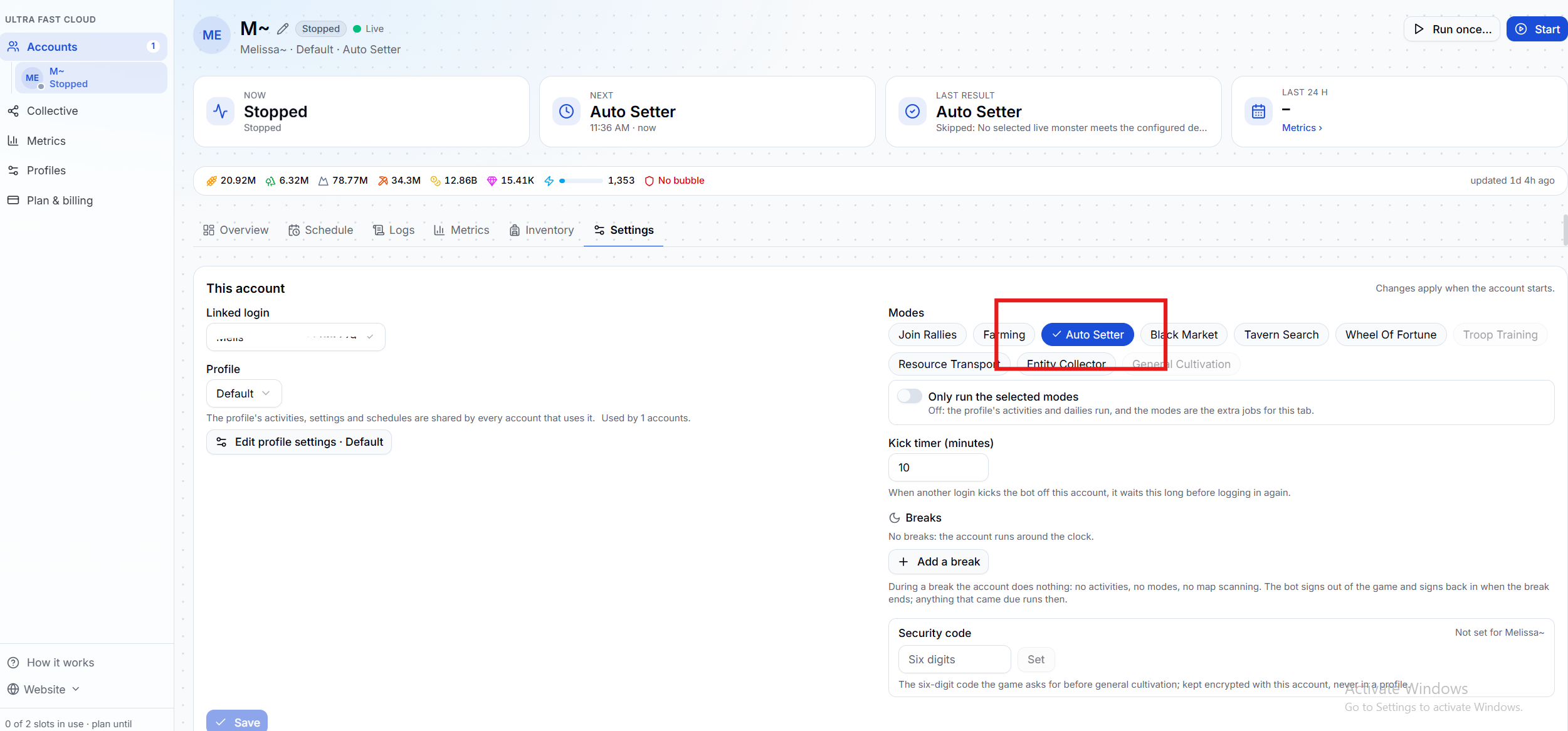
- Under Profile, confirm that the account is assigned to the profile you want to use. If you need to switch profiles, stop the account and click Change profile.
- If you use the Collective, open Collective keys in the assigned profile and check the Boss finder key. Select the same key used by the account that finds and shares the bosses.

Note
> Profile settings are shared by every account assigned to that profile. Assign a separate profile if a rally setter needs its own presets.
Find bosses for Auto Setter
Auto Setter needs bosses to rally. Use at least one of the options below to find bosses for it.
- iScout. Use iScout to find and share bosses. In the rally setter’s profile, open Collective keys and select the Boss finder key used for those results. More info here: iScout Guide · ESB Cloud · ESB Docs
- Scan map while idle. Turn on Scan map while idle on the Cloud account you want to scan. The account scans the map for its Collective keys between jobs. If a separate account sets the rallies, make sure both accounts use the same Boss finder key. More info here: Boss Scanner Guide · ESB Cloud · ESB Docs
If a boss appears in Collective, the setter still needs an active preset that allows that boss and meets the configured conditions.
Auto Setter Settings
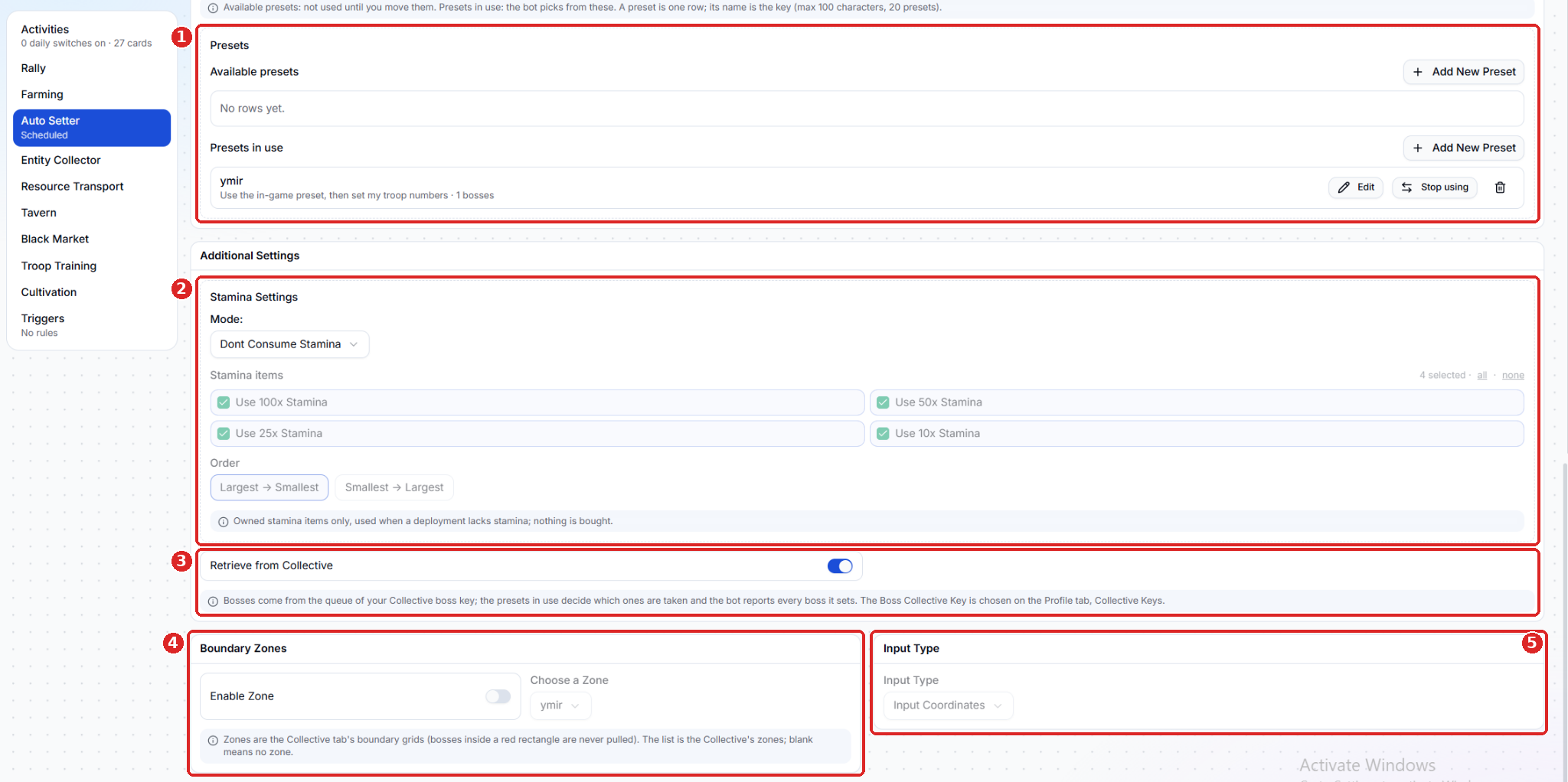
Presets - Create and manage your Auto Setter presets. Available presets are saved for later. Auto Setter picks from Presets in use when deciding which bosses to rally. Click Edit to change a preset or Stop using to move it back to the available list.
Stamina Settings - Choose how Auto Setter uses stamina items when a march needs more stamina.
- Dont Consume Stamina - Leaves stamina items unopened.
- Consume Max Stamina - Uses the selected stamina items to refill stamina up to the maximum.
- Consume One Stamina - Uses one stamina item from the sizes you selected.
When stamina use is enabled, choose which item sizes the bot can use (100, 50, 25, or 10) and whether it uses the largest or smallest first. Auto Setter only uses items you already own.
Retrieve from Collective - Turn this on to pull bosses from the queue tied to your profile’s Boss finder key. The presets in use determine which bosses Auto Setter can rally.
Boundary Zones - Turn on Enable Zone and choose a zone created in Collective. Auto Setter skips bosses inside the red rectangles defined by that zone.
Input Type - Controls how Auto Setter navigates to a boss. Input Coordinates, shown here, sends the bot to the boss’s map coordinates.
Auto Setter Preset Settings
Each preset defines which bosses Auto Setter can attack and which troops and generals it sends. Open Auto Setter > Presets and click Add New Preset or Edit to get started.
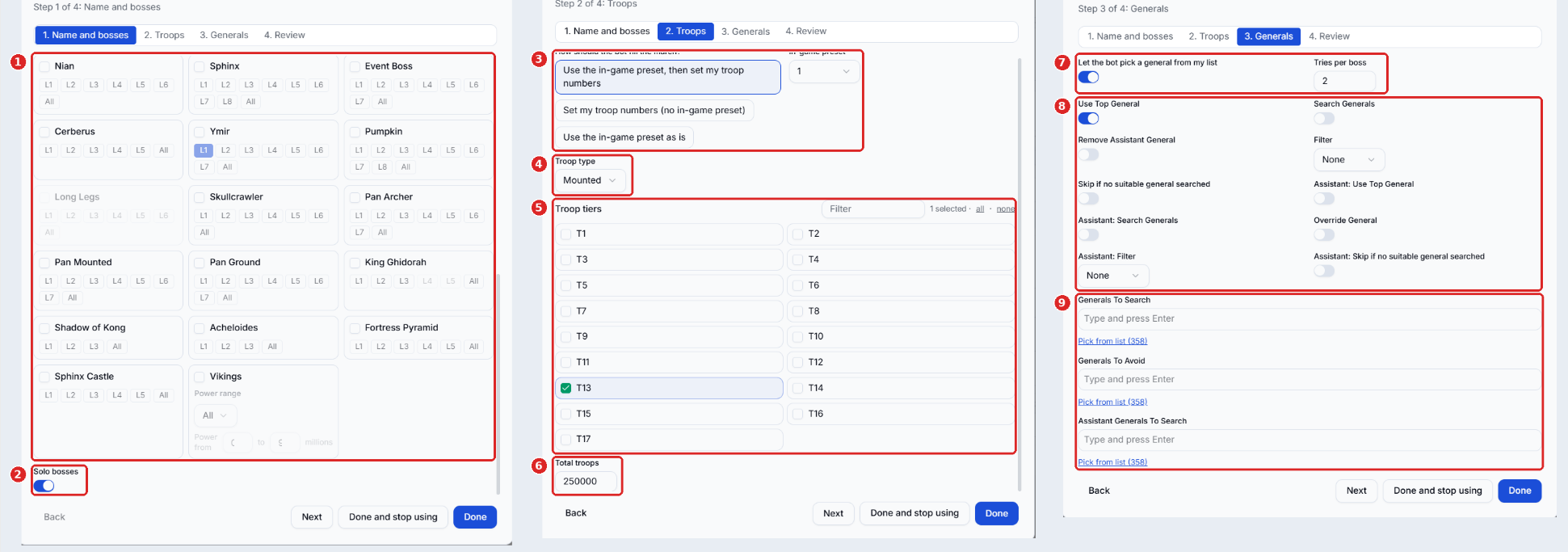
Step 1 · Name and bosses
1. Boss selection - Choose the bosses and levels this preset can defeat. Use All to select every level for a boss. For Vikings, enter the power range in millions if you want to limit which targets the preset can take.
2. Solo bosses - Turn this on to attack selected bosses that support solo attacks. Other eligible bosses are set as 5-minute rallies. Soloable bosses:
- Centaur, Griffin, Manticore, Minotaur, Peryton, Redcap, Skeleton, Werewolf, Yasha, and Zombie
- Junior Hydra and Medium Hydra
- Cerberus - Lv. 1–2
- Pan Archer, Pan Ground, Pan Mounted, and Ymir - Lv. 1–3
- Pumpkin - Lv. 1–5
Step 2 · Troops
3. March setup - Choose how Auto Setter fills the march. - Use the in-game preset, then set my troop numbers loads the selected in-game preset and applies your troop settings. - Set my troop numbers (no in-game preset) builds the march using your troop settings. - Use the in-game preset as is sends the selected in-game march as saved.
4. Troop type - Choose the troop type for a custom march. The screenshot shows Mounted.
5. Troop tiers - Select the tiers this preset can use. The screenshot shows T13 selected.
6. Total troops - Enter the troop count for the march. If you select multiple tiers, the count applies to the march, and Auto Setter can try another selected tier if the first is unavailable.
Step 3 · Generals
7. General selection and tries per boss - Enable Let the bot pick a general from my list to let Auto Setter choose a general. Tries per boss controls how many times it can try this preset for a boss. Set it based on how many eligible generals or general pairs you have available.
8. Main and assistant general options - Use Use Top General to pick the top eligible general or Search Generals to look for specific names. Use Filter to narrow the choices. Override General lets Auto Setter replace the preset’s general. The assistant controls let you remove the assistant or configure its own selection and skip rules.
9. General lists - Add names under Generals To Search, Generals To Avoid, or Assistant Generals To Search. Type a name and press Enter, or use Pick from list.
Step 4 · Review and save
Open Review to check your boss selections and march setup. Click Done to save. Use Done and stop using to save the preset and remove it from Presets in use.
Start Auto Setter and check the result
- Confirm that Retrieve from Collective is on and at least one preset is listed under Presets in use.
- Click Save to apply all the settings and changes you made.
- Return to the account page and click Start. If the account is already running, stop it and start it again after saving.
- Check Last Result after Auto Setter runs. Open Logs if the result is cut off or you need more detail.
If a run is skipped, check that the boss appears in Collective under the rally setter’s Boss finder key. Then confirm that an active preset allows that boss and its level or power range. If the log points to a march issue, check that the preset’s troops, generals, and stamina are available.