

Getting Started
Black Market Guide
Black Market Guide Use Black Market mode in ESB Cloud to refresh the market and buy the items you select. You can choose which currencies Cloud is allowed…
이 가이드는 아직 한국어로 번역되지 않아 영어로 표시돼요.
이 페이지에서
Black Market Guide
Use Black Market mode in ESB Cloud to refresh the market and buy the items you select. You can choose which currencies Cloud is allowed to spend on each item.
Enable Black Market mode
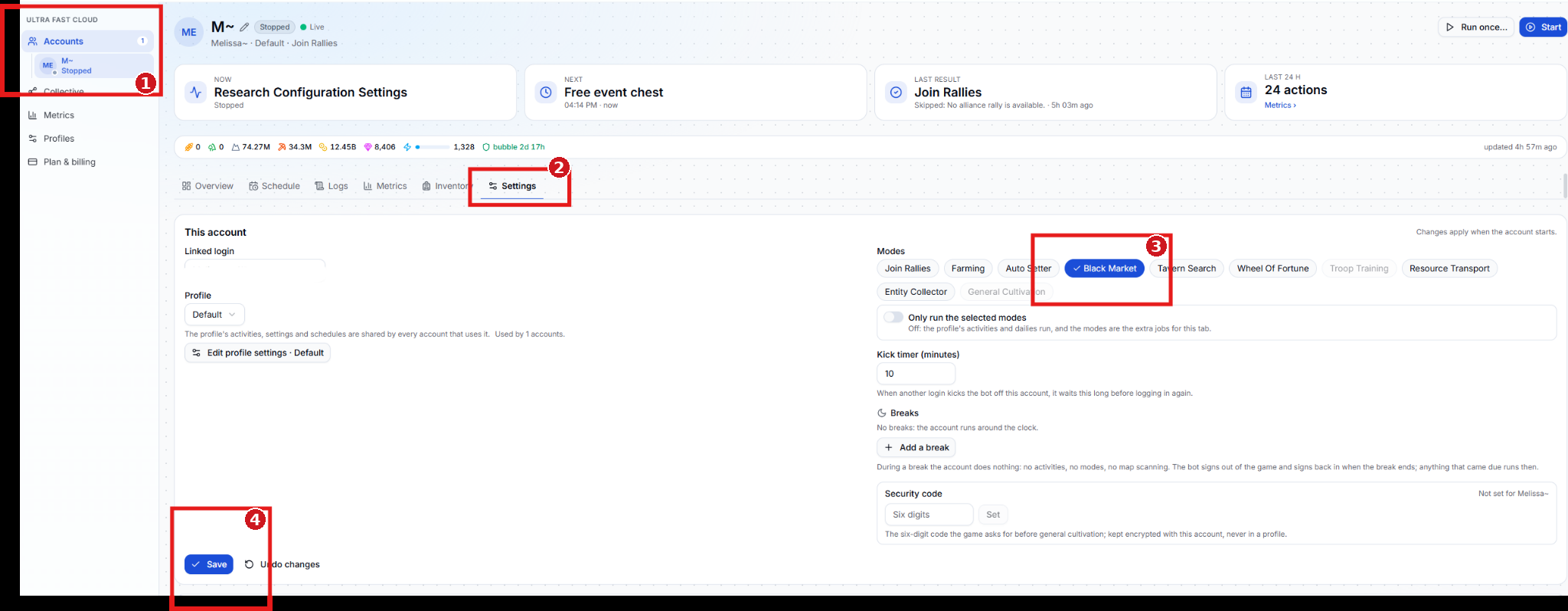
- Accounts — Select the Cloud account you want to run Black Market on.
- Settings — Open the account’s Settings tab.
- Black Market — Under Modes, select Black Market.
- Save — Save the account settings. The changes apply when the account starts.
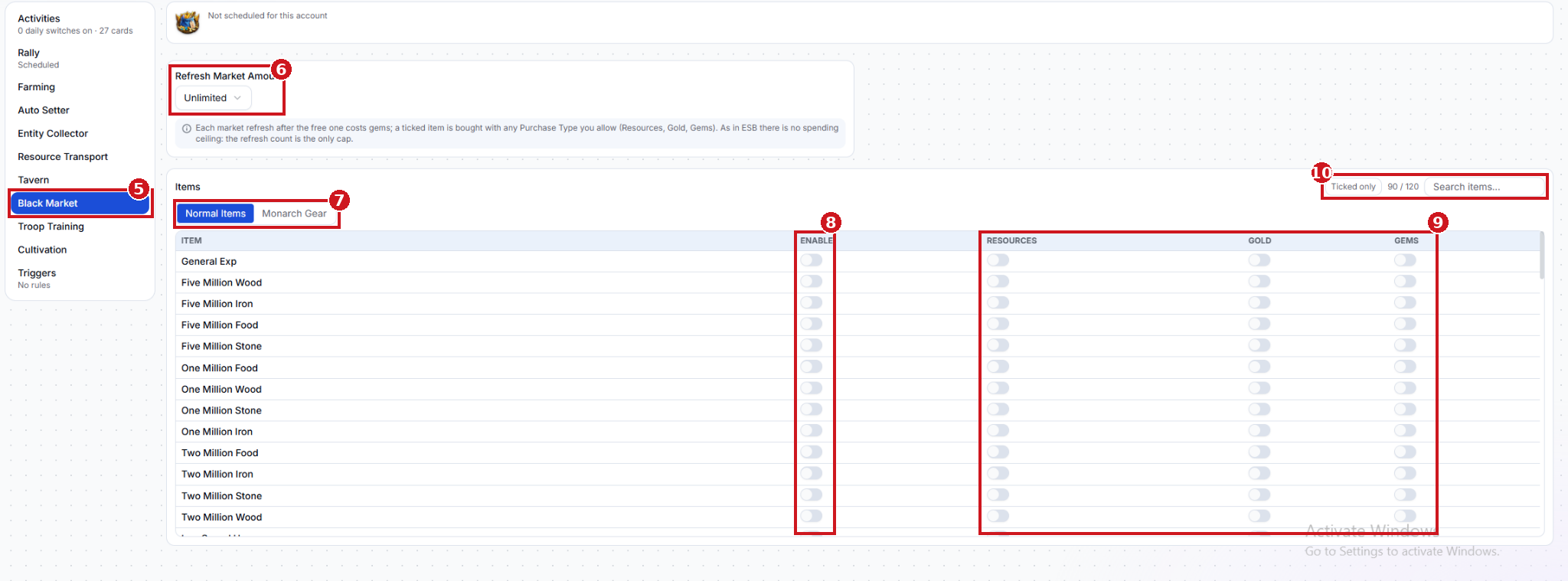
- Black Market — In the profile’s Activities list, select Black Market.
- Refresh Market Amount — Choose how many times Cloud can refresh the market while looking for your items. Unlimited removes the refresh limit.
- Normal Items / Monarch Gear — Open the tab for the type of item you want to buy.
- Enable — Turn this on for each item you want Cloud to buy.
- Purchase Type — For each enabled item, turn on the currencies you’re willing to spend: Resources, Gold, or Gems. For example, enable only Gold for an item you want to buy only with gold.
- Ticked only / Search items — Use Ticked only to review your enabled items, or search for an item by name.
Gem spending: Every refresh after the free one costs gems, even when Gems is off for every item. The refresh count is the only cap. There’s no separate spending limit.