


Getting Started
Profile Tab Guide
Profile Tab Guide Manage your daily collections, events, and automated activities from the Activities section of your ESB Cloud profile. The Activities…
Ce guide n'est pas encore traduit en Français, il est donc affiché en anglais.
Sur cette page
Profile Tab Guide
Manage your daily collections, events, and automated activities from the Activities section of your ESB Cloud profile. The Activities section is divided into two categories: Daily Collections and Events and Activities with Options.
How to Use
- Open your ESB Cloud dashboard and select the account you want to configure.
- Go to the Profile tab and locate Activities.
- Enable the activities you want the bot to perform using the toggle switches.
- For activities with additional settings, click Options to configure them.
- Once enabled and saved, the activity will be scheduled for that account.
1. Daily Collections and Events
These activities mainly collect daily rewards, free gifts, and event rewards. They can be enabled directly without additional configuration.
| Activity | Description |
|---|---|
| Collect Mail Gifts | Checks and collects available mail gifts. |
| Collect In-City Resources | Collects resources produced inside your city. |
| Collect Daily Log In | Claims daily login rewards. |
| Free Event Chest | Collects available free event chests. |
| Collect Daily Resource Package | Claims the daily resource package. |
| Collect Monthly Card | Collects daily Monthly Card rewards. |
| Collect Kings Path | Claims available King's Path rewards. |
| Collect Gather Troops | Collects Gather Troops event rewards. |
| Collect Great General Chest | Collects the Great General Chest from the Tavern. |
| Dawn of Civilization | Claims available Dawn of Civilization rewards. |
| Advanced Journey | Collects Advanced Journey rewards. |
| Collect Wall Gift | Claims available gifts from the city wall. |
| Collect Privilege Card | Collects Privilege Card rewards. |
| Collect VIP Gift | Claims the daily VIP gift. |
| Collect Treasure Fragment | Collects available Treasure Fragment rewards. |
| Send Flowers | Sends flowers through the Arch of Triumph. |
| Wheel of Civilization | Automatically spins the Wheel of Civilization. |
| Wheel of Dragon War | Handles available Wheel of Dragon War spins and rewards. |
| Journey to Glory | Performs available Journey to Glory spins. |
| Dragon Battle | Participates in Dragon Battle activities and collects rewards. |
| Delphic Oracle | Performs available Delphic Oracle spins. |
| Voyage to Civilization | Collects the free Voyage to Civilization reward. |
| Claim Daily Card Pack | Claims the available Daily Card Pack. |
| Bounty Cave | Claims the daily Bounty Cave package. |
| Use Blessings | Uses available blessings. |
| Divination of Fate | Claims daily free rewards, uses available divination cards, and collects rewards. |
| Successive Purchase | Claims free daily Successive Purchase rewards. |
| Goddess Book Purchase | Purchases daily book pages. |
| Grace of Star Trail | Claims the free daily gift, performs free spins, and collects milestone rewards. |
| War Medal | Claims completed War Medal tasks and available rewards. |
| Wishful Windmill | Handles available Wishful Windmill tasks and rewards. |
| Giants Wisdom Temple | Handles available room rewards in Giant's Wisdom Temple. |
| Citizen Recruitment Ticket | Handles the Citizen Recruitment Ticket activity. |
| Claim Garuda Rewards | Claims available Garuda Trial rewards. |
| New Chapter Rewards | Claims available New Chapter rewards. |
| Sprint Weekly Rewards | Claims available Sprint Weekly rewards. |
| Reset Rally Card | Resets the Rally Card when owned. |
| Event Pass Free Levels | Claims available free Event Pass level rewards. |
2. Activities with Options
These activities have additional settings that can be configured by clicking Options beside the activity.
City Growth
Manages city development activities, including Keep progression. Options: Configure building priorities, construction settings, resource pack usage, and the second building queue. More information on: City Growth Guide
Alliance Activities
Automatically helps alliance members, collects alliance gifts, and donates resources to Alliance Science.
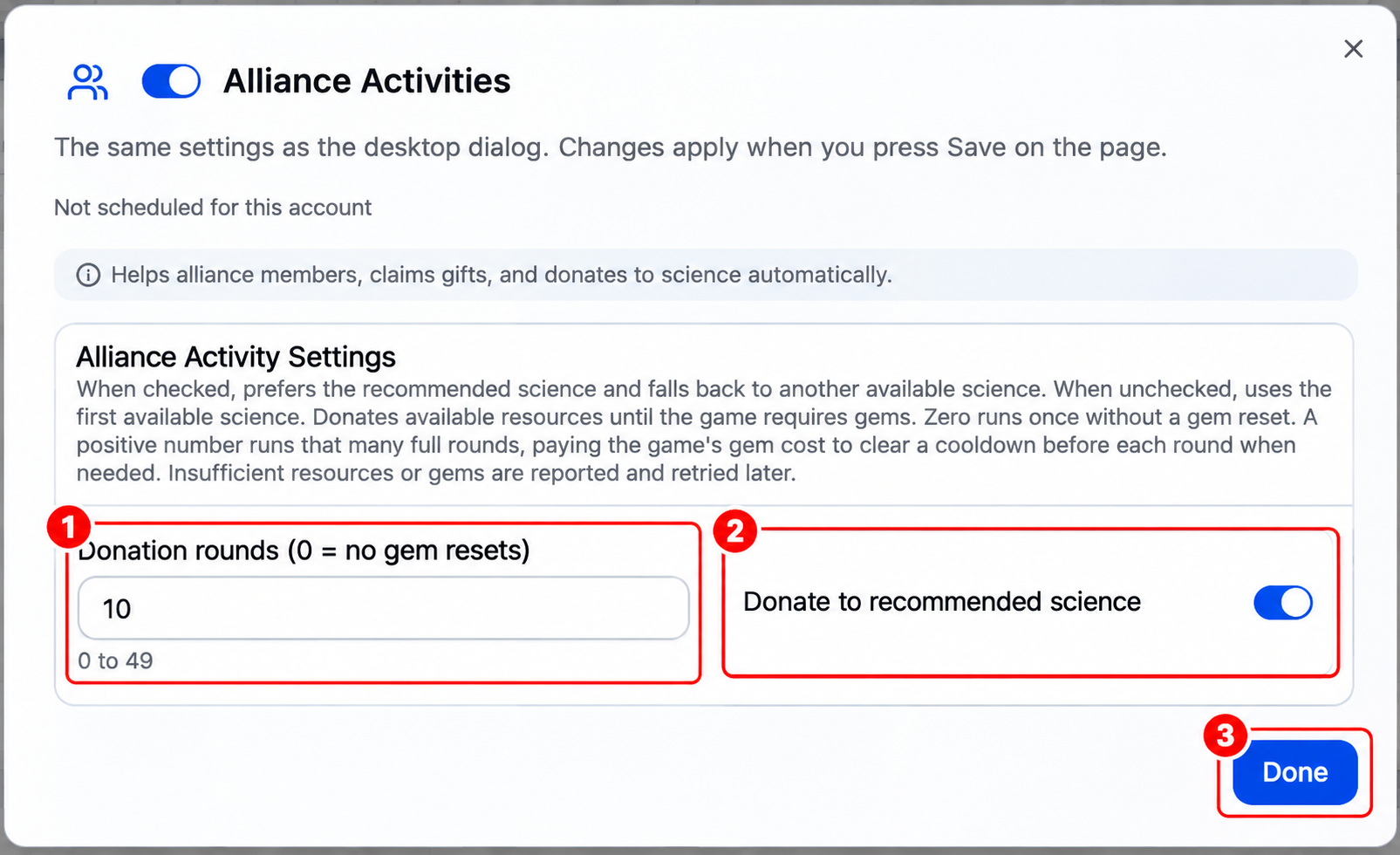 Click Options to configure the following settings:
- Donation Rounds (0 = no gem resets) - Sets how many donation rounds the bot performs.
- 0: Donates available resources once without using gems to reset the cooldown.
- 1-49: Performs the selected number of full donation rounds, using gems to reset the cooldown when needed.
- If resources or gems are insufficient, the bot reports the issue and retries later.
- Donate to Recommended Science - Determines which Alliance Science receives donations.
- Enabled: Prioritizes the recommended science. If unavailable, selects another available science.
- Disabled: Donates to the first available science.
Note: Click Done to close the Options window, then click Save on the Profile page to apply your changes.
Check Bubble
Monitors your city's protection bubble and manages renewal.
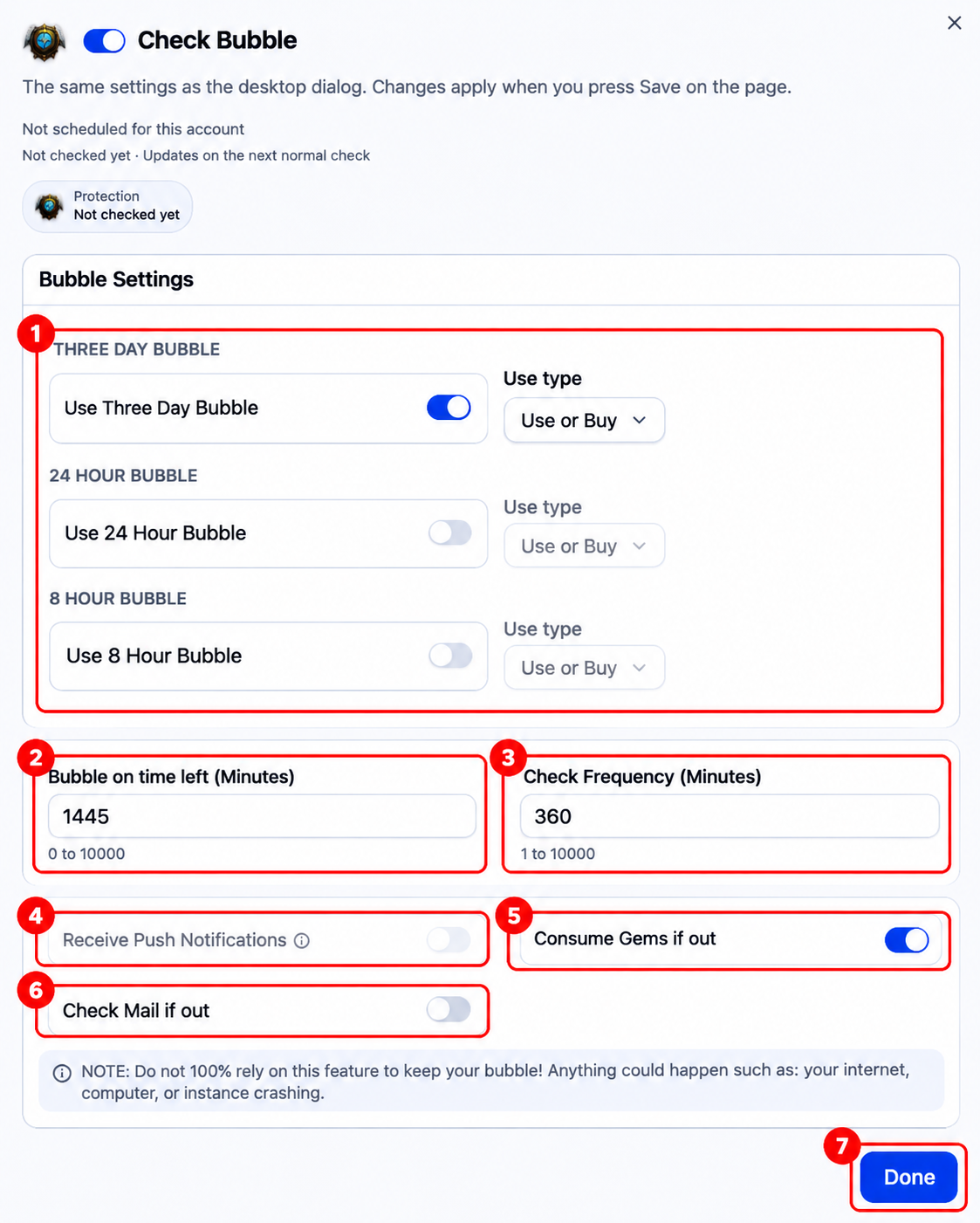
- Bubble Settings - Choose which bubble durations the bot can use: Three Day, 24 Hour, or 8 Hour. Each enabled duration has a Use Type setting:
- Use: Uses a bubble already in your inventory.
- Buy: Purchases a bubble using gems.
- Use or Buy: Uses an available bubble first or purchases one if needed.
- Bubble on Time Left (Minutes) - Sets the remaining bubble time at which the bot should apply a new bubble. For example, 1445 minutes equals 24 hours and 5 minutes.
- Check Frequency (Minutes) - Sets how often the bot checks your bubble status. For example, 360 minutes means every 6 hours.
- Receive Push Notifications - Enables push notifications for bubble-related alerts, where supported.
- Consume Gems if Out - Allows the bot to spend gems when a replacement bubble is needed and none is available.
- Check Mail if Out - Checks in-game mail for available bubbles when none are in your inventory.
- Done - Closes the Options window. Click Save on the Profile page to apply your changes. Important: Do not rely entirely on this feature to keep your city protected. Game issues, connection problems, or instance crashes may prevent the bot from applying a bubble in time.
Use Resource Speed Ups
Automatically uses selected resource speedups based on your settings.
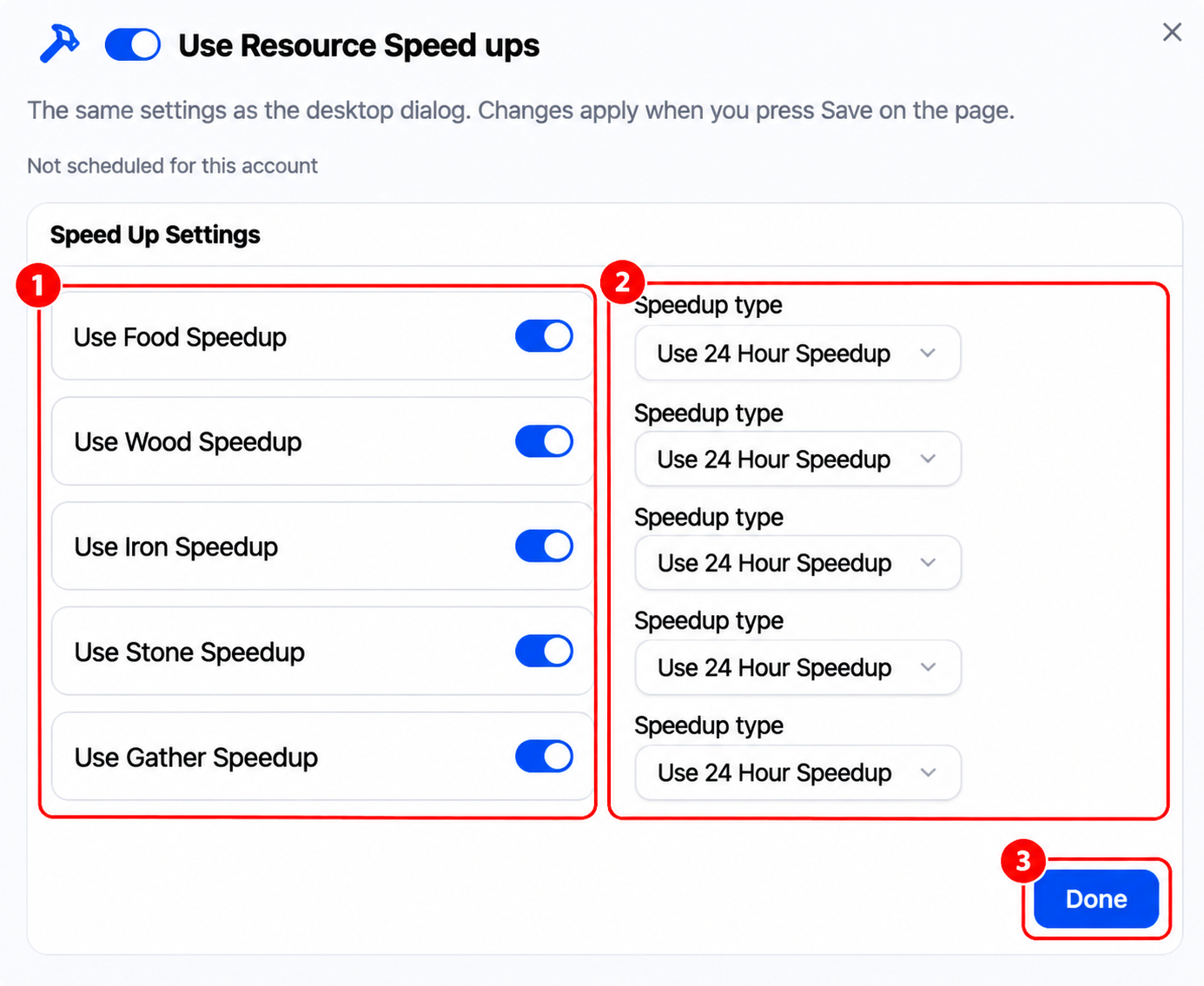
- Use Resource Speedup - Enable the resource types you want the bot to use speedups for:
- Food Speedup
- Wood Speedup
- Iron Speedup
- Stone Speedup
- Gather Speedup
- Speedup Type - Select which speedup duration to use for each enabled resource. Each resource has its own dropdown, allowing you to choose different durations.
- Done - Closes the Options window.
Use Combat Buffs
Automatically applies city combat buffs.
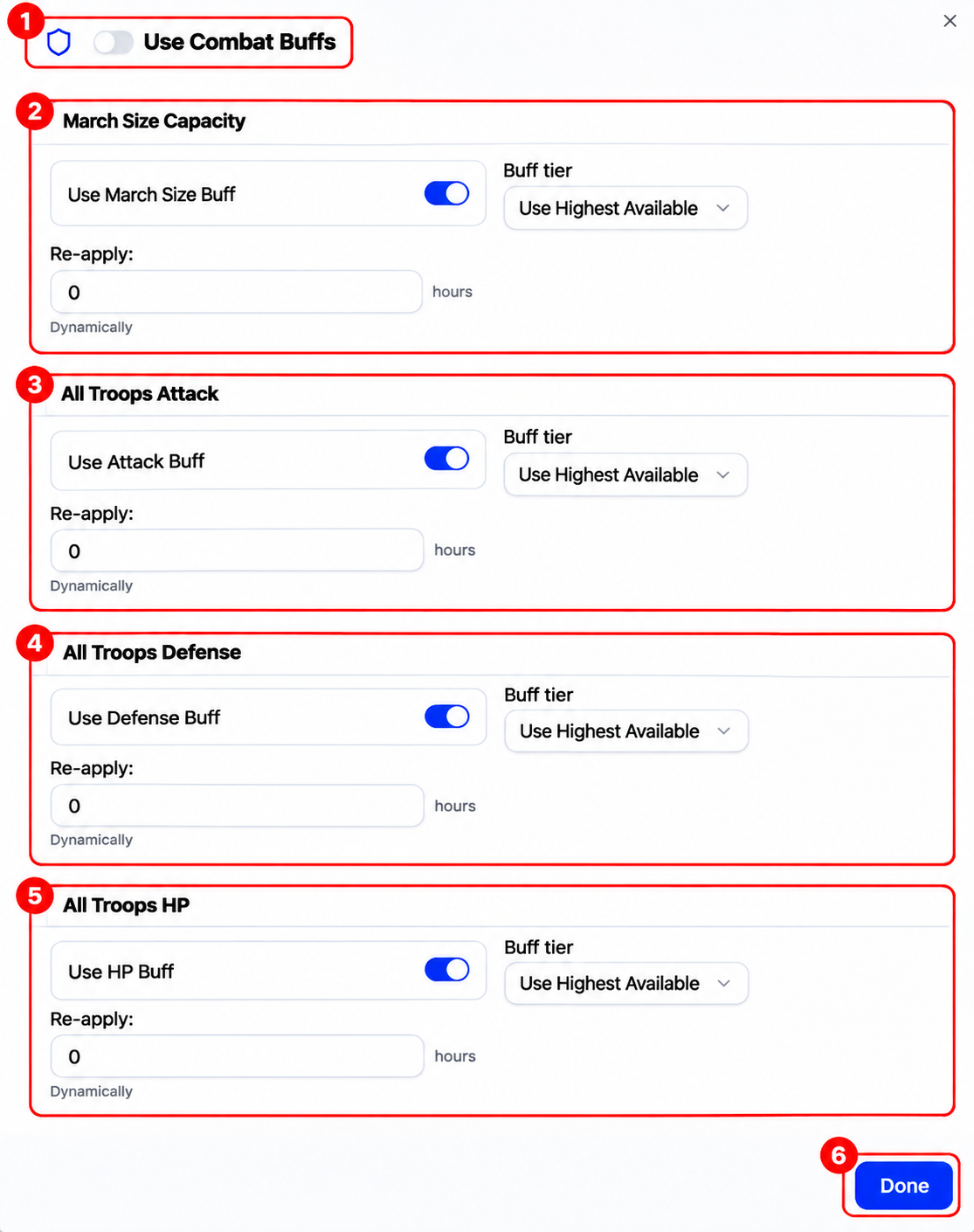
- Use Combat Buffs - Enables or disables automatic combat buff usage.
- March Size Capacity - Increases the number of troops your march can carry.
- All Troops Attack – Increases attack stats for all troop types.
- All Troops Defense - Increases defense stats for all troop types.
- All Troops HP - Increases HP stats for all troop types.
- Done - Closes the Options window.
Each buff has three settings:
- Enable Buff - Turn on the toggle for the buff you want the bot to use.
- Buff Tier - Choose which strength of buff to apply. Use Highest Available selects the strongest available buff.
- Re-apply - Controls when the bot applies another buff.
- 0 (Dynamically): Checks again when the current buff expires.
- 1 or more hours: Reapplies the buff at the selected interval.
Open Boxes
Automatically opens selected inventory boxes. Options: Choose which boxes to open and how frequently to open them.
Daily Activities
Choose which daily tasks the bot runs and check your account’s activity points and chest progress.
- Daily Compose Choose a Material and the level of the pieces you want to combine under Material quality (Lv). For example, three Lv 2 Wood combine into one Lv 3 Wood. Only the level for the selected material is saved.
- Daily Tax Choose the resource under Tax type and set how many tax actions to perform each time it runs. This task follows the Routine schedule.
- Daily Offering Use Gem Times and Tribute Times to set how many offerings of each kind to make per day. Tribute offerings use items you already own. This task follows the Routine schedule.
- Daily Troop Training Choose the Troop Tier, Troop Amount, and Troop Type. The bot trains one batch per day and collects it when ready, without spending gems or speedups.
- Daily Trap Training Choose the Trap Tier and Trap Type, then enter how many traps to train under Trap Amount.
- Daily Patrol Set Patrols per day. The bot uses only your available free patrols on the classic patrol board. For example, if you set 10 and your account has three free patrols, the bot runs up to three. Rewards stay in the game’s patrol list.
- Daily Building Upgrade Enable Walls, Resource buildings, or both. Set the Level cap and the minimum amount of food, wood, stone, and ore to keep. When no builder is busy, the bot starts one eligible upgrade that leaves those reserves intact. The daily task counts as soon as the upgrade starts. This task skips the Keep and runs without spending items, speedups, or gems.
- Daily Relic Exploration
Set the search Radius, the maximum Joins per day, and the eligible relic levels using Min level and Max level. Choose a Preset slot for the march, or enter
0to use the default march.
Materials
Collects Subordinate City materials and produces materials inside the city.
- Collect Sub-City Materials - Turn this on to collect materials from your subordinate cities.
- Produce Materials In-City - Turn this on to produce materials in your city.
- Select a Material Type - Choose what to produce, such as Blue Stone.
- Select a Material Level - Choose the level to produce. Dragon Scale starts at Lv 2 in this game build. Other materials also have a Lv 1 option.
Spawn Vikings
Automatically spawns Vikings. Options: Select difficulty, check frequency, sharing to AC or Collective, solo attack settings, Auto Setter preset, target level, and stamina item usage.
Interact with Champion
Automatically greet champions, interact with them, send gifts from your inventory, and claim earned rewards.
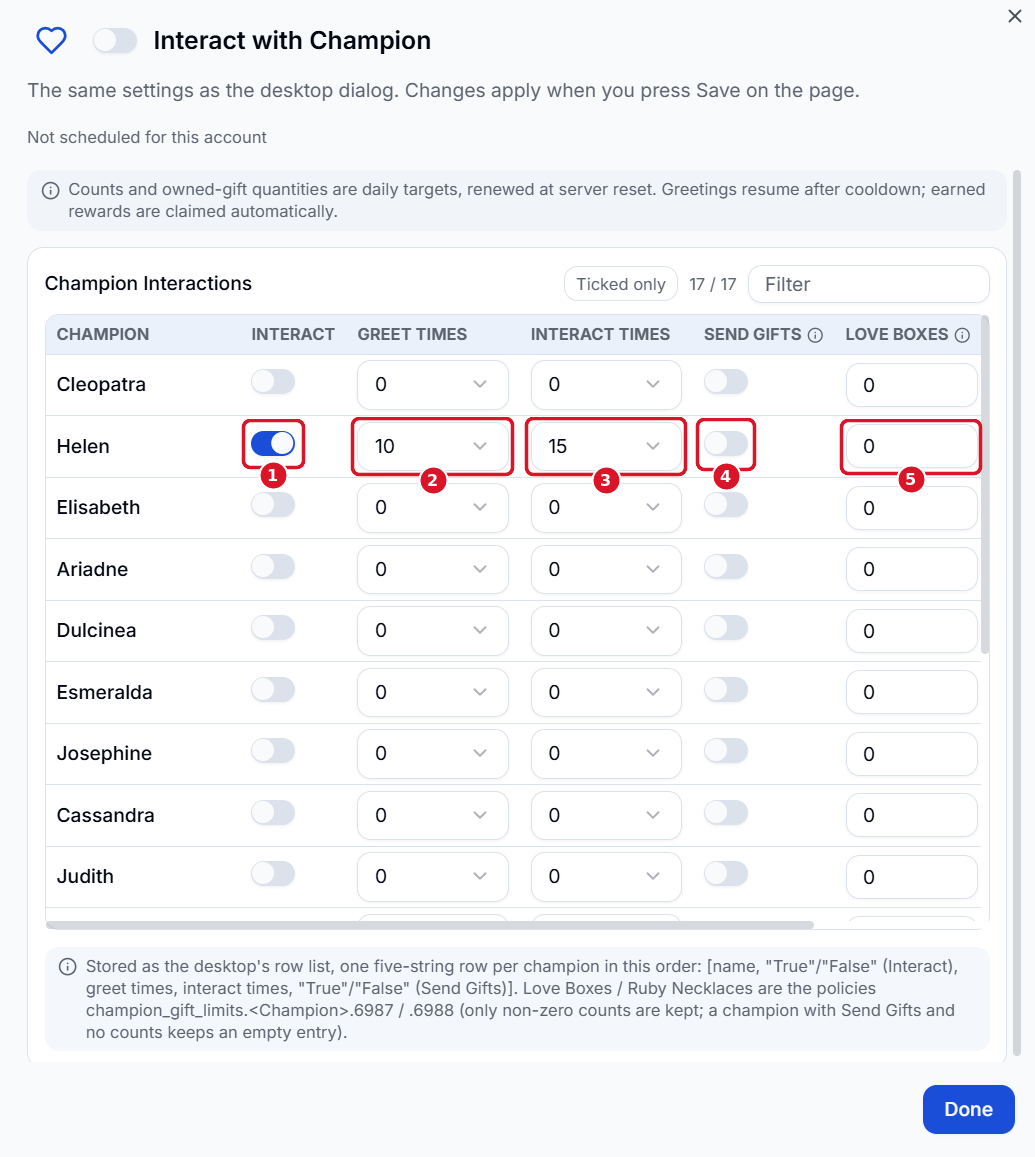
- Interact - Select the champions you want the bot to visit.
- Greet Times - Set how many times per day to greet each champion. Greetings resume when the cooldown ends.
- Interact Times - Set how many times per day to use the champion’s Interact action.
- Send Gifts - Allow the bot to send gifts you already own to that champion.
- Love Boxes - Set how many Love Boxes to send to that champion per day.
Daily targets renew at server reset. Click Done, then click Save on the main page to apply your changes.
Buy Daily Stamina
Purchases stamina from the store. Options: Set the daily purchase quantity. Be aware that the gem cost increases with additional purchases.
Alliance Shop
Purchases selected items from the Alliance Shop. Options: Choose which items to purchase.
Crazy Eggs
Automatically cracks selected Crazy Eggs. Options: Select which eggs to crack.
Dwarfs Lucky Apple
Automatically uses available Witch's Coins. Options: Choose a strategy: 5→3→1, 3→1, or 1.
Royal Thief
Automatically invites and attacks Royal Thieves. Options: Configure Royal Thief automation. Specific settings need confirmation.
Advanced Refining
Automatically refines equipment through the Wonder.
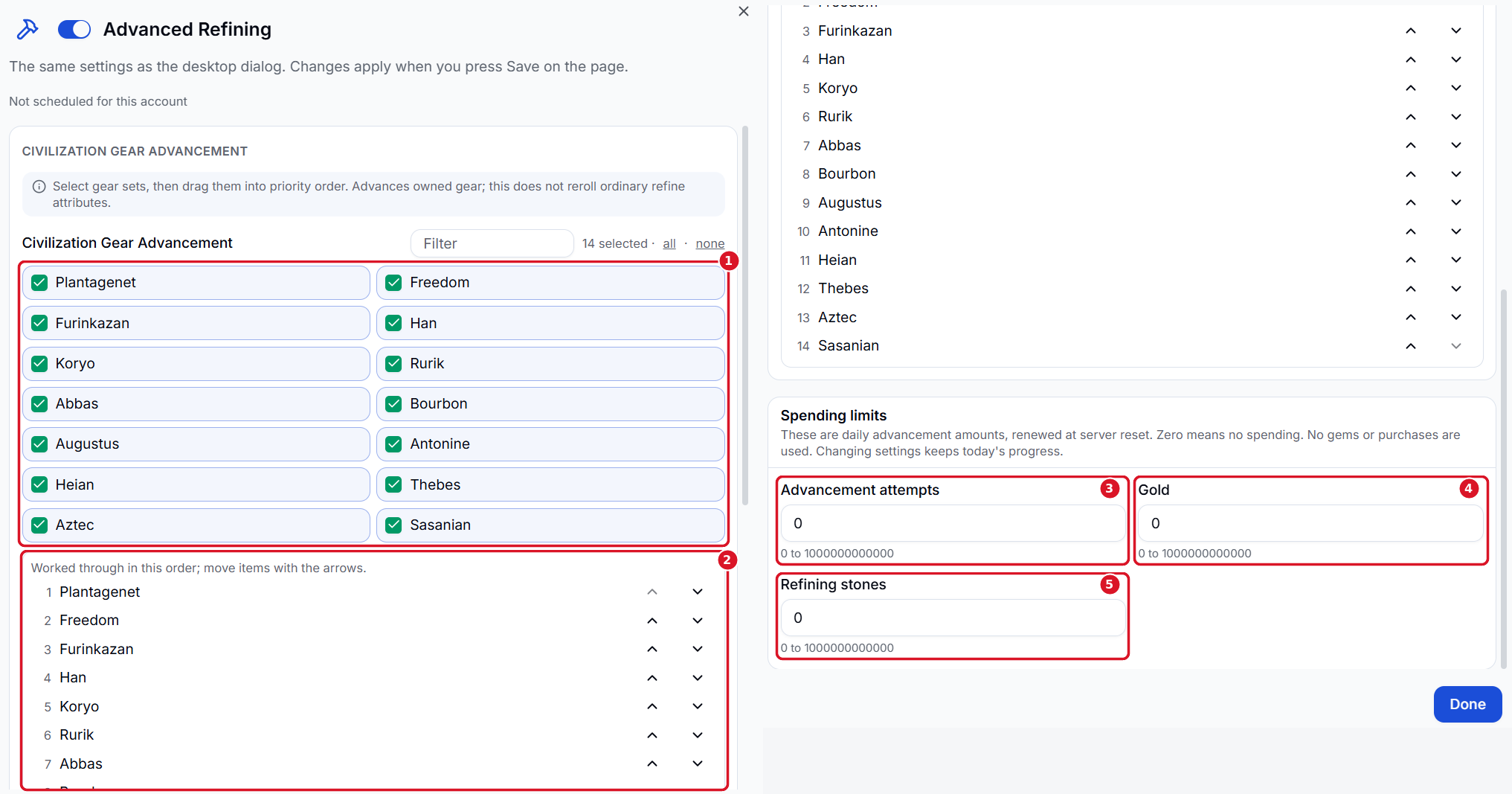 Advance Civilization Gear you already own by choosing gear sets, setting their priority, and adding daily limits. Ordinary refine attributes stay as they are.
- Civilization Gear Advancement - Tick the gear sets you want the bot to advance.
- Priority order - Use the up and down arrows to reorder the selected sets. The bot works through the list from top to bottom.
- Advancement attempts - Set the maximum number of advancement attempts per day.
- Gold - Set the maximum gold the bot can spend on advancement per day.
- Refining stones - Set the maximum refining stones the bot can spend on advancement per day.
A limit of 0 allows zero attempts or zero spending for that field. Limits renew at server reset, and changing them keeps the progress already made that day. Advancement uses no gems or purchases.
Dragon Feeding
Choose which dragons the bot feeds, how often it feeds them, and what resources it can use.
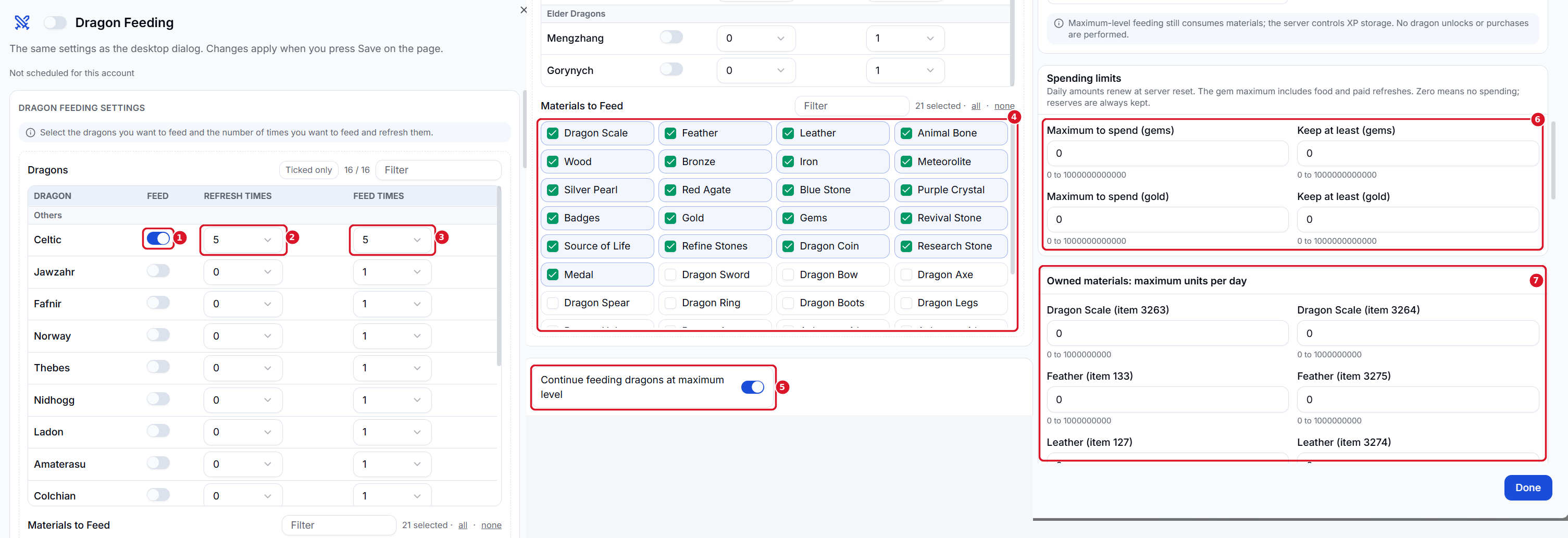
- Feed - Select each dragon you want the bot to feed.
- Refresh Times - Set how many times the bot can refresh the feeding options for that dragon. Set it to
0to skip refreshing. - Feed Times - Set how many times the bot can feed that dragon.
- Materials to Feed - Tick the materials and resources the bot is allowed to use. Gold and gems are also listed.
- Continue feeding dragons at maximum level - Enable this to keep feeding dragons that have reached their level cap. Feeding still consumes materials, and the game server controls whether XP is stored.
- Spending limits - Set a daily Maximum to spend and a Keep at least reserve for gems and gold. A spending maximum of
0blocks spending that currency. The gem limit covers both food and paid refreshes. - Owned materials - Set how many units of each inventory item the bot can use per day. Items with the same name have separate limits when their item IDs differ.
March Speedup
Automatically uses march speedups.
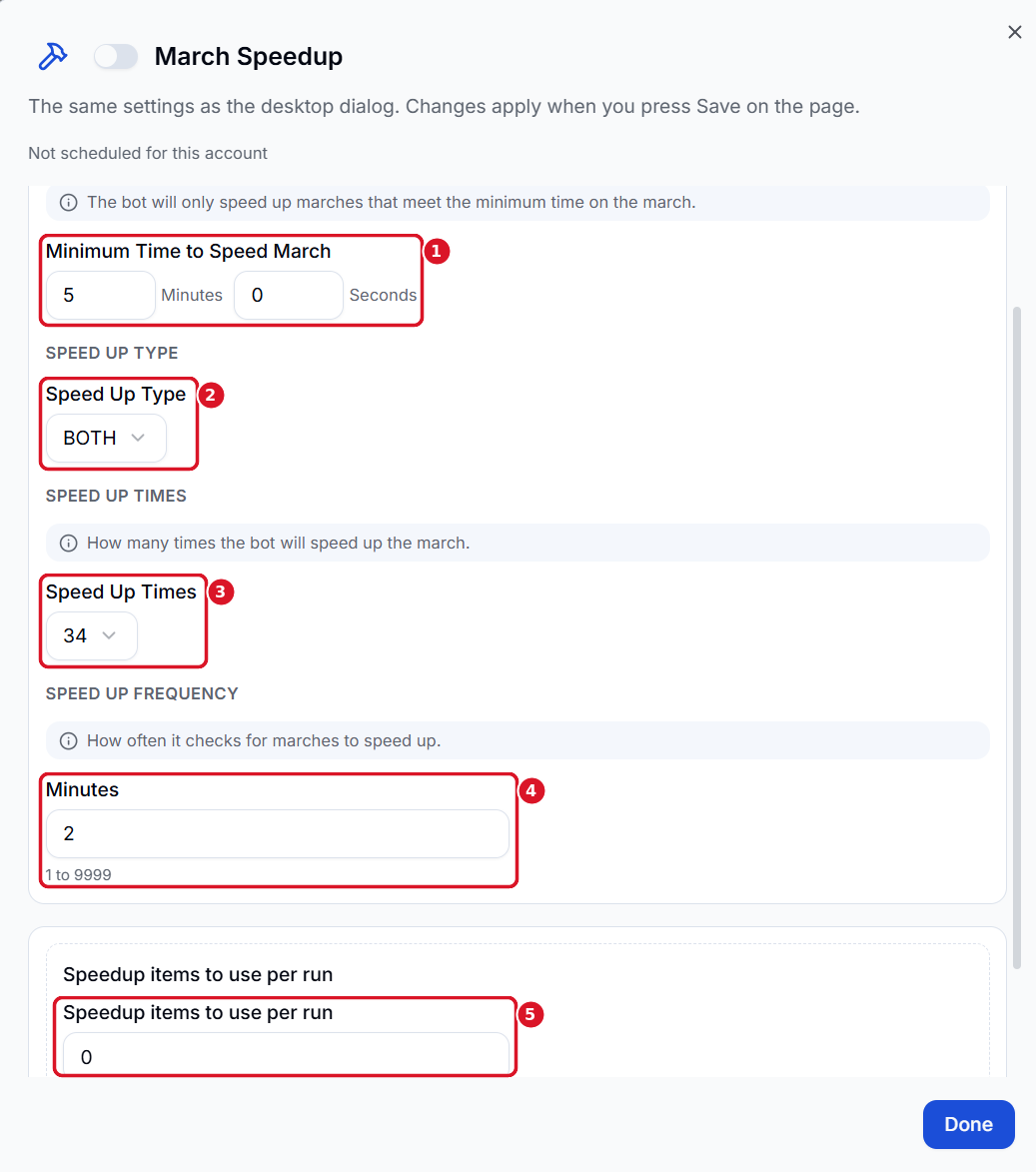
- Minimum Time to Speed March - Set the minimum remaining march time in minutes and seconds. With
5 minutesand0 seconds, the bot only speeds up marches with at least five minutes left. - Speed Up Type - Choose which march direction to speed up. BOTH includes outgoing and returning marches.
- Speed Up Times - Set how many times the bot can apply a speedup to an eligible march.
- Speed Up Frequency - Set how often the bot checks for eligible marches. A value of
2means it checks every two minutes. - Speedup items to use per run - Set how many speedup items the bot can use during one run.
Research
Automatically performs research in selected categories. Options: Select research categories and whether to use speedups. Research follows the selected categories from top to bottom.
Troop Healing
Automatically heals troops based on configured conditions.
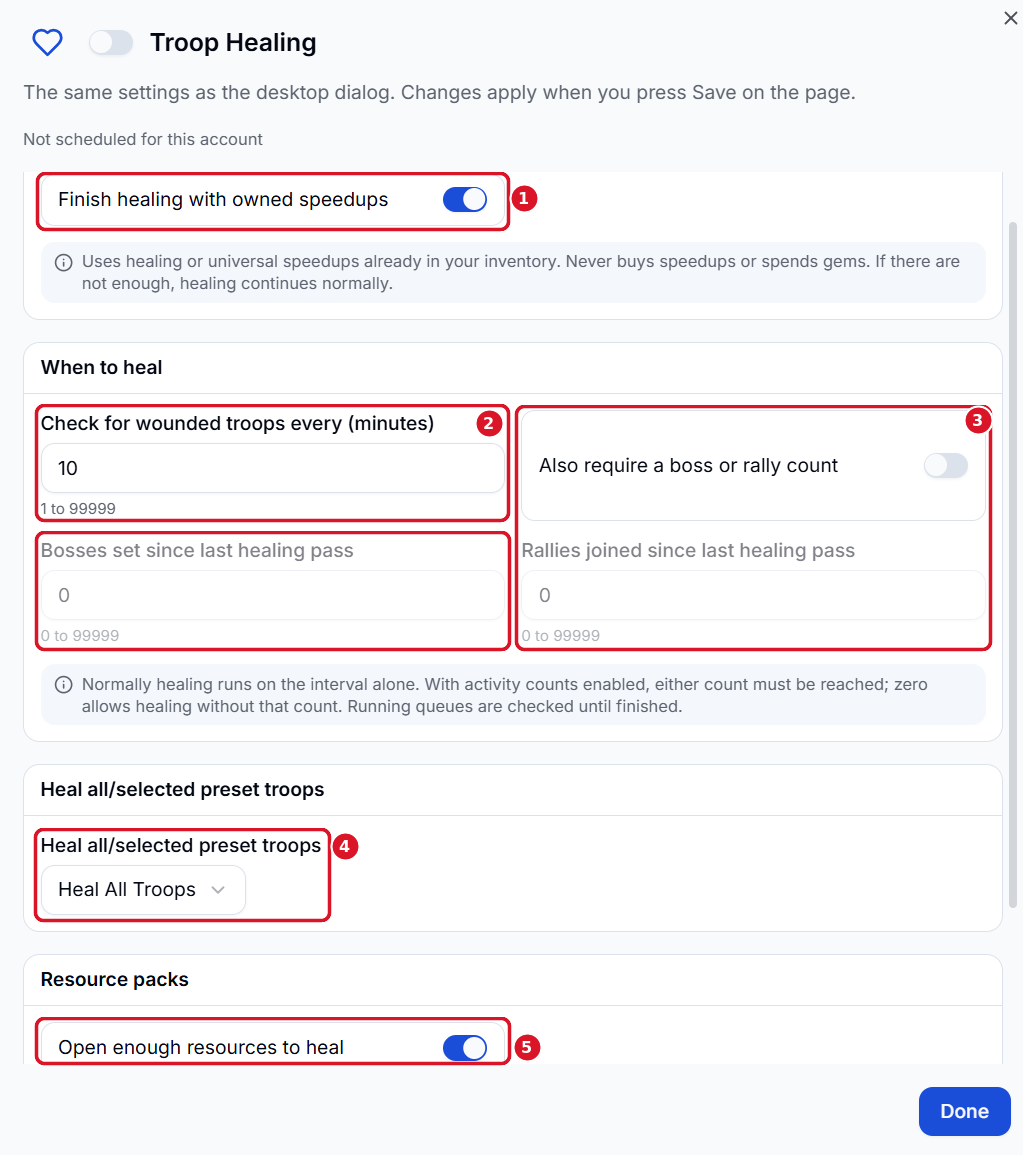
- Finish healing with owned speedups - Use healing or universal speedups already in your inventory. If there aren’t enough, healing continues normally. The bot uses no gems or purchases.
- Check for wounded troops every (minutes) - Set how often the bot checks for wounded troops. With
10, it checks every 10 minutes. - Also require a boss or rally count - When enabled, the bot also checks how many bosses it has set or rallies it has joined since the last healing pass. Either count can trigger healing at the scheduled check. Set a count to
0to allow healing without meeting that count. The bot continues checking active healing queues until they finish. - Heal all/selected preset troops - Choose Heal All Troops or limit healing to troops in selected presets.
- Open enough resources to heal - Allow the bot to open resource packs when more resources are needed for healing.
Relic Smashing
Automatically opens relic chambers and selects rewards.
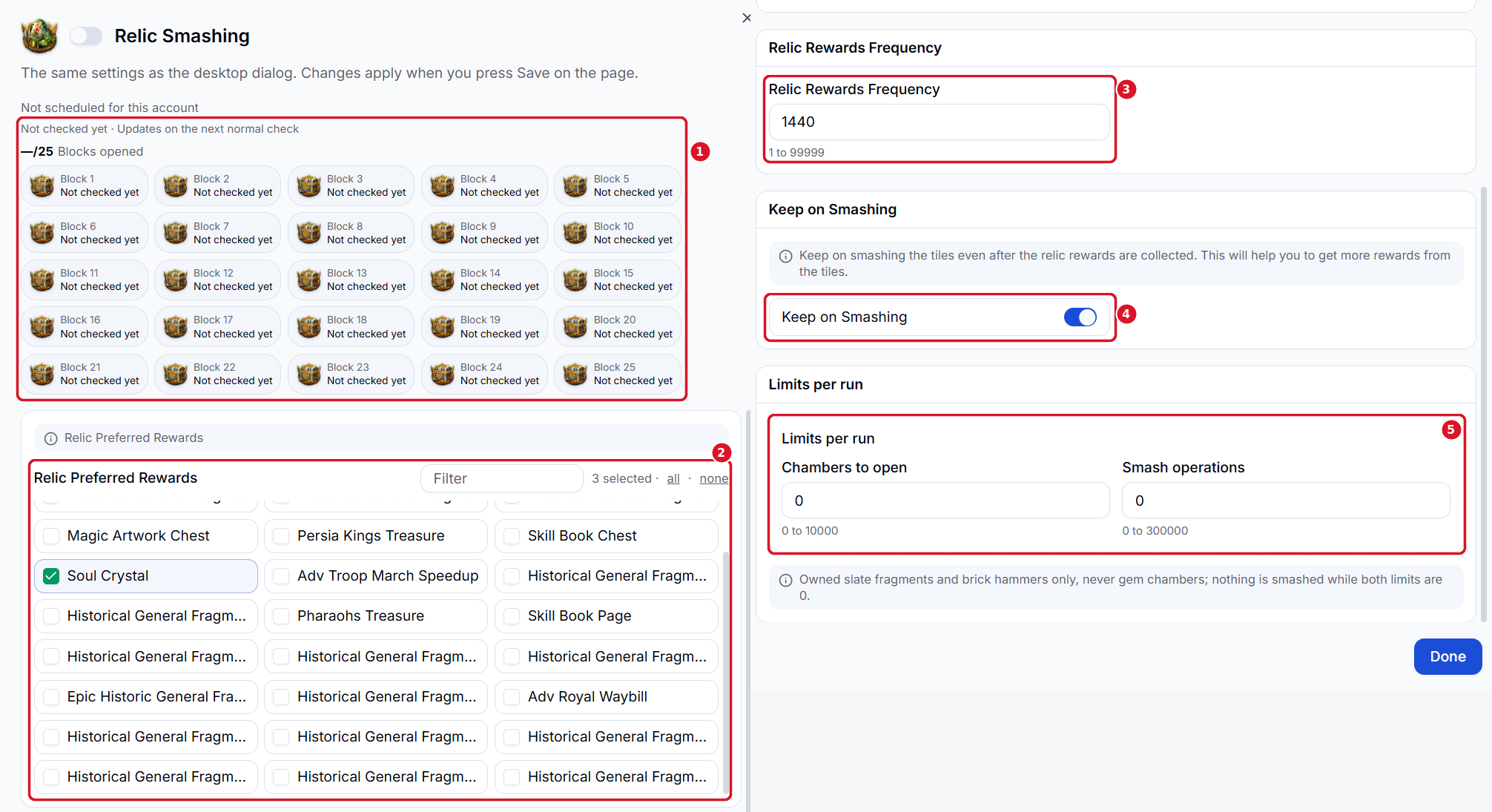 Choose which relic rewards the bot should prioritize and how many blocks it can smash per run.
- Blocks opened - See how many of the 25 blocks have been opened and the last reported status of each block. The display updates on the next normal check.
- Relic Preferred Rewards - Tick the rewards you want the bot to prioritize. Use Filter to find a reward by name.
- Relic Rewards Frequency - Set how often the bot checks for relic rewards.
- Keep on Smashing - Enable this to keep smashing tiles after collecting the relic rewards, up to the limits you set.
- Limits per run - Set the maximum number of Chambers to open and Smash operations per run. If both are
0, the bot skips smashing. It uses only slate fragments and brick hammers you already own and skips gem chambers.
Expedition Gift
Claims available Expedition Gifts. Options: Set how frequently the bot checks for gifts.
Bacchus Tavern
Collects cups and claims Bacchus Tavern rewards. Options: Configure Bacchus Tavern automation. Specific settings need confirmation.
Rally Card Spawn
Spawns bosses using the Rally Card.
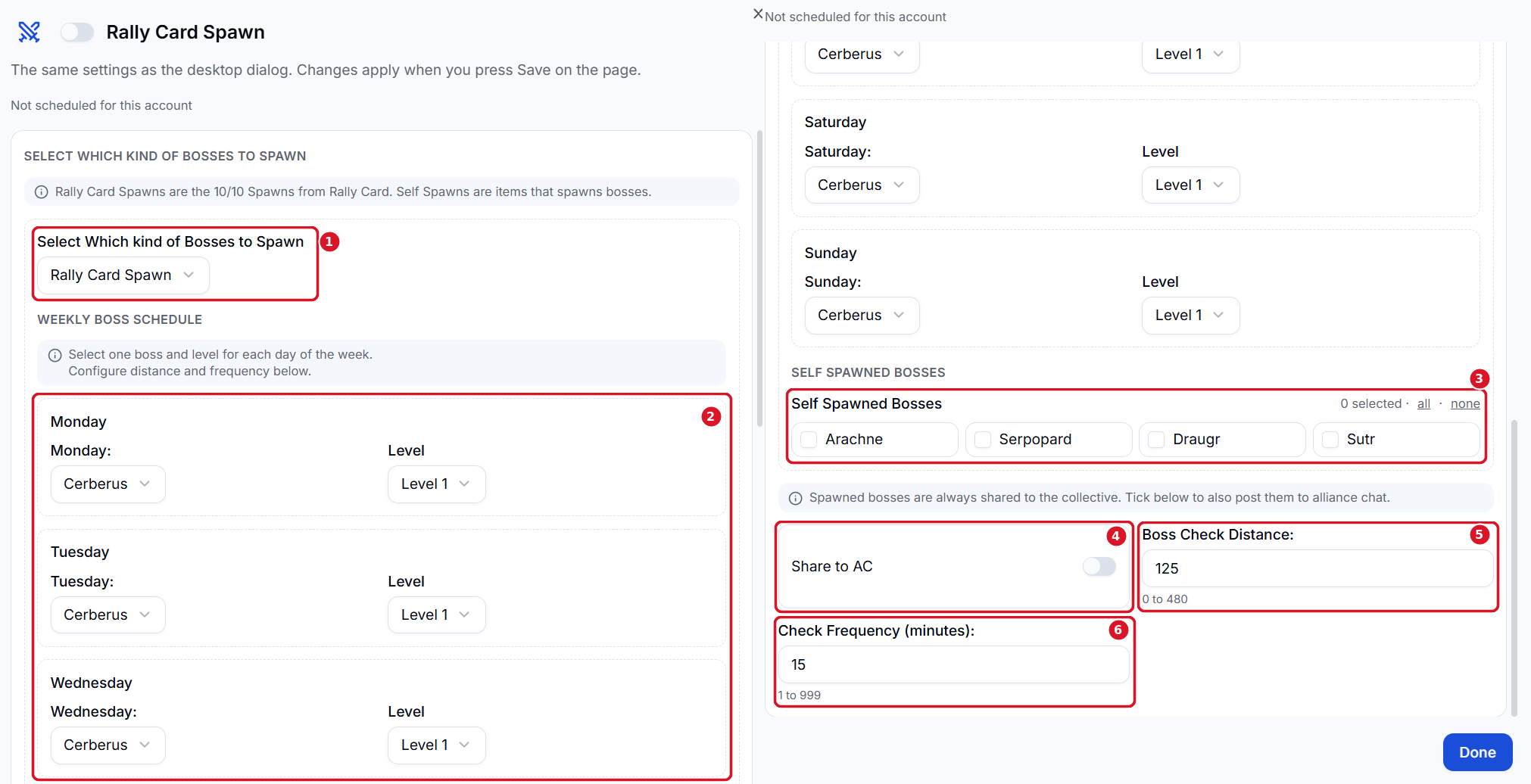 Set which bosses the bot can spawn using Rally Card chances or boss-spawn items.
- Select Which Kind of Bosses to Spawn - Choose Rally Card Spawn to use the card’s 10 spawn chances, or Self Spawn to use boss-spawn items.
- Weekly Boss Schedule - For Rally Card spawns, choose one boss and level for each day of the week. For example, set Monday to Cerberus, Level 1.
- Self Spawned Bosses - Tick the bosses the bot can spawn using items you own.
- Share to AC — Spawned bosses are always shared to the Collective. Enable this to also post them in alliance chat.
- Boss Check Distance - Set how far the bot checks the Collective for an existing boss of the same type and level before using a Rally Card spawn chance.
- Check Frequency (minutes) - Set how often the bot checks whether it can spawn. For example,
15means it checks every 15 minutes.
Citizens Task
Collects, recruits, and assigns citizens. Options: Enable Collect Citizens, Recruit Free Citizen, and Quick Assign. Set the check frequency in minutes.
Ranger Knight Order
Automates selected Ranger Knight Order tasks and rewards. Options: Configure Quick Dispatch, Plunder, Claim Rewards, Help Ally Tasks, and Compose Emblem Chests.
Trade Carriage
Sends Trade Carriage marches using selected presets and generals.
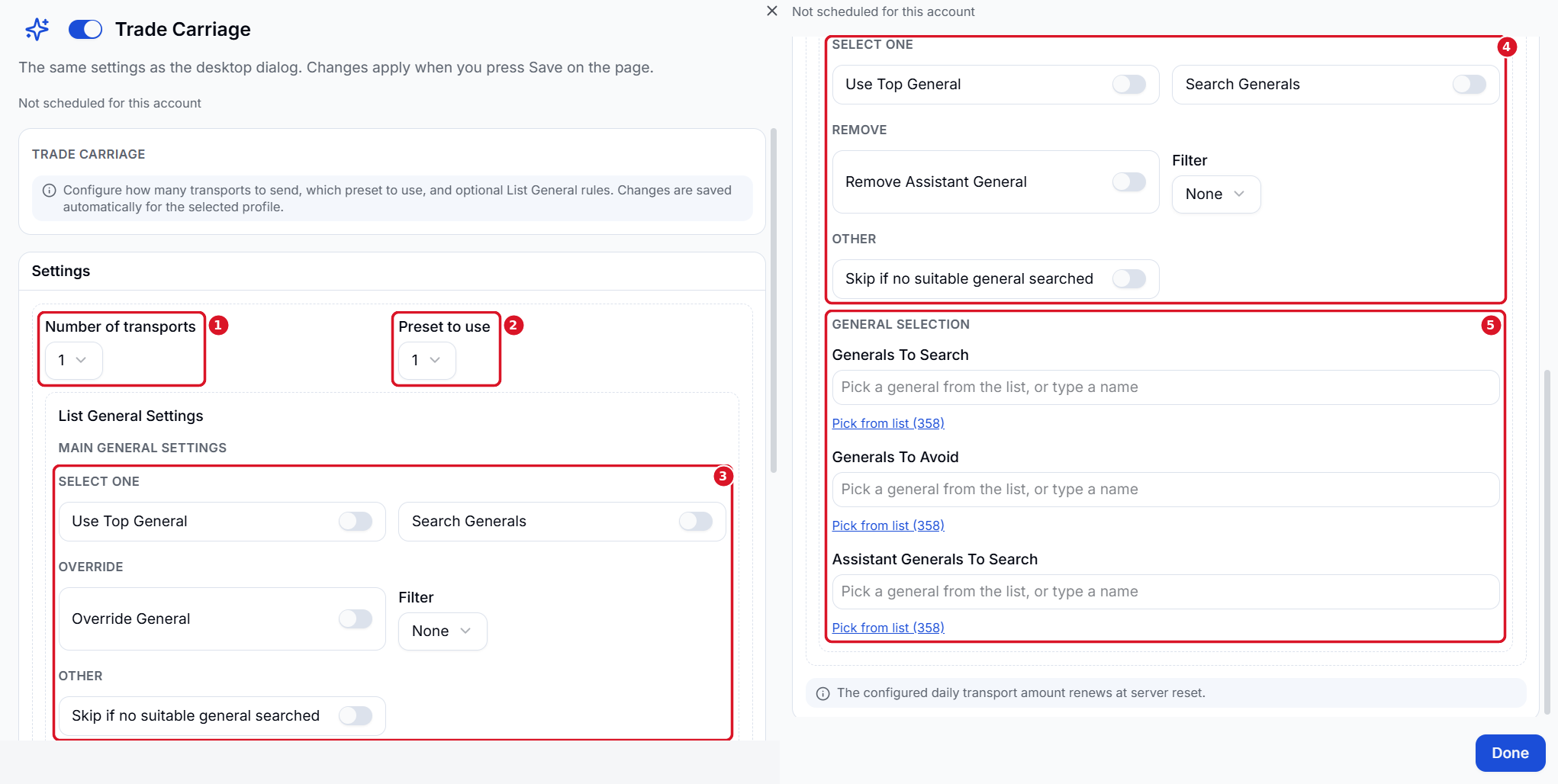 Set how many transports the bot sends each day, which preset it uses, and how it selects generals.
- Number of transports - Set how many transports to send per day. The allowance renews at server reset.
- Preset to use - Choose the march preset to use for transports.
- Main General Settings - Choose Use Top General to use the top general in the list or Search Generals to look for specific names. Use Override General to replace the preset’s main general. Enable Skip if no suitable general searched to skip the transport when the search finds no match.
- Assistant General Settings - Choose Use Top General or Search Generals for the assistant. Use Remove Assistant General to clear the assistant from the march. The assistant search also has its own Filter.
- General Selection - Type a name or use Pick from list. Add preferred main generals under Generals To Search, exclusions under Generals To Avoid, and preferred assistants under Assistant Generals To Search.
Important Notes
- Activities must be enabled individually for each account.
- Activities with an Options button require additional configuration.
- Some activities depend on in-game requirements, available resources, or active events.
- Activity progress may not update immediately and can require another check cycle.
- Check your activity settings regularly to make sure they match your preferences.
- Make sure you saved your settings.