


Getting Started
Cloud Main Menu Guide
Cloud Main Menu Guide Open Cloud in the EAT Dashboard to view and manage your Evony accounts. Once started, Cloud accounts run on our servers and keep…
Это руководство ещё не переведено на Русский, поэтому оно показано на английском.
Cloud Main Menu Guide
Open Cloud in the EAT Dashboard to view and manage your Evony accounts. Once started, Cloud accounts run on our servers and keep going when you turn off your PC.
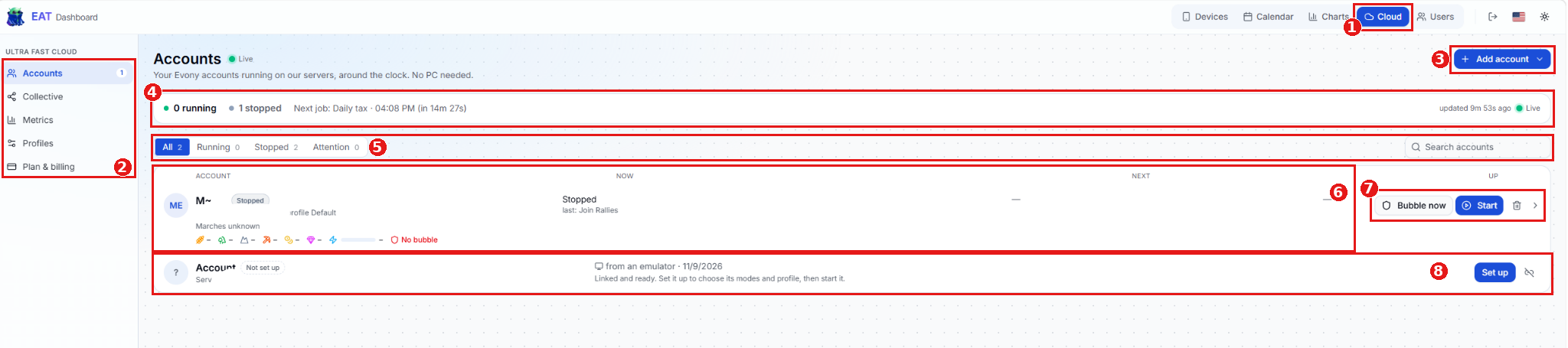
Cloud tab - Opens the Cloud section of the EAT Dashboard.
Cloud sidebar - Use the menu to switch between Cloud pages.
Page What you can do Accounts View, set up, and manage your Cloud accounts. Collective Open the shared Collective data used by Cloud features. Metrics Review Cloud activity and results. Profiles Manage reusable settings, activities, and schedules for your accounts. Plan & billing View your Cloud plan and billing details. Add account - Opens the available options for adding an Evony account to Cloud.
Status summary - Shows how many accounts are running or stopped, the next scheduled job, and when the dashboard last updated.
Filters and search - Use All, Running, Stopped, or Attention to narrow the list, or enter an account name in Search accounts.
Account overview - The account card shows the account’s status, assigned profile, shield indicator, and how many marches are out. If the march count is unavailable, the card shows Marches unknown. The Now and Next columns show activity and upcoming work when available. A dash means no value is displayed.
Account actions - Click Bubble now to activate the account’s shield immediately. Click Start to run a stopped account or the arrow to open the account’s details.
Set up - If an account is already linked and shows Not set up, click Set up, choose its profile and modes, then start it.